Audio Removal Tool Guide: How Modern AI Separators Work
You've got a street interview where the speaker is clear until a bus passes. A vinyl rip contains the vocal you want, but the backing track is welded to it. Or a refrigerator hum sits under every line of dialogue in a video you need to finish today. In each case, the recording is already made, so better microphone placement or acoustic treatment can't fix the original file. You need an audio removal tool that can identify parts of a finished mix and separate, suppress, or discard them.
The important shift is that modern tools aren't limited to muting a track. They use source separation, the field of signal processing behind vocal extraction, instrument isolation, and background suppression. Traditional workflows expect a fixed set of stems. Newer systems can respond to a description such as “crowd cheering” or “dog barking,” which makes them useful far beyond music production.
What an Audio Removal Tool Actually Does
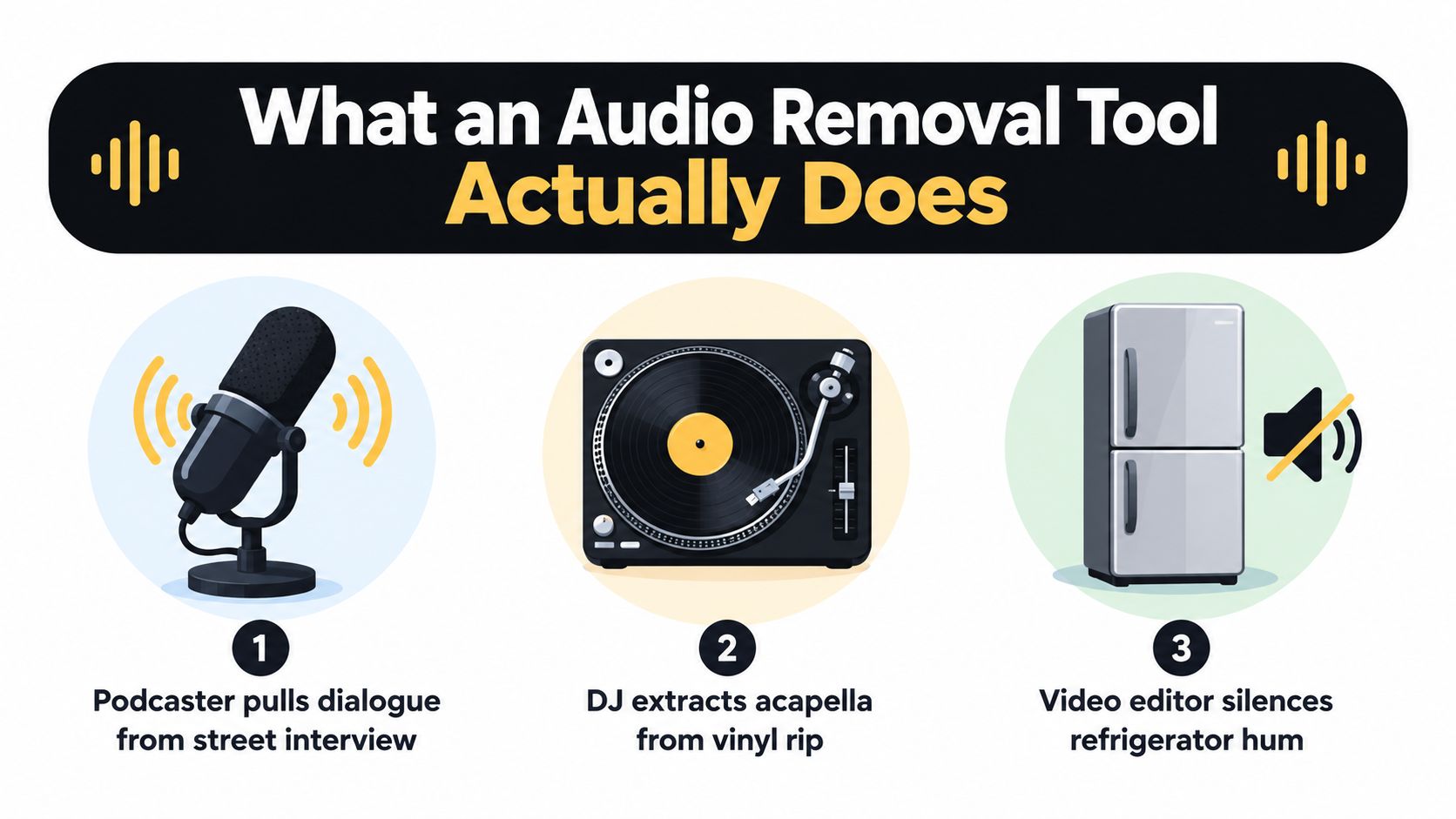
A podcaster may want to keep one person's dialogue from a busy street recording. A DJ may need an acapella from a stereo vinyl rip. A video editor may want to reduce a refrigerator hum without losing the speaker's voice. These are different jobs, but they share the same problem: several sound sources have been combined into one finished file.
An audio removal tool analyzes that mix and tries to reassign its elements. It may preserve the voice, isolate a vocal, extract an instrument, or create a remainder track with the unwanted sound reduced. The software isn't recovering the original multitrack session. It's estimating which parts of the waveform belong to which source, then rebuilding the requested result.
That distinction matters. A better microphone, closer placement, or quieter room prevents unwanted sound from entering the recording. An audio removal tool works after capture, when the sources already overlap. It can improve a difficult file, but it can't guarantee the same result as recording each source separately.
Four useful categories
- Vocal removers target singing or spoken voice, often to produce an acapella.
- Noise reducers suppress steady or diffuse interference such as hum, fan noise, hiss, or room ambience.
- Full stem splitters divide music into recurring groups such as vocals, drums, bass, and other.
- Language-queried separators accept a natural-language description and attempt to isolate the sound you name.
That last category changes how people search for tools. If you're comparing broader creator software alongside audio utilities, a curated guide to the top AI content creation tools of 2025 can help place audio separation within a larger production workflow.
How AI Source Separation Works Under the Hood
Before neural models, editors relied on rules. Frequency masking could reduce a band where unwanted sound was concentrated. Mid/side processing could emphasize or suppress the center of a stereo image. Phase cancellation could remove material when two aligned signals contained opposite phase information. These methods remain useful, but they work best when the target and the remainder occupy different frequencies, positions, or phase relationships.
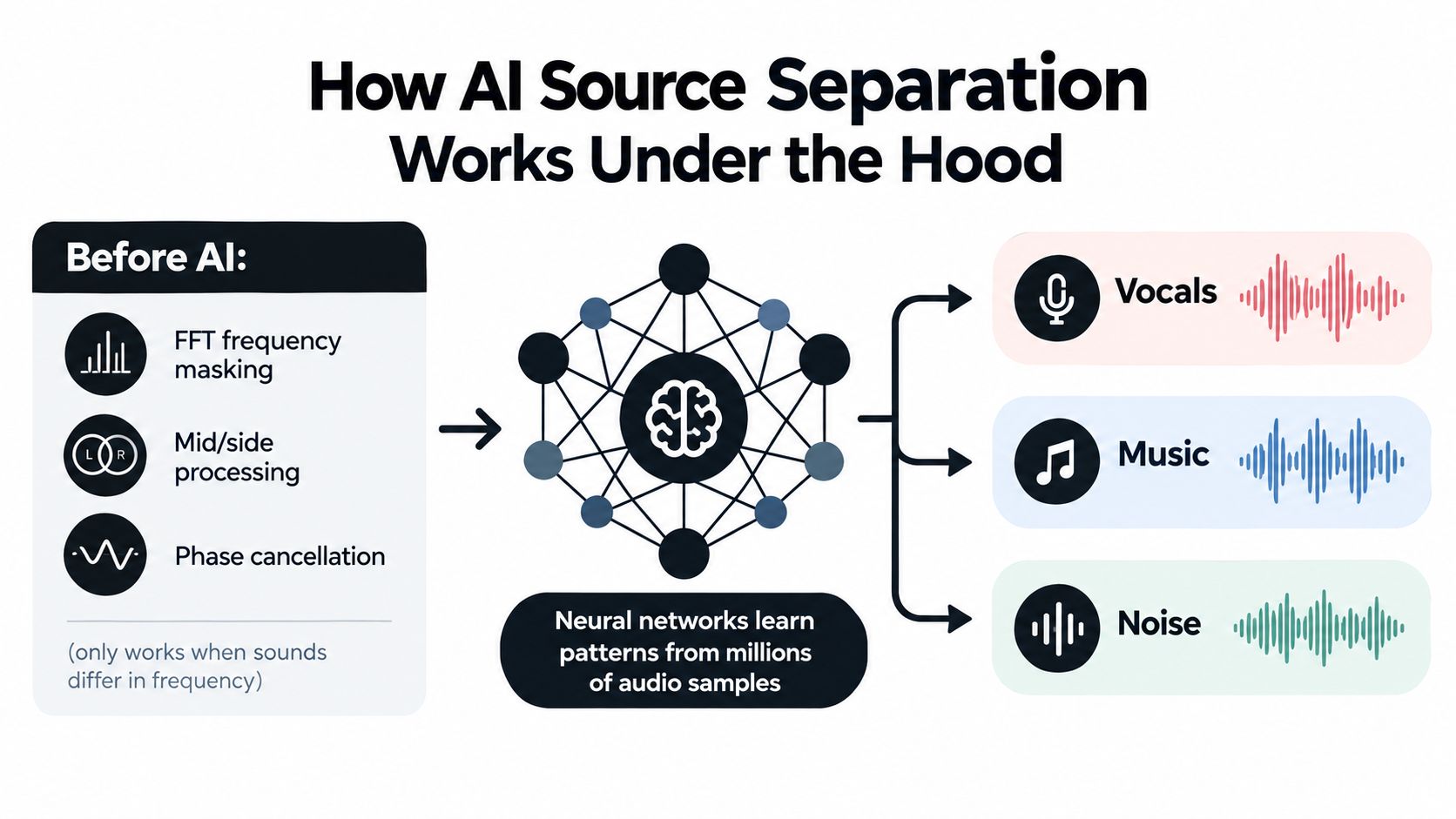
Neural separation approaches the problem differently. A model studies examples of mixed recordings and their component sources, then learns recurring patterns. It may recognize the transient shape of a kick, the noisy edge of a breath, the sustained tone of a vocal, or the changing texture of a cymbal. The model isn't listening with human intention, but it can learn enough statistical structure to estimate which sound belongs where.
The practical signal path
Most systems follow a sequence that can be explained without equations:
- Convert the audio into a spectrogram. The software maps energy across time and frequency, like turning the recording into a moving heat map.
- Predict a mask or source estimate. The neural network marks regions that are likely to belong to the requested source.
- Reconstruct the waveform. The system converts that estimate back into playable audio.
- Create the remainder. Some tools subtract the estimate from the original mix, producing a second file with the target reduced.
Older source-separation research became a distinct and increasingly recognized area of audio engineering. A review of more than three decades of source-separation research notes that the topic entered the IEEE signal-processing taxonomy in 2006 and was later divided into separate audio-separation and signal-enhancement classifications in 2014. That progression reflects the field's expansion across acoustics, speech, and music technology.
“Precision Mode” should be understood as a more demanding separation pass, not magic. Higher-resolution processing can help when sources are dense, heavily compressed, or closely layered, but it can also take longer and still produce artifacts when the recording gives the model little evidence to work with.
Language Queries Versus Traditional Stem Splitters
Traditional four-stem separation is predictable. Give the system a song, and it generally tries to return vocals, drums, bass, and other. That fixed inventory suits remixing, practice tracks, karaoke, and many DAW sessions because producers know what files they'll receive before processing begins.
Language-queried separation starts with a different question: what sound do you want, in ordinary language? You might request “spoken voice,” “piano melody,” “crowd cheering,” or “a dog barking.” Research on audio retrieval with natural-language queries describes this broader direction as a move toward selecting arbitrary sounds rather than only predefined musical stems.
| Capability | Language-Queried AI | Traditional 4-Stem Splitter |
|---|---|---|
| Output | A source described by the user, plus a remainder in supported workflows | Fixed groups such as vocals, drums, bass, and other |
| Best fit | Dialogue, field recordings, sound design, unusual effects, one-off extractions | Music mixing, karaoke, remixing, and repeatable stem workflows |
| Prompting | Requires a specific description | Usually requires a source file and preset |
| Predictability | Depends on how clearly the target appears in the recording | More consistent for familiar music categories |
| Main risk | Vague prompts can produce an incomplete or incorrect target | Unusual sounds get folded into broad stem categories |
Neither approach replaces the other. A traditional splitter is often the sensible first choice for a professionally produced song when you need a familiar set of stems. A queried model is more useful when the target is a laugh, a siren, a particular speaker, or a non-musical environmental sound.
The category is also moving toward multimodal control. Meta's SAM Audio research describes a system that combines text, visual, and temporal prompts for general audio separation. That direction suggests a future in which users can point to a moment, name a sound, or provide an accompanying visual cue instead of selecting from a short preset list.
A hybrid workflow often makes the most sense. Use fixed stems to organize a music mix, then use a language query for a specific effect or voice that the four buckets cannot represent cleanly.
A Practical Workflow With Isolate Audio
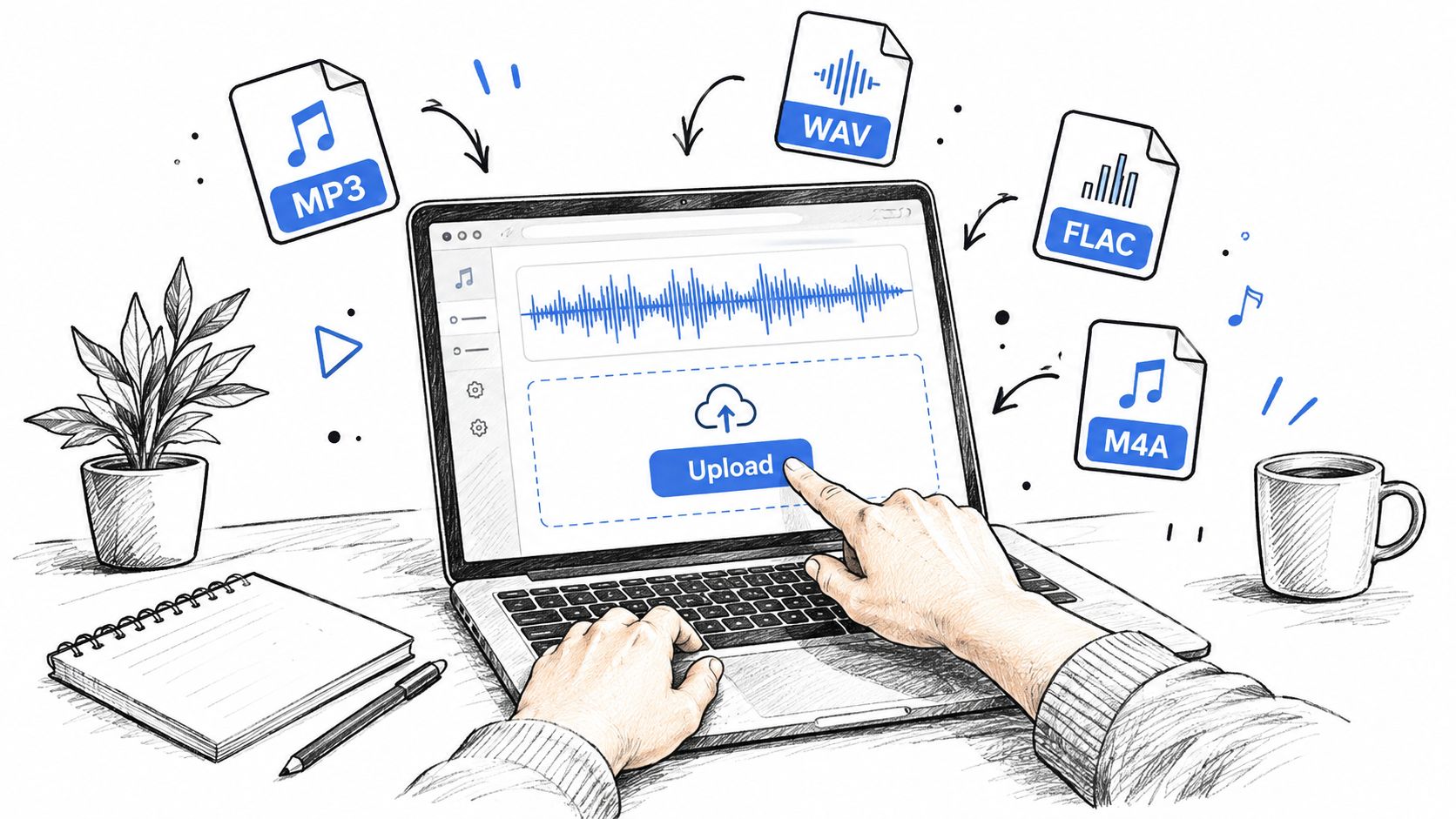
A language-queried workflow starts with a clear source and a clear listening goal. Using Isolate Audio as the example, upload the cleanest file available. Lossless WAV or FLAC preserves more information for separation than an aggressively compressed preview, while common formats such as MP3, M4A, OGG, MP4, and WebM may also be accepted.
Write the request like an editor
Name the sound you want and, when useful, the material that should remain:
- “Remove background music, keep spoken voice.”
- “Isolate crowd cheering.”
- “Keep the interviewee, reduce traffic and passing vehicles.”
- “Extract piano melody from the full mix.”
“Remove audio” leaves the target undefined. A specific noun gives the model something to locate, while a preservation instruction describes the remainder. That distinction matters in a dense recording, where removing one sound can otherwise take speech, ambience, or musical detail with it.
Upload the file, enter the request, and select a quality setting. A fast or balanced pass is useful for checking whether the target appears clearly enough to separate. Use a higher-quality setting when the output will continue into a DAW, NLE, or final export.
Decide when Precision Mode earns its time
Choose Precision Mode for crowded mixes, heavy compression, overlapping voices, or a target buried beneath music. Standard processing usually fits a clean voice-over with steady background noise, or a simple extraction where the sources are already distinct.
Preview before a longer render. Listen at the beginning, in the middle, and during the busiest passage. If the tool provides both an isolated track and a remainder, audition both. Subtraction often exposes damage that is difficult to hear in the isolated file alone.
Use filenames that record the source, request, and version, such as interview_crowd-cheering_precision_v2.wav. Metallic edges, missing consonants, or pulsing ambience indicate that the prompt or mode needs revision. For music projects, an instrumental music app workflow can help you choose between a backing track, an acapella, and a narrower extraction.
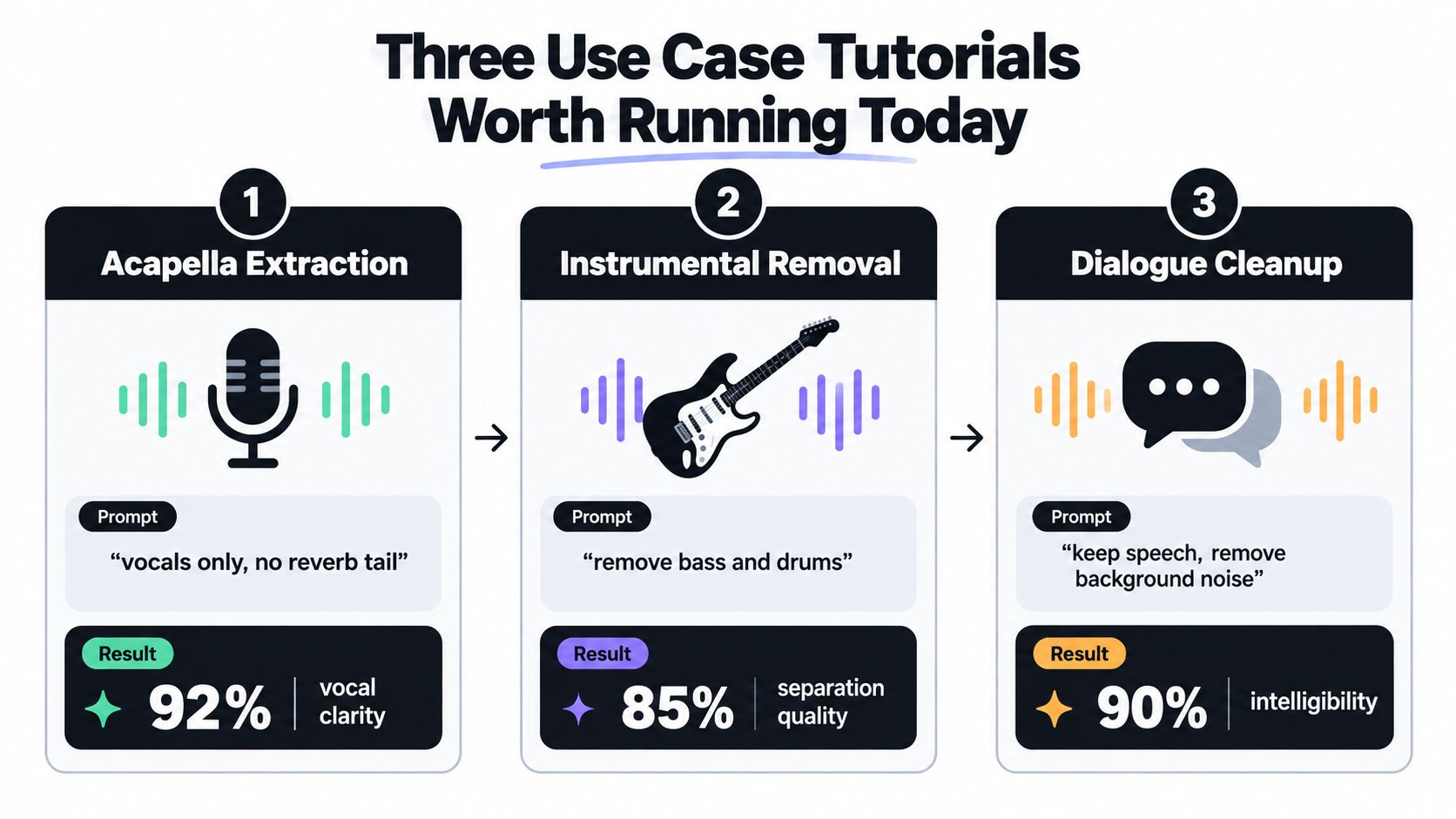
Three Use Case Tutorials Worth Running Today
Use a recording you already know when testing an audio removal tool. Keep the original untouched, render a short preview, and compare the result with the source before building an edit around it. This makes artifacts easier to identify because you know which breaths, room reflections, and transients should be present.
Acapella extraction from a stereo mix
Start with “vocals only, no reverb tail.” Select a vocal or music-oriented preset. Precision Mode is useful when the arrangement is dense, compression is heavy, or instruments occupy the same range as the voice.
A clean pop mix can still leave reverb, doubled vocals, backing parts, or chorus effects. Check phrase endings and sustained notes, where leftover ambience often becomes obvious. If the output sounds too wet, revise the request or keep the reverb as a separate creative layer instead of forcing an unnaturally dry vocal.
Verification: Check a phrase with a breath, a consonant, and a held note before exporting.
Dialogue cleanup in a noisy room
Try “remove hum and air conditioning, keep speaker voice.” Choose a dialogue or speech-oriented preset and begin with standard processing. Precision Mode deserves a comparison when the noise changes over time or overlaps the speaker.
The aim is a clear voice with a believable room bed, rather than silence between every word. Abrupt gaps and an underwater tone can draw more attention than steady background noise. Compare the opening sentences, a louder passage, and any moment when the speaker talks over the noise.
Verification: Play the cleaned dialogue without looking at the video. If words disappear or the voice sounds hollow, reduce the processing intensity or try a different prompt.
Isolating a non-musical sound
Describe the event with a specific noun and its context. For example, request “isolate dog barking from the field recording” or “isolate the cymbal crash.” Choose a sound-effects-oriented preset, then use Precision Mode when the target overlaps speech, wind, music, or other effects.
Short events need context for reliable judgment. Listen before and after the target because the model may capture nearby ambience or cut into the attack. For a bark, inspect its start and decay. For a cymbal crash, check that the transient remains sharp and that room tone has not been pulled into the extracted track.
Language-queried audio source separation extends the category beyond fixed music stems. A request such as “people laughing after a man tells a joke” identifies an event through its context, rather than forcing it into a predefined category. That makes it a better fit for field recordings, podcasts, and video sound design when a conventional stem splitter cannot name the sound you need.
Choosing the Right Preset, Mode, and File Format
Choose settings by the sound you need, not by the most advanced-sounding label. Vocal extraction asks the model to preserve pitch and phrasing. Dialogue cleanup gives priority to intelligibility and natural consonants. Foley and field recordings depend on sharp transients, accurate timing, and the surrounding acoustic texture. A language query can name a specific event, while a traditional stem preset is better suited to familiar music sources.
| Job Type | Recommended Preset | Mode | Output Format |
|---|---|---|---|
| Vocal or acapella extraction | Vocals or music-oriented preset | Precision Mode for a busy mix | Lossless WAV for DAW work |
| Backing-track preparation | Backing-track or music-oriented preset | Standard for a clear mix, Precision Mode for dense arrangements | WAV for editing and remixing |
| Dialogue cleanup | Dialogue or speech preset | Standard first | WAV for editing, high-bitrate MP3 for delivery |
| Field recording or Foley | Sound Effects preset with a descriptive prompt | Precision Mode when sources overlap | WAV to preserve transients |
Lossless formats retain more of the information available to the separator and leave room for later processing. Lossy files remain suitable for drafts, social clips, or compact final delivery, although repeated transcoding makes later repair harder. Review these lossless audio file formats before choosing an upload or archive format.
When artifacts are acceptable
A rough video cut, private rehearsal track, or search preview can tolerate some artifacts. Commercial masters, broadcast dialogue, and stems intended for heavy processing require closer inspection.
Listen for warbling, watery ambience, clipped attacks, missing breaths, and sounds that shift unnaturally between channels. A preset cannot recover a target that is barely present or fully masked. If the first pass fails, change one variable at a time, such as the prompt, preset, or mode. That makes the improvement easier to identify and helps distinguish a poor query from a difficult recording.
Where Audio Removal Tools Still Struggle
A separator can produce a convincing result on a clear example and still fail on a real production file. Two people speaking at once create overlapping vocal patterns. A dishwasher can mask the same frequency region as dialogue. A guitar solo can share the sustained energy of a synth pad, making the boundary between sources uncertain.
Some failures reflect training coverage. Rare source combinations, unusual microphones, distorted recordings, and unfamiliar sound events may not resemble the examples the model learned. Other failures come from physics. When two sources occupy the same time, frequency, and stereo position, the recording contains limited evidence for separating them cleanly.
Runtime conditions create a separate constraint. Long interviews, mobile processors, limited memory, browser restrictions, and upload caps can affect whether a job is practical. Cloud processing can reduce local hardware demands, but it doesn't remove the need to check duration, file size, format support, or privacy terms before uploading sensitive material.
| Failure Mode | Likely Cause | Best Next Step |
|---|---|---|
| Two voices turn into a watery blend | Overlapping speech and similar vocal features | Edit around the overlap, try a targeted prompt, or use the cleanest available alternate take |
| Dialogue sounds hollow after noise removal | Processing is too aggressive or the source has a poor signal-to-noise ratio | Reduce intensity, use a lighter pass, or combine separation with gentle EQ |
| Music becomes metallic after vocal extraction | Vocal and instruments share frequency content | Try Precision Mode, retain some original ambience, or use the source as a guide rather than a final stem |
| A target sound is missed | Prompt is vague or the event is too brief or buried | Name the exact sound and inspect the surrounding passage |
| A long file is impractical to process | Upload or runtime limits | Split the file into sections, test a representative excerpt, or use a local editor |
When the target and the unwanted sound are indistinguishable in the recording, re-recording is often more effective than adding another separation pass.
Reach for a gate when the unwanted sound appears between phrases, a parametric EQ when the problem occupies a narrow and stable band, and a re-record when the source is buried or the result must meet a high delivery standard.
Troubleshooting, FAQ, and Where to Go Next
Start with a short diagnostic pass:
- Artifacts: Compare the isolated and remainder files, then test a clearer prompt or Precision Mode.
- Silence: Confirm that the target is present and that the prompt names it directly.
- Wrong stem: Replace broad wording such as “remove audio” with a target and preservation instruction.
- Unnatural voice: Lower processing strength and compare against the unprocessed recording.
- Long render: Test a representative excerpt before processing the full file.
Upload limits, supported formats, retention, and commercial-use permissions depend on the platform and plan, so check the current service terms before sending confidential recordings or delivering stems to a client. Lossless exports are preferable for continued editing, while compressed formats suit lightweight delivery.
The next useful developments are practical integrations: API access, batch endpoints, and plug-ins for DAWs and NLEs. Those connections would let editors process many clips, preserve project metadata, and trigger targeted separation without leaving the timeline. For now, treat an audio removal tool as an assistant that makes an informed estimate, then verify every important result by ear.
Isolate Audio lets you upload audio or video, describe the sound you want in natural language, and download the isolated element and the remaining mix. Visit Isolate Audio with a short test file, try a specific prompt such as “isolate crowd cheering” or “keep spoken voice, remove background music,” and compare the result before using it in your next production.