
10 Best Remove Background Noise Video App Tools for 2026
You've got a usable take. The picture's fine. The fridge hum, the traffic outside the window, or the crowd behind your speaker is what's ruining it. Turning the volume up won't help, because it raises the voice and the noise together. What you need is a remove background noise video app that changes the balance between them.
That balance matters fast. In the Frontiers in Communication study of typical and dysphonic speakers, typical-speech intelligibility was 94.13% in quiet, fell to 89.42% at a signal-to-noise ratio of +5 dB, and dropped to 61.95% at 0 dB SNR. Speech generally needs at least +10 dB SNR at a distance of 1 meter to be fully intelligible. Once ambient sound approaches dialogue level, viewers don't just notice noise. They miss words.
No single tool handles every case well. A steady hum is easy. Overlapping crowd speech is not. Wind hitting a phone mic sits in between, and aggressive cleanup often makes it worse. This roundup groups 10 tools by the job they do. Some give you one-click speech cleanup. Some repair dialogue inside a full editor. One lets you name a specific sound and pull it out. Match the tool to your noise, test a short section first, and always keep the original file.
1. Isolate Audio
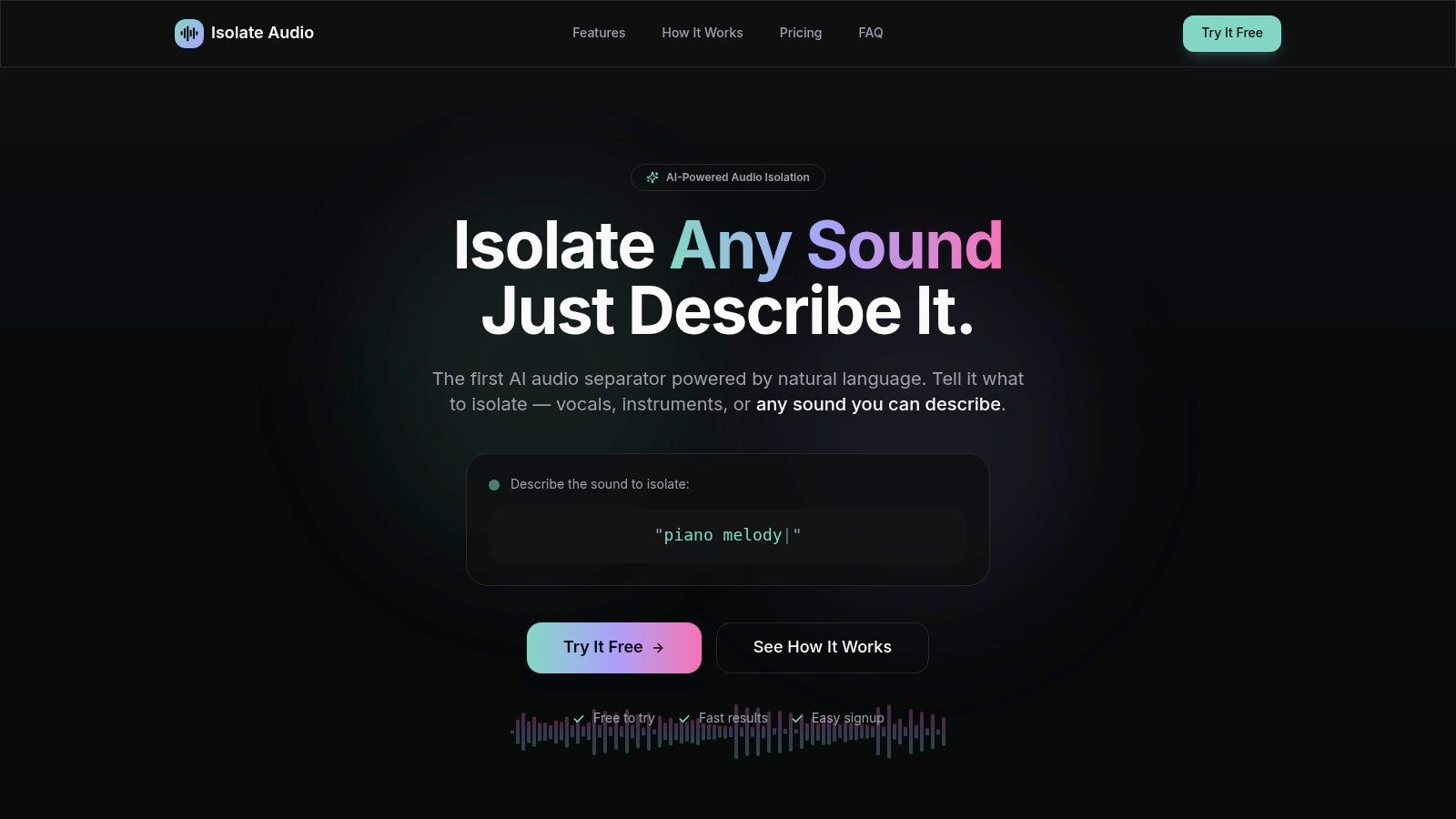
Most cleaners ask one question. How much noise should I suppress? Isolate Audio asks a different one. Which sound do you want? You upload audio or video, describe the target in plain English, and download two tracks. One holds the isolated sound. The other holds everything else.
That matters when the unwanted sound isn't generic hiss. Type barking dog, crowd cheering, piano melody, or dog barking and the tool separates that described element from the rest of the recording. Traditional stem separators stay inside fixed categories such as vocals, drums, or bass. A prompt gives you a way to target the siren behind a street interview, pull a voice forward from room noise, or keep background music while reducing the speaker over it. You then rebuild the mix at the level you want.
Where It Fits and Where It Struggles
It accepts MP3, WAV, FLAC, M4A, OGG, WebM, and MP4, runs in the browser, and needs no installation. Best, Balanced, and Fast presets let you trade processing time against output quality. Precision Mode is the option for difficult mixes with overlapping sources, where a simple denoise pass would blur the voice along with the noise. Cloud processing keeps the workflow quick on ordinary hardware.
Use the free tier to test whether your clip behaves before you build a workflow around it. Pro plans are aimed at heavier use, with unlimited separations, lossless formats, longer durations, and priority queues. API access and custom integrations sit at the enterprise end for teams processing audio at scale.
I recommend it first when you need a specific sound removed or kept, not just cleaner dialogue. Results still vary on dense, overlapping audio. Test the worst ten seconds before you commit a long file.
2. Noise Reducer
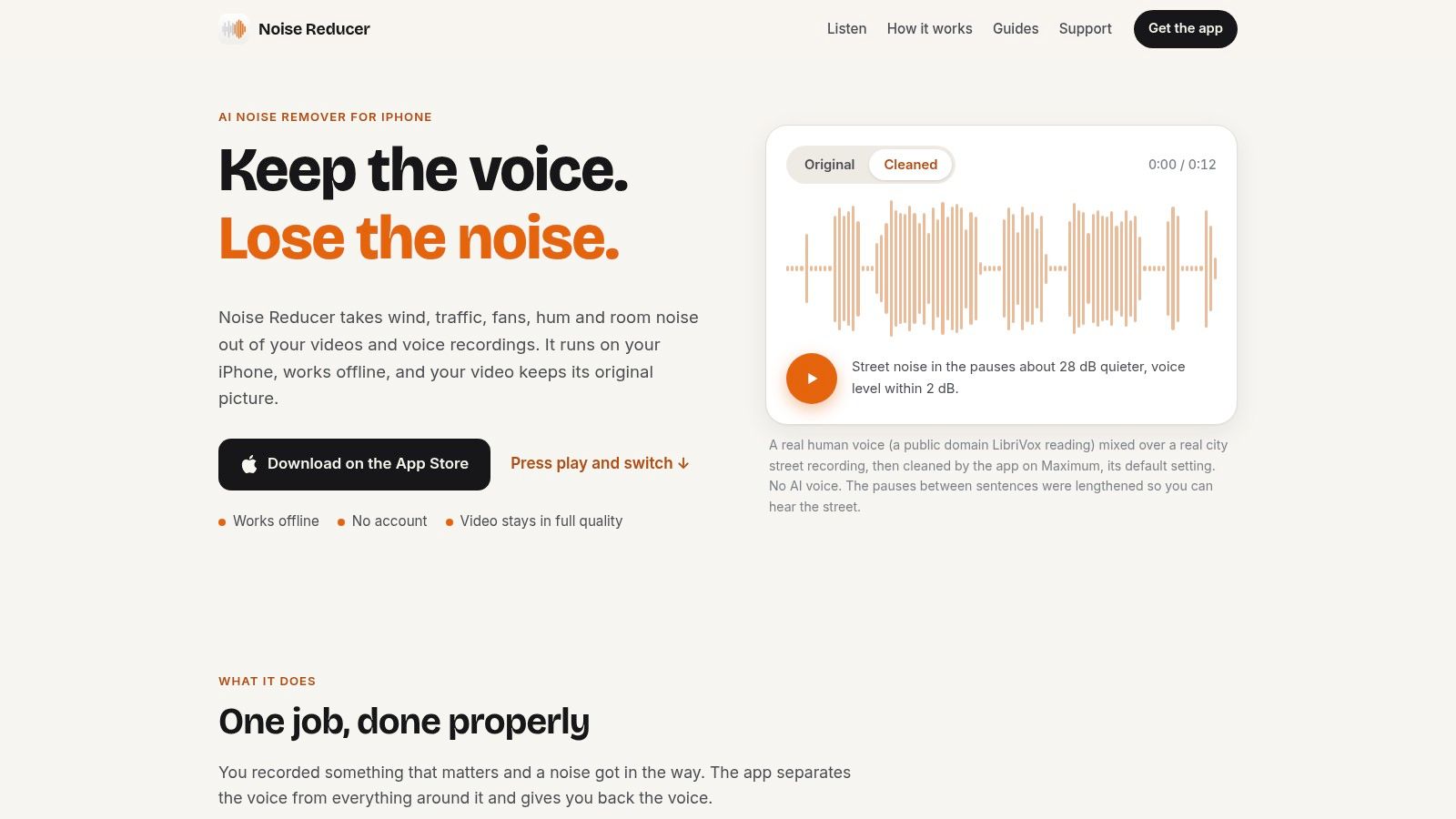
Noise Reducer does one job on iPhone and iPad. It cleans an existing video or voice recording without opening a timeline editor. Processing happens on the device, so it works offline. Your files aren't uploaded, according to the developer.
The workflow is deliberately small. Import a clip or use an in-app recording. Adjust the reduction strength. Compare the original against the cleaned version before you save. That comparison step is the feature I value most here. It stops you exporting a thin, watery voice just because the background got quieter.
- Best use: A talking-head clip with fan noise, room hum, or light hiss.
- Picture handling: It reduces noise in videos while retaining the original picture quality.
- Privacy fit: On-device processing suits client or personal footage.
Don't buy it to separate two people talking over each other. It isn't designed to reliably separate overlapping speakers. Saving or sharing requires Pro, and there's no Android or desktop version in this workflow.
For a quick, private pass on a phone clip, it's clean and focused. For editing, captions, or surgical removal, you'll outgrow it fast.
3. clir Voice
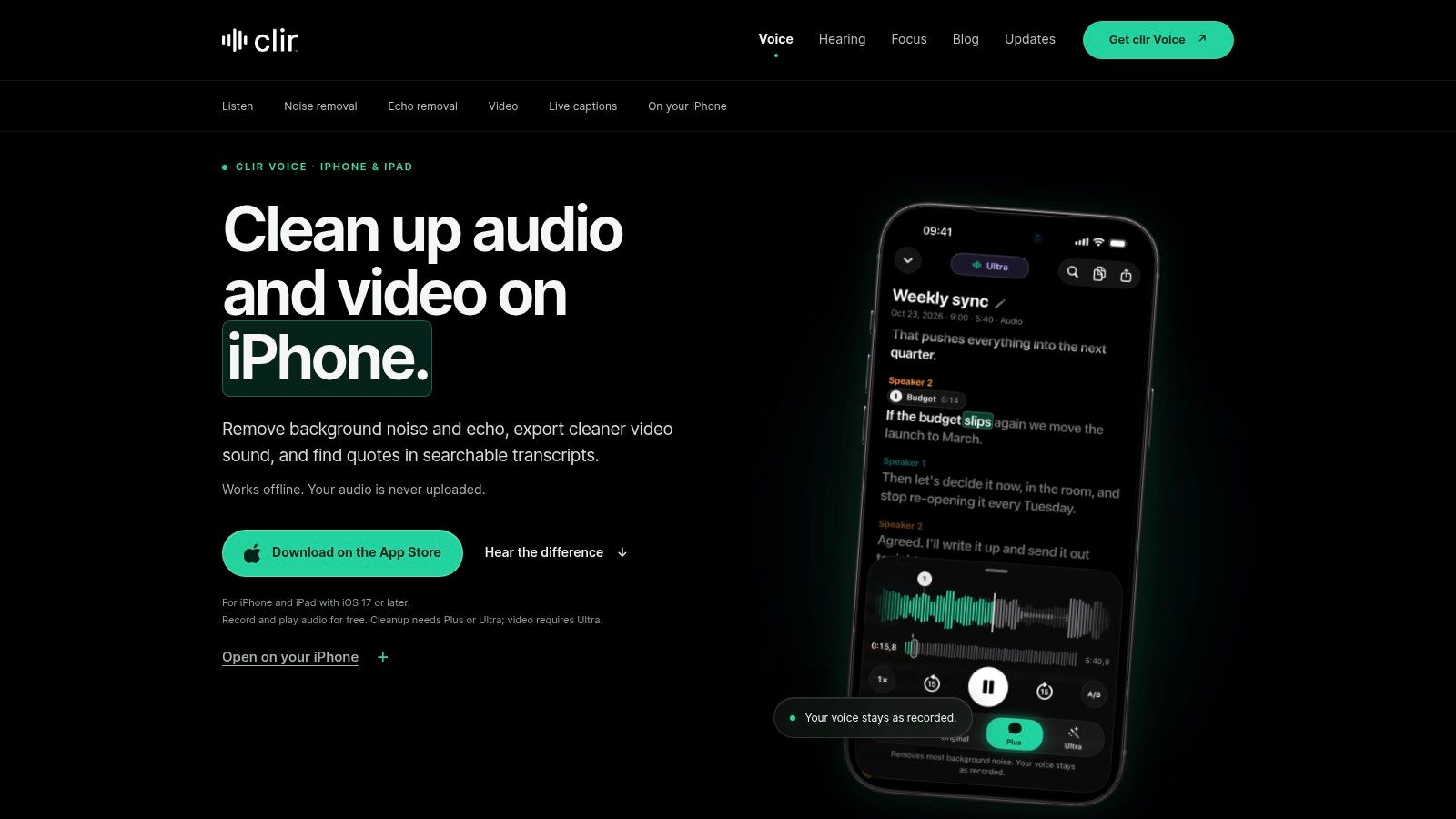
clir Voice combines cleanup with recording and transcription. That's a different purchase decision. You're not just removing noise. You're building a searchable voice library on iPhone and iPad.
It offers noise and echo reduction, transcripts, and searchable quotes. Processing is on-device, according to the developer, which keeps recordings private. The app is designed to preserve the recorded voice rather than replace it. On the Ultra tier, you can export video with cleaned audio.
Don't trust a transcript or a stronger AI mode blindly. Check important words against the original recording.
That caution matters because the stronger AI mode may alter a word. For an interview, lecture, or legal note, a changed word isn't a cosmetic flaw. It's an accuracy problem. Keep the source file and spot-check names, numbers, and short phrases.
The limits are clear. You need iOS 17 or later. Video cleanup and export require Ultra. Echo reduction also has limits. A bare room creates reflections that aren't the same as a fridge hum, and software can't fully undo a bad recording space.
I recommend clir Voice when cleanup, recording, and transcripts belong in one app. If you only need to clean one MP4, it's more system than you need.
4. Adobe Podcast Enhance Speech
Say you've recorded a podcast interview in a kitchen. The guest is clear enough, but the room sounds cheap. Adobe Podcast Enhance Speech is built for that rescue job. It runs in a browser, accepts video including MP4 and MOV, and reduces distracting background sound around speech.
Paid access adds bulk uploads and adjustment of speech, music, and ambience. According to Adobe, paid access supports up to four hours of enhancement per day and files up to 1 GB. That makes it practical for recurring dialogue work, including the kind of episode cleanup covered for podcasters using targeted separation when one element needs isolating.
Use a light touch. Strong enhancement can make some voices sound unnatural. A 2025 Interspeech paper on restoring speech detail reported a 6.01% improvement in overall perceived quality and a 3.67% improvement in speech quality from restoring detail that suppression can remove. In plain terms, quieter isn't always better. Breaths, consonants, and room tone carry realism.
This isn't a full video editor. You'll clean the audio, then finish picture elsewhere. Advanced video and bulk features require paid access. For straightforward dialogue, it's fast and effective. For a dog barking over one answer, use a targeted separator instead.
5. Adobe Premiere
A sit-down interview comes back with an air conditioner humming through every answer, and the cut is already half built. Adobe Premiere handles that job inside the timeline. You're cutting picture, mixing music, and repairing dialogue in one project, so exporting every clip to a web cleaner would waste hours.
The Essential Sound panel includes Enhance Speech and dialogue repair tools, plus controls for noise reduction, loudness, compression, and EQ. You tag a clip as dialogue, apply repair, then adjust each cut on its own. Premiere mobile offers speech enhancement and background-noise reduction for simpler work on the go. That range suits video editors finishing dialogue inside a project, where a clip's noise problem can change with every trim.
What You Gain and What You Pay For
- Control: Adjust enhancement clip by clip, so a quiet indoor answer and a noisy street pickup get different treatment.
- Context: Judge dialogue against music, effects, and picture edits instead of in isolation.
The cost is complexity. A beginner faces a professional editor to fix one noisy interview, and the subscription may be excessive for occasional cleanup. Premiere improves dialogue through repair and level control. It won't surgically remove a specific sound like a siren or a cough.
Choose it if you're already editing in Premiere. Don't subscribe only for a denoise button.
6. DaVinci Resolve
DaVinci Resolve treats audio as post-production, not as a filter. Its Fairlight tools sit alongside editing, color correction, and effects. Voice Isolation and dialogue leveling help you pull speech forward and keep levels consistent across clips shot in different places.
That matters for access as much as polish. The accessible broadcast audio research hosted on arXiv reports that approximately 60% of viewers in the United Kingdom experience difficulty understanding speech in programmes. It also reports that 87% of hard-of-hearing viewers struggled to understand speech on television. Clean dialogue isn't a cosmetic upgrade. It's how many viewers follow the story at all.
The free version lowers the barrier to trying a serious editor. Studio adds advanced tools, including the DaVinci Neural Engine and more Fairlight effects. You get room to refine beyond a single cleanup slider.
You also get a learning curve. Fairlight rewards patience, and some advanced tools require Studio. For one short social clip, Resolve is a lot of software. For a short film, documentary, or client video with uneven location sound, that depth earns its keep.
7. VEED
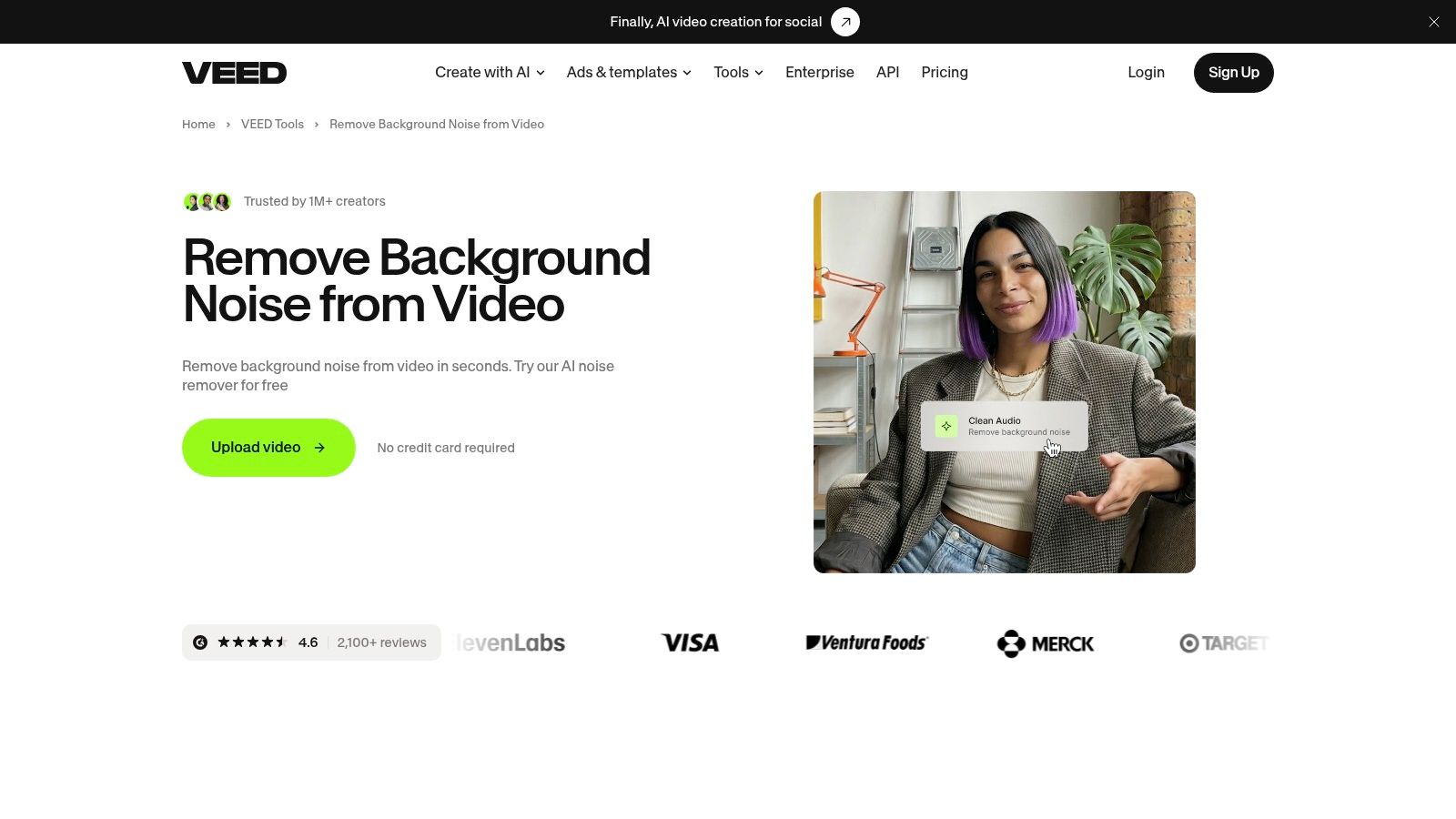
VEED keeps the whole job inside a browser tab. Upload a clip, select it, and run Clean Audio. There's no desktop installation, and you can trim, clean, and export in one session. For a social clip that needs a fast pass, that's the entire workflow.
VEED says Clean Audio addresses hum, wind, static, traffic, and echo while it enhances speech and evens out volume. Those five problems are not equal. Hum and static sit at a steady level, so a single pass handles them well. Traffic swells and drops under the dialogue. Wind hits the mic in gusts that can overload it. Echo is the hard case: it's your own voice coming back off hard walls, and one click can't separate that cleanly.
Match the tool to the noise. Interview audio with fan or air-conditioning hum is exactly what Clean Audio is built for. Street footage with gusts and room reflections will come out uneven, and that limitation belongs to one-click cleanup as a category, not only to VEED.
The free plan limits Clean Audio use, so check VEED's current allowance before processing several clips. Each clip may need the effect applied on its own. Cloud editing also means uploading your footage, which suits marketing and social video but rules out material you can't hand to a third party. I reach for it when a clip needs a quick cleanup before publishing.
8. Kapwing
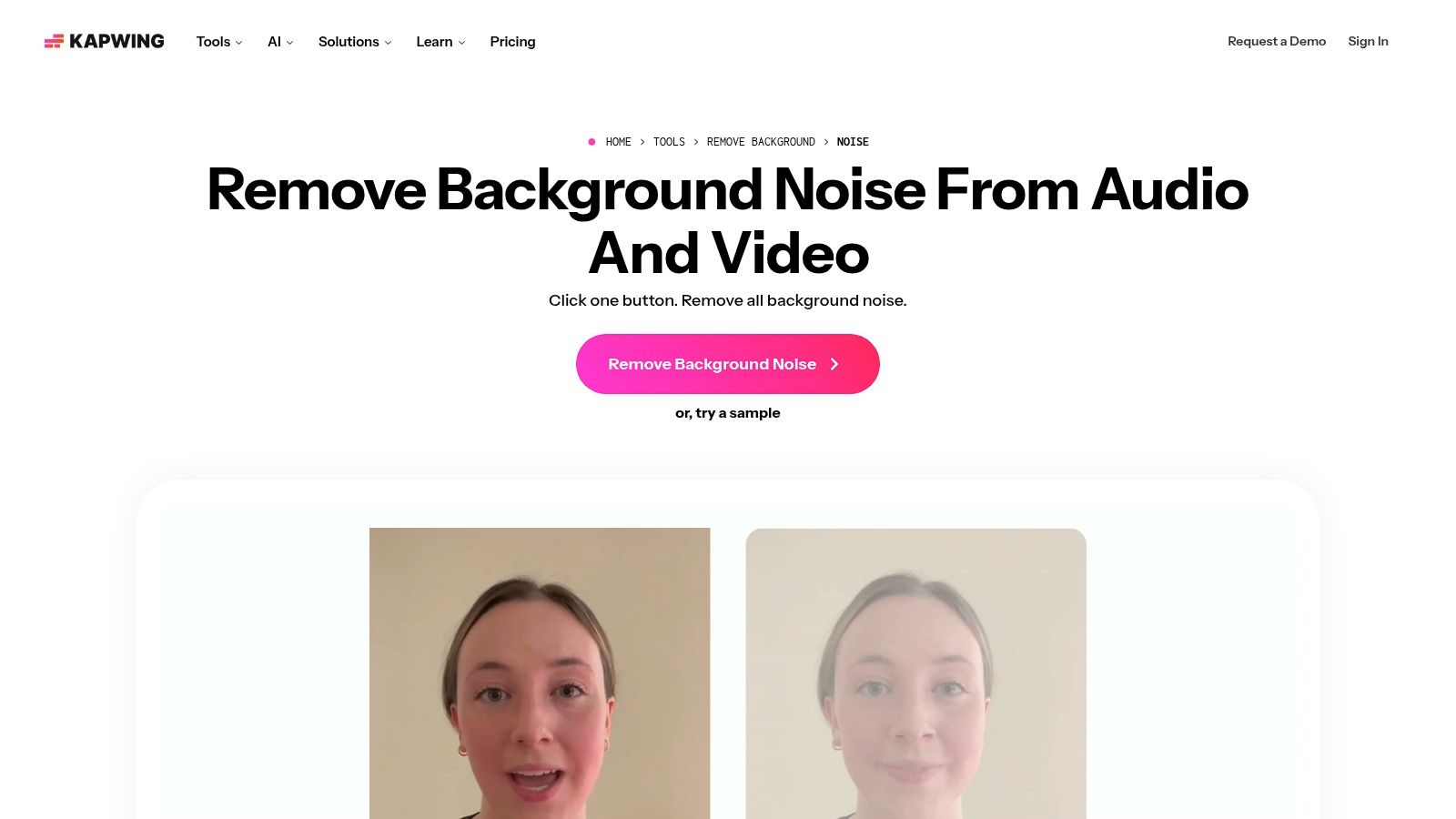
Kapwing is another browser editor, but the draw is the surrounding toolkit. Clean Audio clarifies speech and reduces background sound. Related tools remove silence and separate vocals from accompaniment. You can move from cleanup into captions, resizing, and social edits without changing apps.
It supports MP4, MOV, MP3, WAV, and WebM and works through a browser on desktop or mobile. That format range helps when a client sends a screen recording, a phone clip, and a voice note for the same project. Upload, clean, and keep editing.
Practical rule: Clean the worst clip first. If one-click cleanup damages that voice, don't process the whole project the same way.
The gates are straightforward. Noise removal requires a Pro account. Free-account exports include a watermark. Cloud processing requires uploading your media, so private footage needs a second thought.
I recommend Kapwing for creators making social clips, podcasts, and presentations in one online workspace. It won't give you Fairlight-level repair or prompt-based isolation. It gives you speed and enough connected tools to publish. That's the trade, and for short-form work it's often the right one.
9. Wondershare Filmora
Wondershare Filmora sits between a phone app and a professional suite. It's for beginners and intermediate editors who want captions, effects, timeline editing, and audio cleanup without learning Premiere or Resolve first.
Select an audio track and enable AI Denoise or noise reduction. Then keep editing in the same app. Desktop and mobile versions are available. Filmora offers subscription and perpetual-license options, which gives you more purchasing flexibility than a single subscription model.
Where Filmora Breaks Down
- Difficult locations: It's less specialized than dedicated audio-restoration software for severe wind, crowd babble, or heavy reverb.
- Plan differences: AI credits and tools differ by plan, so check what your license includes before a deadline.
- Free version limits: Export and feature terms may be limited.
That doesn't make it a weak pick. It defines the job. A family video with air-conditioner hum, a tutorial with computer fan noise, or a product demo recorded in a home office fits well. A wedding speech recorded across a noisy hall needs stronger dialogue repair and careful manual work.
Choose Filmora for an accessible all-in-one editor. Don't expect it to rescue every bad location recording.
10. CapCut

CapCut wins on convenience if your video already lives there. You can reduce background noise while trimming clips, adding captions, applying effects, and using templates. It's available across web, desktop, and mobile, with free and paid access.
That workflow suits short-form creators. Record a talking-head clip, cut the pauses, clean the fan noise, add captions, and post. The same convenience drives many content creators who need cleaner social video to consider a separate isolation pass only when a specific sound keeps ruining a take.
Check your exact version before you rely on it. Noise-reduction access and pricing may change. Feature availability can differ between desktop, web, and mobile. A tool you used free on your phone last month may sit behind a different plan on desktop today.
CapCut is also better suited to straightforward editing than detailed audio restoration. Steady noise under clear speech is fair game. Overlapping voices, music baked into dialogue, and strong gusts will expose its limits quickly. You'll hear thinning, pumping, or metallic edges when you push too far.
Use CapCut when speed and publishing matter most. Move the clip elsewhere when the recording itself is the problem.
How the 10 Remove Background Noise Video App Options Compare
Pick the row by the noise job and workflow. Isolate Audio starts with a free tier and Pro from $19/month.
| Item | Platform | Cleanup job | Where it breaks down |
|---|---|---|---|
| Isolate Audio | Web browser | Isolating a named sound with natural-language prompts | When you only need a mild hiss or hum pass on already clear speech |
| Noise Reducer | iPhone, iPad | Cleaning noise from existing videos on-device | When the fix needs more than a quick mobile cleanup |
| clir Voice | iPhone, iPad | Recording, noise cleanup, and transcription | When the work is frame-by-frame video finishing rather than voice cleanup |
| Adobe Podcast, Enhance Speech | Web browser | Enhancing speech and reducing background noise | When the problem is one specific sound inside a finished video mix |
| Adobe Premiere | Desktop, mobile | Editing video and cleaning dialogue in one project | When a one-click cleanup would finish the clip faster |
| DaVinci Resolve | Desktop | Full video and audio post-production | When the job is a light cleanup instead of a full mix |
| VEED | Web browser | Cleaning audio and editing video online | When speech is already buried under heavy or overlapping noise |
| Kapwing | Web browser | Online audio cleanup and follow-on editing | When the clip needs detailed restoration rather than a fast pass |
| Wondershare Filmora | Desktop, mobile | All-in-one video editing with noise reduction | When dialogue needs surgical repair beyond built-in reduction |
| CapCut | Web, desktop, mobile | Quick social-video editing with audio tools | Overlapping voices, music baked into dialogue, or strong gusts |
Match the Tool to Your Noise Problem Before You Process
Start by naming the noise. Don't start by opening an app. A steady fridge hum, a crowd behind a speaker, and a piano you want to keep are three different jobs. The wrong tool doesn't just waste time. It can damage the voice you're trying to save.
Use a one-click cleaner when speech is already clear and the unwanted sound is steady. Fan noise, light hiss, computer hum, and mild room tone respond well. Adobe Podcast, VEED, Kapwing, and the phone apps in this list fit that pattern. Use the lightest setting that makes words easier to hear. Then stop. If consonants soften, sibilants smear, or the voice turns robotic, you've gone too far.
Use a full editor when dialogue and picture must finish together. Premiere and Resolve let you treat each clip in context. You can balance a quiet answer against music, fix one bad location, and leave a clean studio clip alone. Filmora and CapCut offer a simpler version of that workflow for creators. The trade is control. Simpler editors publish faster. Professional editors repair more carefully.
Use a prompt-based separator when you need a specific sound, not a generic cleanup. That's the case for a barking dog, a passing siren, crowd cheering, or one guest in a noisy room. Isolate Audio returns the target and the remainder, so you can lower, remove, or reuse either part. That flexibility matters when ambience isn't automatically bad. A street interview may need some street. A live performance may need the crowd, just quieter.
Set expectations by recording condition. The 2025 URGENT Speech Enhancement Challenge paper found that generative systems can be language-dependent and that subjective preferences may differ from benchmark rankings. Your accent, language, room, and playback device can change the result. A clip that sounds clean on laptop speakers may sound harsh in earbuds. Crowd babble is especially hard because it's made of voices. A model must decide which voice matters, and it will sometimes choose wrong.
Test before you process everything. Pick ten seconds with speech, a pause, and the worst noise. Export that section. Listen on headphones and on a phone speaker. Compare it against the original at the same volume. Louder often sounds better even when it isn't cleaner. Check names, quiet words, laughter, and music under speech. Those details reveal damage that a waveform won't show.
Keep the untouched original. Never overwrite your only copy. If a first pass creates artifacts, go back to the source and use a lighter setting or a different method. Stacking one aggressive cleanup on another usually compounds the damage. You can also choose the right audio cleanup method by deciding whether you're suppressing steady noise, enhancing speech, or separating one named sound.
My recommendation is simple. Pick Adobe Podcast or a browser editor for fast dialogue cleanup. Pick Premiere or Resolve when audio must be finished inside the edit. Pick a phone app when privacy and speed matter more than control. Pick Isolate Audio when the problem has a name and you need that sound pulled out or kept. The best remove background noise video app is the one that solves your exact noise problem without flattening the performance you recorded.
Upload your video to Isolate Audio, describe the sound you want to isolate or remove in plain English, and download the separated tracks for your edit. Try the free plan on your worst clip first, compare it against the original, and use Precision Mode on Pro when overlapping voices, music, or crowd noise need a more careful pass.