Supported File Types in Isolate Audio: A Complete Reference
If a file ends in .mp4, .m4a, or .ogg, that tells you almost nothing about whether it'll separate cleanly. The popular advice is to check an extension list, pick a match, and upload. That advice fails in production because an extension can hide different containers, codecs, channel maps, and sample rates. This reference treats supported file types as a technical specification, not a suffix list, so you can predict what happens before you upload.
Why Supported File Types Are More Than an Extension List
A filename suffix is a label. It isn't a guarantee. Two files can both end in .ogg or .mp4 and behave differently because the audio inside them was encoded with different codecs, packed into different containers, or written with malformed headers.
Use a three-layer model instead. First, check the extension for a quick compatibility signal. Second, identify the container, which organizes streams and metadata. Third, identify the codec, which encodes the audio samples.
How the Pipeline Reads a File
A dependable pipeline probes the file rather than trusting its name. It should validate stream count, codec, sample rate, channel layout, duration, and headers before decoding, an approach consistent with the Ogg Opus specification in RFC 7845, where an Ogg bitstream carrying Opus must begin with an Opus identification header.
- Extension mismatch: A renamed file keeps its original internal structure, so renaming .webm to .mp4 doesn't convert it.
- Container ambiguity: OGG is a container that can carry Opus, and specialized channel mappings, including ambisonics, must be interpreted rather than flattened to stereo by assumption.
- Codec constraint: A supported container can still hold an unsupported audio stream, which explains many confusing rejections.
Practical rule: Treat the extension as a clue, the container as the wrapper, and the codec as the thing the decoder must actually understand.
Microsoft makes the same distinction in its own guidance, identifying MP4 with H.264 video and AAC audio as a specific supported combination for PowerPoint in its PowerPoint video and audio format guidance. Other MP4 combinations may not behave identically. That is why broad extension lists can reduce clarity. They imply universal compatibility even though codec level constraints matter more than the suffix.
Audio File Types You Can Upload
The audio formats in current use span more than three decades, and their ages explain their trade offs. The Library of Congress notes in its overview of digital audio types that WAV was jointly developed by Microsoft and IBM in 1991, MP3 also emerged around 1991, FLAC followed in 2001, and OGG in 2004.
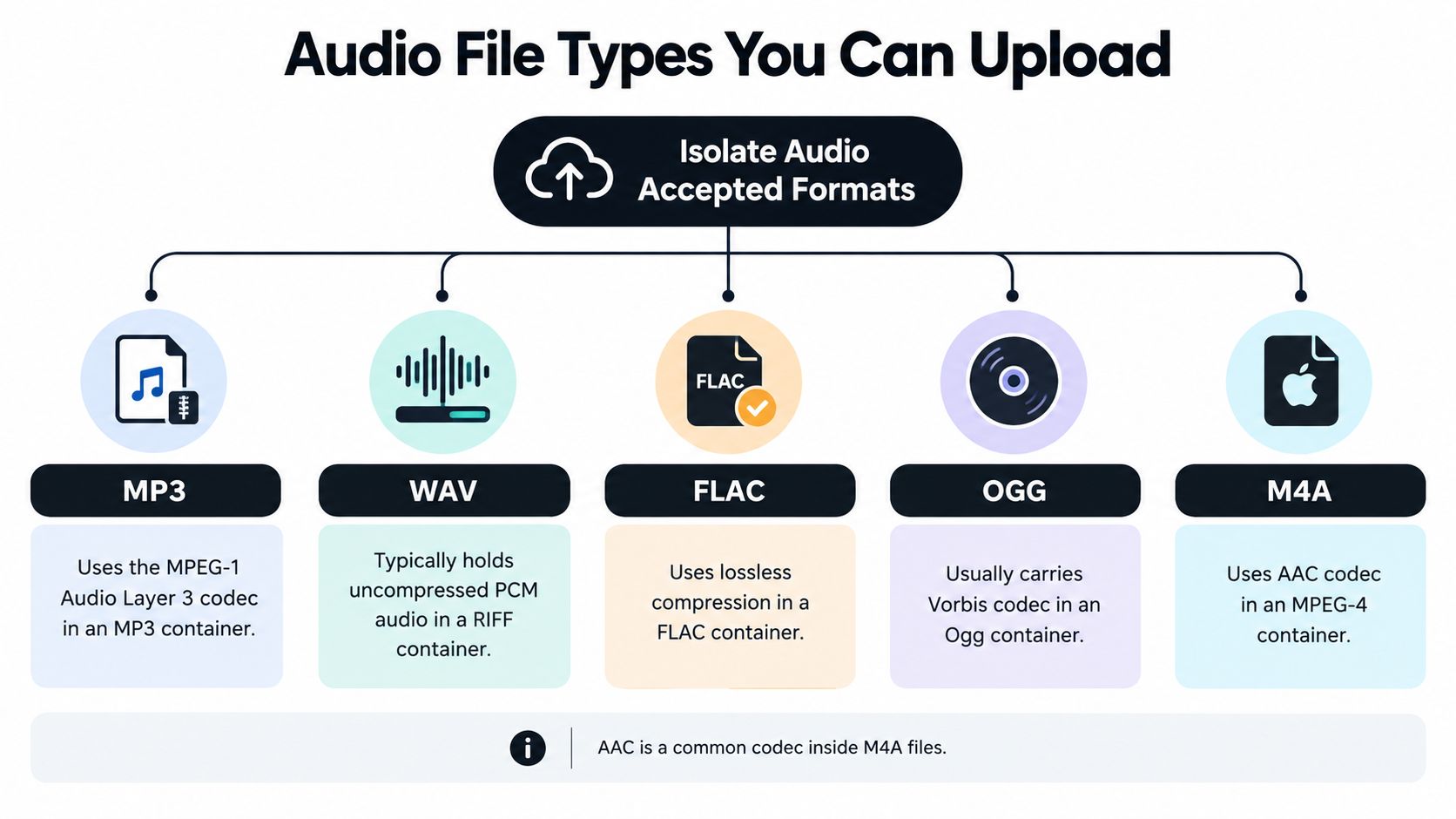
The diagram below maps the core upload formats to their usual containers and codecs.
Lossless and Uncompressed Options
WAV typically stores uncompressed PCM in a RIFF container. It preserves the encoded signal without lossy compression, which makes it a strong choice for studio sessions, repeated editing, and archival masters, but it produces large transfers. FLAC, or Free Lossless Audio Codec, reduces storage without discarding audio data. Its files are larger than lossy alternatives, yet smaller and more practical than uncompressed audio for many high fidelity workflows.
Lossy Delivery Formats
MP3 became widely used in commercial audio because perceptual compression substantially reduces file size while sacrificing some information. It's convenient for mastered tracks, podcast review copies, and fast uploads, but detail discarded during encoding can't be recovered later. OGG was designed primarily for streaming and usually carries Vorbis or Opus, both useful for open web delivery. M4A commonly carries AAC in an MPEG-4 container, which is why phone recordings and Apple ecosystem exports often arrive in this form.
- Music production: Prefer WAV or FLAC from the session or mix export.
- Podcasts and interviews: Use WAV when you have it, otherwise upload the highest quality MP3 or M4A you have rather than re-encoding.
- Field recordings: Keep the recorder's original WAV or FLAC and document its settings.
If you're comparing upload policies across tools, VideoTour.ai upload voiceover support is a useful example of how another workflow documents accepted voiceover inputs. The lesson transfers directly. Read the codec and profile notes, not just the extension row, before you commit a long upload.
Video File Types You Can Upload
Video uploads work because separation needs the audio stream, not the picture. The platform demuxes the container, ignores the visual track, decodes the audio, and sends that decoded signal into the same processing path as an audio only file.
The comparison below shows the three main video containers and what usually rides inside them.
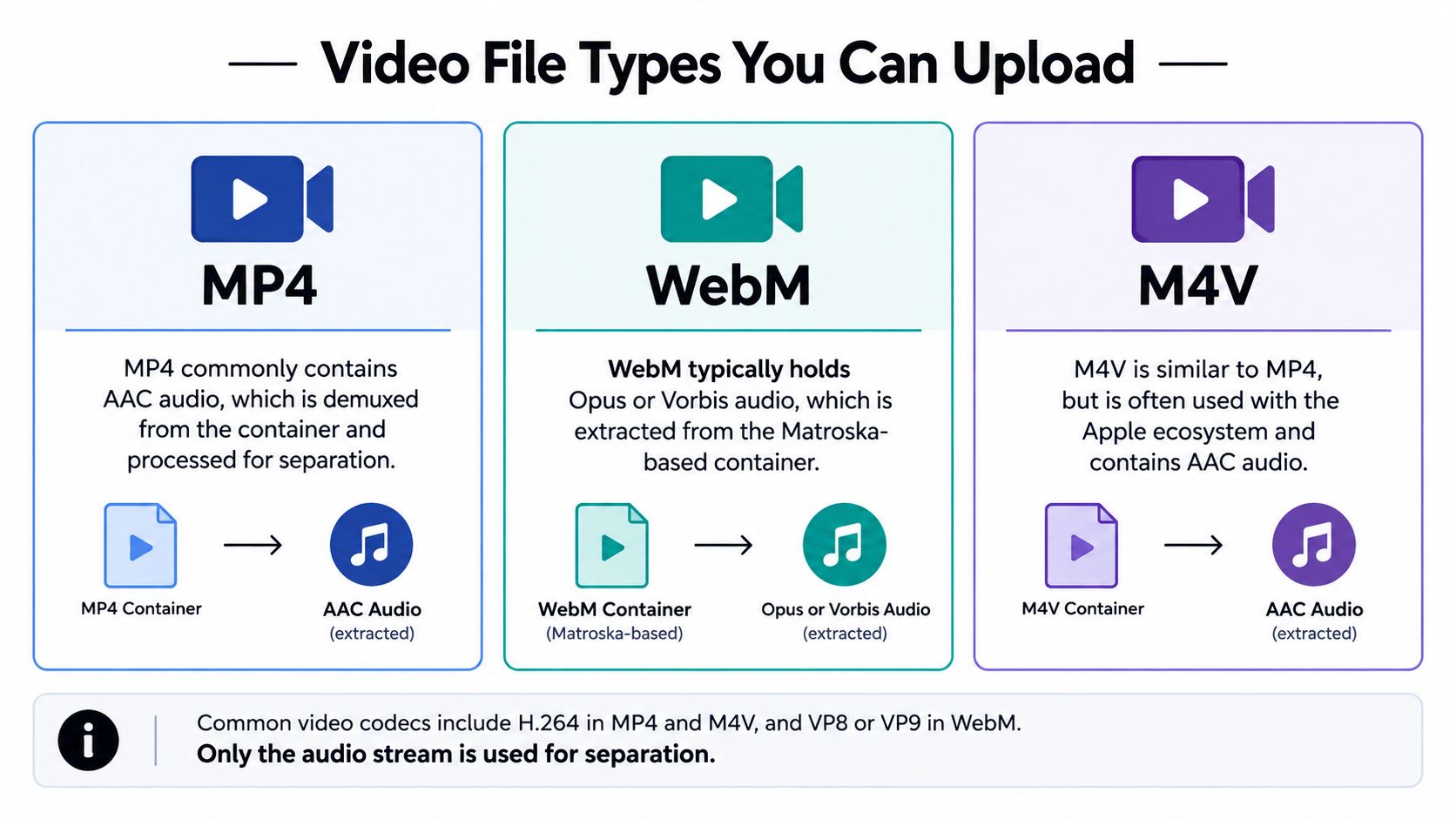
MP4 commonly pairs H.264 video with AAC audio. That combination covers most screen recordings, camera exports, and edited interviews, and the AAC stream is what gets extracted. M4V is closely related to MP4 and often appears in Apple centered workflows, again usually with AAC audio. WebM is built for web delivery and typically pairs VP8 or VP9 video with Opus or Vorbis audio.
A video file can still fail even when its extension is supported. The container might contain no audio stream, multiple audio streams with different languages, or an audio codec outside the supported set. Filmmakers uploading concert clips or dialogue takes should check which audio track is primary before uploading, especially if the file contains commentary, descriptive audio, and production sound in parallel.
The walkthrough below shows the extract then separate workflow in practice.
When your source is an interview, screen capture, or performance video, the guidance on isolating audio from video files covers the extraction side in more depth. Keep the original video untouched. Extracted separation results can be laid back against picture in your editor once you have clean dialogue or stems.
Bitrate, Sample Rate, Bit Depth, and Channels
Extension alone doesn't determine quality. The U.S. National Archives identifies sampling frequency, bit depth, and monophonic or stereo configuration as important characteristics of PCM audio in its file type definitions for preservation. Codec and compression mode matter just as much.
For reference, CD quality audio is 44.1 kHz and 16 bit PCM WAV, while the Library of Congress recommended specifications include PCM at 96 kHz and 24 bit or higher for high resolution production files. Those two anchors cover most music, podcast, and production uploads you'll encounter.
What Each Parameter Controls
- Sample rate: Sets how often the signal was measured per second. Telephone grade sources sit at the low end, high resolution production files at the top, and resampling upward doesn't restore detail that was never captured.
- Bit depth: Sets the resolution of each sample in PCM audio. Higher bit depth sources give the separator cleaner low level detail to work with during quiet passages.
- Bitrate: Applies to lossy codecs such as MP3, AAC, and Opus. Higher bitrates discard less, and variable bitrate files can swing in quality across a single recording.
- Channels: Mono dialogue, stereo mixes, and multichannel or ambisonic recordings must keep their intended layout, or you risk silent channel swaps and collapsed imaging.
Decoded audio is normalized into a documented internal PCM representation with a defined sample format, sample rate, channel layout, and duration limit. That normalization is what makes separation behavior predictable across a phone memo and a studio master. Original metadata should be retained separately rather than baked into that internal representation.
If a file falls outside the accepted window, resample or downmix a copy once, deliberately, and keep the original. The background on what lossless audio means in practice helps you decide when that conversion is safe and when it compounds loss.
Maximum File Size and Duration Limits
Size and duration limits exist for two practical reasons. Uploads must finish reliably on real connections, and processing queues must stay predictable. Free access carries lower per file caps, Pro plans raise them for longer and larger work, and enterprise arrangements raise them further for large scale or API driven workflows.
Before uploading a long lossless file, run a quick sizing check.
- Estimate first: A high resolution WAV grows fast with duration, so a long concert or field session can exceed a free tier cap even when a short song fits easily.
- Compare like with like: A 45 minute podcast exported as CD quality WAV will be substantially smaller than the same programme exported at higher sample rate and bit depth, because both parameters multiply the data rate.
- Segment long sources: Split multi hour recordings at natural breaks, such as applause, scene changes, or topic shifts, and keep a simple log so stems can be reassembled in order.
Upload the smallest file that still contains the detail your separation needs, not automatically the largest file you have.
Compressed intermediates make sense when transfer is the bottleneck, especially on slower connections where WAV creates a poorer experience because of its size. The same size awareness applies outside separation too, and the overview of email video file size limits shows how sharply delivery caps constrain sharing workflows. If you'll share stems by email or chat afterwards, plan the download format with those caps in mind from the start.
Quality Presets and Recommended Upload Profiles
Presets trade processing time against output fidelity. The mistake I see most often is pairing a demanding preset with a weak source, or running a quick preset on a final master. Match the preset to the deliverable and the upload profile to the preset.
| Preset | Recommended Upload | Best For |
|---|---|---|
| Best | WAV or FLAC, original session or master quality | Final stems, releases, archival deliverables |
| Balanced | FLAC, or high quality MP3 or M4A | Podcast production, video edits, most client work |
| Fast | Any supported format that uploads cleanly | Drafts, previews, checking whether separation is viable |
Best assumes a lossless source. Feeding it a low bitrate MP3 wastes processing time because the missing detail isn't in the file. Balanced suits the majority of podcast and video work, where a clean lossy source separates predictably and turnaround matters.
Fast earns its place during iteration. Run it to confirm that a prompt isolates the right element, to test a rough phone recording, or to preview a long file before committing to a full quality pass. Musicians building practice tracks can prototype in Fast, then rerun the winning prompt in Best from the FLAC master.
Don't overspec drafts and don't underspec finals. If the output will be mixed, mastered, archived, or analysed, upload lossless and use Best. If the output is a timing reference or a quick social clip, Balanced or Fast keeps the workflow moving without a meaningful penalty for that use.
Precision Mode for Difficult Source Material
Some mixes resist ordinary separation. Overlapping voices, dialogue buried under a score, dense multitrack arrangements, and low signal to noise field recordings all share one trait. The target sound and everything else occupy the same time and frequency space, so the model has fewer clean cues to follow.
Precision Mode spends more processing time on those ambiguous regions. It isn't a universal quality switch. On a clean, well separated recording it adds time without adding much, but on difficult material it can produce cleaner stems with fewer artefacts bleeding between outputs.
Recognizing a Good Candidate
- Overlapping sources: Two speakers talking over each other, or a lead vocal doubled by dense backing vocals.
- Buried dialogue: Speech sitting under music, crowd noise, or room tone that a standard pass leaves smeared.
- Field material: Wildlife or research recordings where the target call is faint against wind, water, or insects.
- Dense mixes: Finished masters where instruments share reverb and stereo space.
Feed Precision Mode the best source you have. High bit depth WAV or FLAC gives it low level detail that lossy encoding may have smoothed away, and that detail matters most exactly where sources overlap. Compare a Balanced result against a Precision result on the same short excerpt first. If the difficult passage cleans up noticeably, run the full file. If it doesn't, the limitation is probably the source recording itself, and a better upload will help more than a longer process.
Converting and Preparing Files Before Upload
Most failed uploads aren't exotic. They're phone recordings in unexpected containers, multichannel exports nobody downmixed, variable bitrate MP3s with unpredictable sizes, and ambisonic files whose channel mapping gets misread. Each one is fixable before upload.
The sequence below follows the preparation order that avoids compounding mistakes.
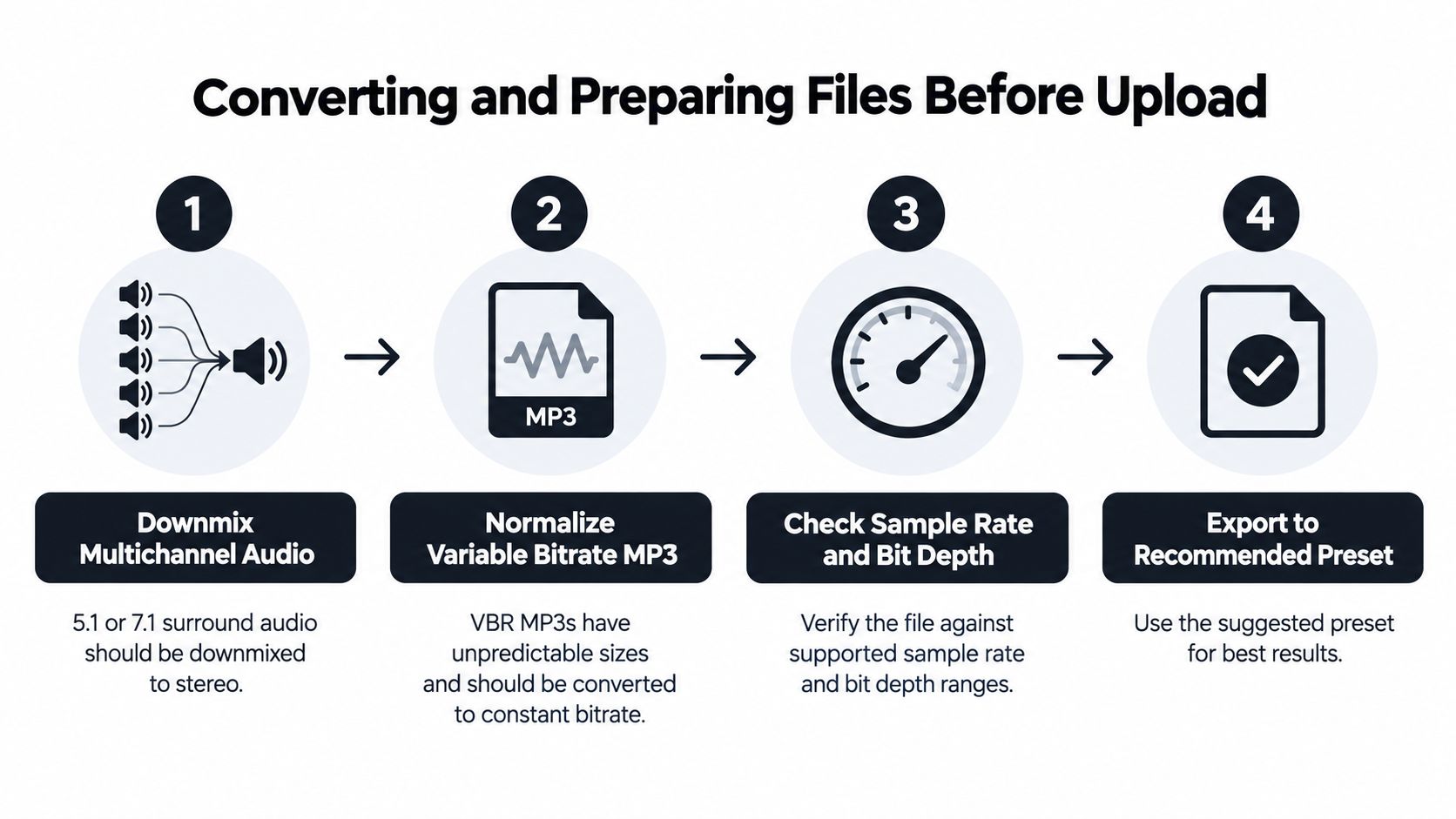
Start by probing the file so you know its real codec, sample rate, and channel layout. Downmix surround material to stereo only when your workflow doesn't need the extra channels, and note the downmix in your project log. For ambisonics, preserve the defined channel mapping rather than letting a converter guess, or the spatial image will rotate or collapse.
Lossless transcoding between WAV and FLAC is safe because neither discards audio data. Re-encoding a lossy file is different. Converting MP3 to WAV makes a bigger file with the same missing information, and converting MP3 to M4A stacks a second lossy pass on the first. Upload the original lossy file instead.
Editors moving between picture and audio tools will recognize this discipline from the music video editing workflow guide, where preparation decisions made early determine what's possible later. When you do need a format change, the built in audio converter tool handles common conversions without a separate install. Convert once, from the original, and keep that original untouched.
Upload Format, Processing Format, and Download Format
A separation workflow moves through three distinct formats, and conflating them causes most quality complaints. The upload format is what you send. The processing format is the internal PCM representation the platform normalizes decoded audio into. The download format is what lands in your project, archive, or delivery folder.
The Library of Congress recommends Broadcast WAVE with embedded metadata and prefers uncompressed files for preservation, favouring lossless compression over lossy when compression is necessary, as set out in its recommended formats statement for audio. That guidance maps cleanly onto the download decision.
Matching Each Stage to the Job
- Musicians and DJs: Upload WAV or FLAC, let processing normalize internally, download lossless stems for mixing or performance preparation.
- Podcasters: Upload the recorder's WAV or best available M4A, download high quality lossy files for review copies and lossless for the edit session.
- Video editors: Upload MP4 or WebM directly, download separated dialogue and remainder tracks, then handle captions in the video workflow, since WAV can't embed captions or transcripts directly.
- Researchers: Retain the original file, document every conversion, sample rate, bit depth, and channel structure, and archive downloads as WAV or FLAC.
Lossless isn't automatically best at every stage. Isolate Audio accepts common delivery formats for upload convenience, but a WAV master still creates large transfers and separate caption requirements downstream. Choose upload format for fidelity, processing format is handled for you, and choose download format for the next tool in the chain. That's the distinction a plain extension list never makes.
Quick Reference Specification Card
Copy this card into your project notes and check each line before a long upload.
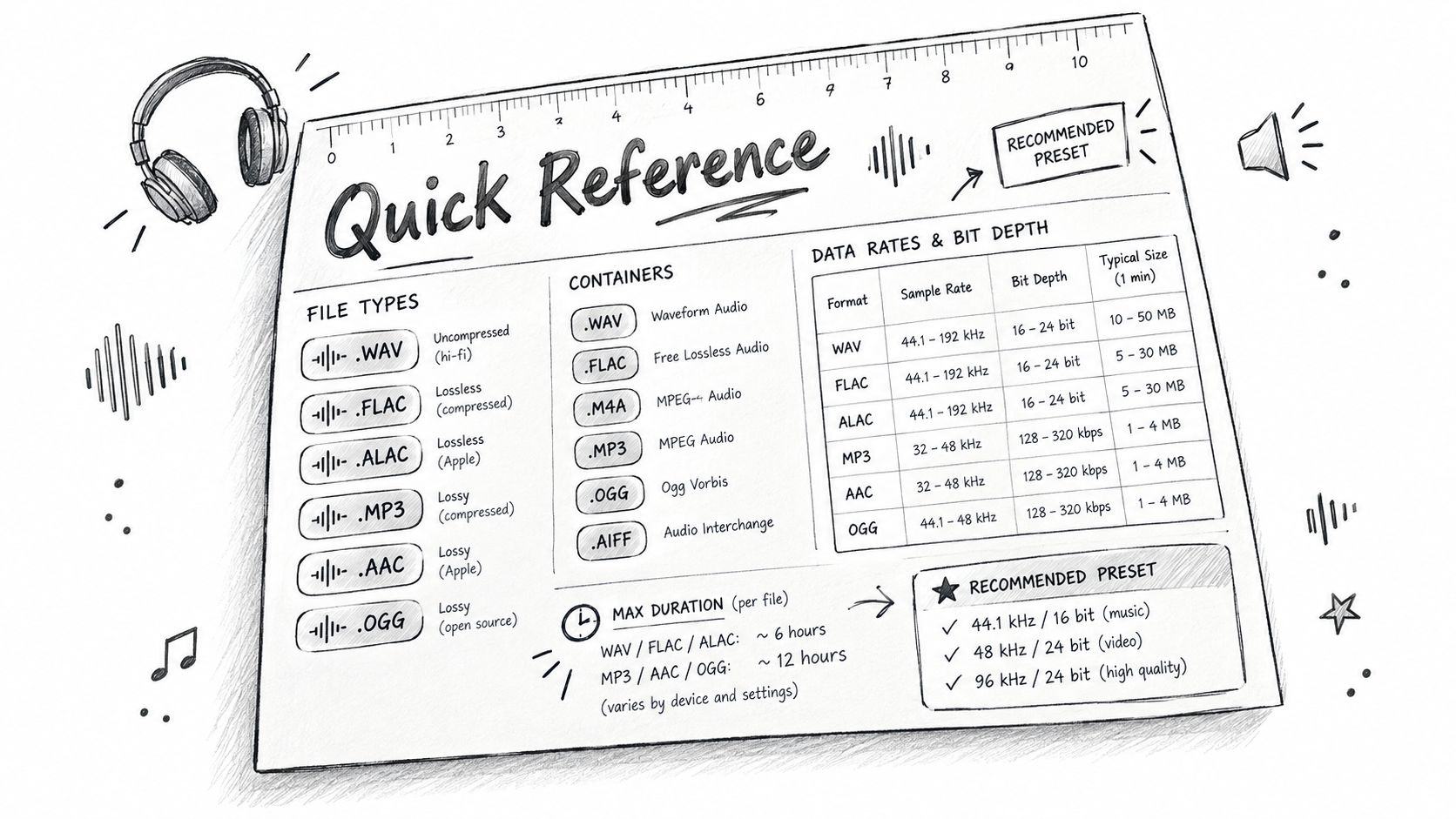
- Audio uploads: MP3, WAV, FLAC, OGG, M4A, with AAC commonly carried inside M4A.
- Video uploads: MP4, WebM, M4V, with only the audio stream extracted for separation.
- Best fidelity: WAV or FLAC at the source's native sample rate and bit depth.
- Fastest turnaround: High quality MP3, M4A, or OGG with the Balanced or Fast preset.
- Channels: Mono and stereo supported, preserve multichannel and ambisonic mappings or downmix deliberately.
- Before uploading: Probe codec and container, confirm duration fits your plan, segment long recordings at natural breaks.
- If a value falls outside the window: Convert once from the original using the preparation steps above, never by renaming the file.
Common Upload Questions and Fixes
Why was a file with a supported extension rejected? The container probably holds an unsupported codec, no audio stream, or a malformed header. Probe the file, confirm the actual codec, and convert a copy from the original into WAV or FLAC.
Why did a successful upload produce silent or mono output? The wrong audio stream was selected, or a multichannel layout was misread and collapsed. Check stream order in video files and preserve channel mapping in ambisonic or surround sources before re-uploading.
How do I recover from an unsupported codec inside a supported container? Don't rename the file. Transcode the audio stream into a supported codec in a supported container, ideally FLAC or WAV, so you add no further lossy generation.
When should I split a long file before upload? Split when duration or size approaches your plan limit, or when only part of a concert, interview, or field session needs separation. Cut at natural breaks, keep overlap notes, and process the difficult segment with Precision Mode if it needs it.
Upload a file in any supported format, describe the sound you want in plain English, and get back the isolated element plus the remainder, ready for your mix, edit, or analysis. Choose lossless uploads and the Best or Precision settings when fidelity matters, or stay with compact formats when speed matters more. Start your first separation at Isolate Audio and put this specification to work on a real recording.