
Best Music Remixing Software in 2026: 10 Tools Compared
You've got the vocal in your head. You can hear the new arrangement, the drums you want under it, the drop you want to build. The only file you can get is a finished stereo mix, with the original bass, kick, and backing vocals baked in. That's where most remixes stall, before arrangement even starts.
That's why the best music remixing software depends on the job, not the feature count. Building a full multitrack production is one job. Reworking stems live in a DJ set is another. Pulling one specific sound out of a finished mix so you can edit it at all is a third job, and it usually comes first.
This list is sorted by that job. You'll get the actual limitation on each tool, including where its stem separation falls short, plus pricing tiers, platform limits, and a practical way to test each one. If you're also making video content around a track, you can add vocals with Veo3 AI as a separate step, but for the remix itself, start by getting clean source material into the editor you already know.
1. Isolate Audio
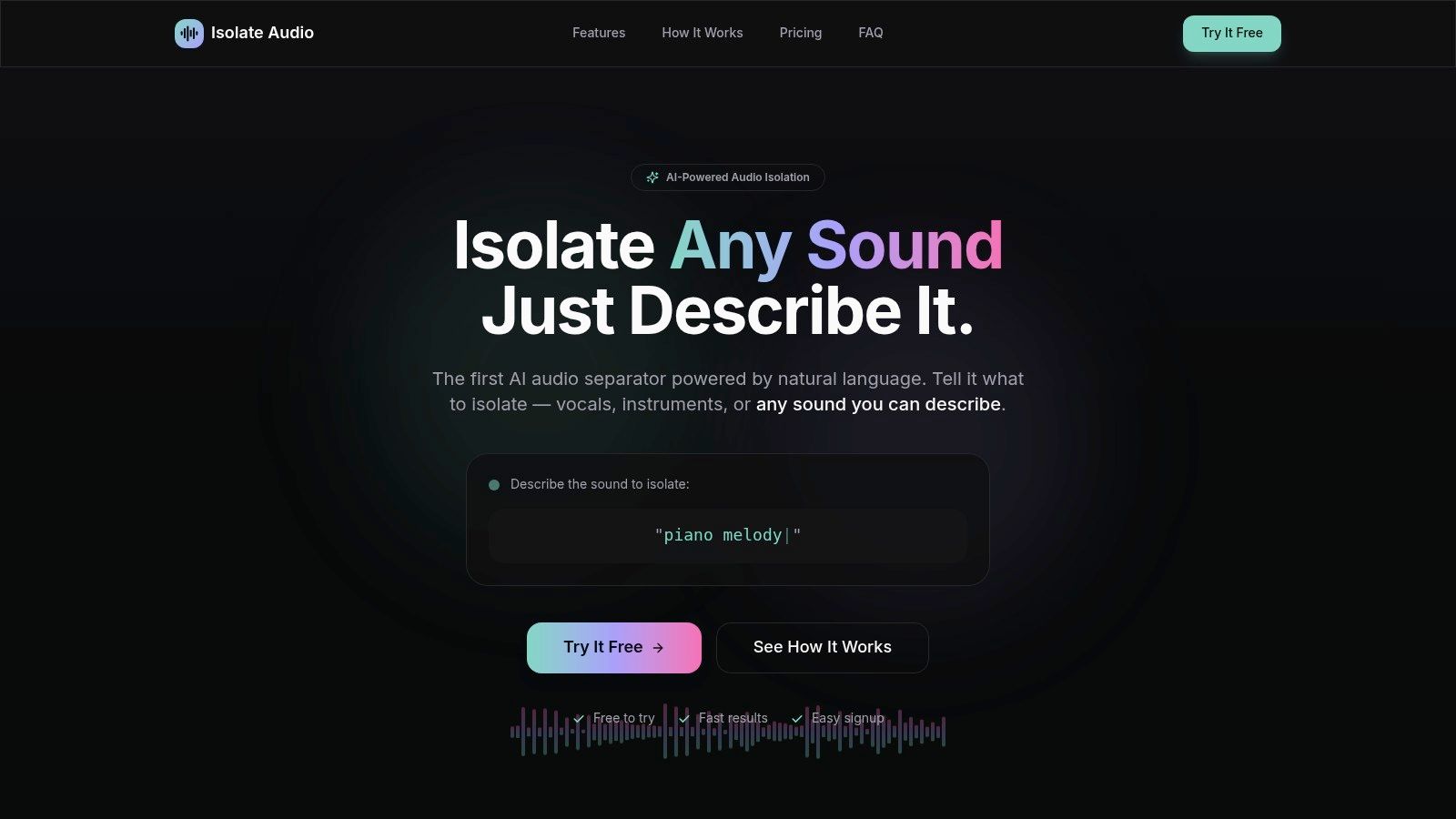
Most stem splitters give you a fixed menu. Vocals, drums, bass, other. If the sound you need isn't on that menu, you're stuck. Isolate Audio works differently. You describe the target in plain English, such as a piano melody, a specific voice, crowd noise, or a barking dog, and the AI attempts to isolate that sound.
How It Fits a Remix Workflow
You upload MP3, WAV, FLAC, M4A, OGG, WebM, or MP4, describe the sound, and download two files. One is the target. The other is everything else. That second file matters. It lets you build a backing bed, check what you removed, or layer the remainder under a new arrangement without guessing what the separation took away.
Best, Balanced, and Fast presets trade quality against speed. Precision Mode is there for dense mixes where sounds overlap and a standard pass smears them together. Processing runs in the cloud, so there's no install and no local rendering bottleneck. For a deeper look at where this step sits, see this guide to an AI music remixer workflow.
Practical rule: Extract first, arrange second. Don't warp, EQ, and automate a baked-in mix hoping you can clean it up later.
The free plan includes five separations per month, with five minute files, standard quality, and MP3 output. The listed Pro plan is $19 per month and adds unlimited separations, all output formats, files up to 30 minutes, priority processing, and Precision Mode. Enterprise pricing is custom, with API access, bulk processing, integrations, and dedicated support.
The limits are clear. Accuracy varies on complex or overlapping audio, and the free tier runs out fast if you're testing several prompts on the same track. It also isn't an arranger or a mixer. You still need a DAW or DJ tool after extraction, and if you're working from video, it's worth reading how others compare methods for removing video music before you commit to a workflow.
Best for: Pulling a specific vocal, instrument, or sound out of a finished mix before you import it into any editor below.
2. Ableton Live
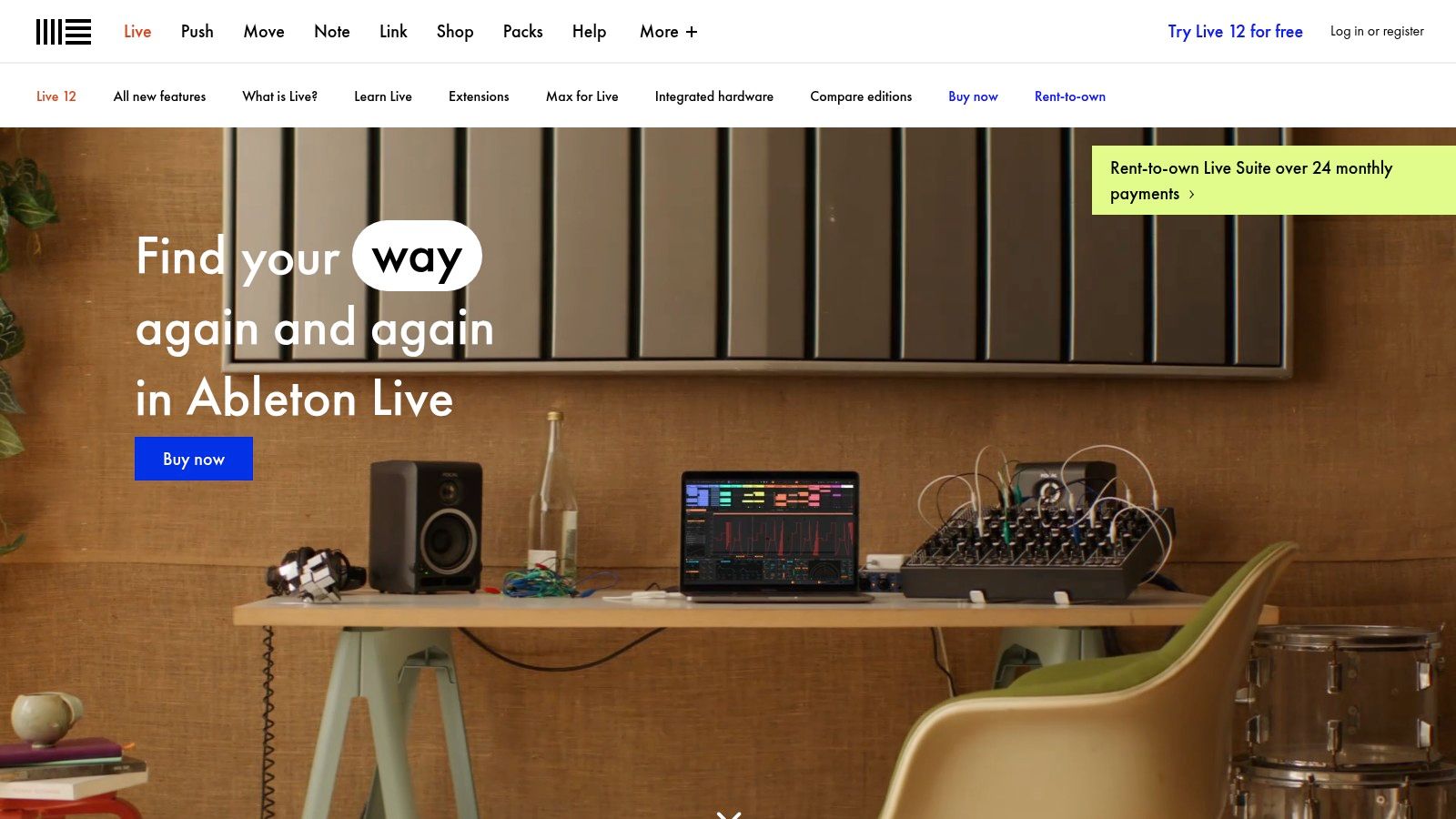
If your remix starts as loops and half formed ideas, Ableton Live is built for that stage. Session View lets you trigger clips, try alternate sections, and improvise transitions without committing to a timeline. Arrangement View is where you lock the structure, automate, and finish the track.
That split has a long history. According to a history of Ableton's first 25 years, Live 1.0 was released on October 30, 2001, after development by a small initial team. The session based design merged studio production with live performance, which is why DJs and electronic artists adopted it for live remixing early on.
Where It Helps and Where It Doesn't
Audio warping is the practical strength for remixing. You can stretch a vocal to a new tempo, tighten a loose drum break, and reshape MIDI parts around sampled material. Splice integration across editions speeds up finding replacement sounds. For context on how it compares as a production base, see this overview of the best DAW for music production.
The catch is edition gating. Stem separation is limited to the Suite edition, the most expensive tier. If you bought Standard expecting built in stems, you're paying again or extracting elsewhere first. It also takes time to learn. New producers often spend weeks comfortable in Session View and still avoid finishing in Arrangement View.
Best for: Loop based, electronic, and sample driven remixes that need both improvisation and a finished arrangement.
3. Serato Studio
Serato Studio skips the traditional DAW setup. You load a sample into a deck, build scenes for song sections, and sketch a remix without routing tracks or configuring a session first. For DJs making their first edit, that directness matters more than depth.
It separates samples into acapella, melody, bassline, and drum stems. You get pitch shifting, time stretching, effects, and automation in the same window, plus recording if you want to add your own part. Exports cover MP3, WAV, and individual stems, so a sketch made here can move into a bigger DAW later without bouncing a single stereo file.
Adoption data supports keeping production and performance tools separate. The 2023 Global DJ Census from Digital DJ Tips reported nearly 20,000 respondents, with Ableton Live and FL Studio leading for music production while Serato and Rekordbox led for DJ performance. Treat that as directional, since it's a community sample, but the split is real in practice.
The trade off is scope. This is a beat focused tool, not a general purpose DAW for dense multitrack mixing. The free version limits recording, tracks, decks, and scenes, and the fuller feature set pushes you toward a subscription. If you prefer a one time license, that model may not suit you.
Best for: DJs who want to turn a sample or acapella into a beat driven edit quickly.
4. FL Studio
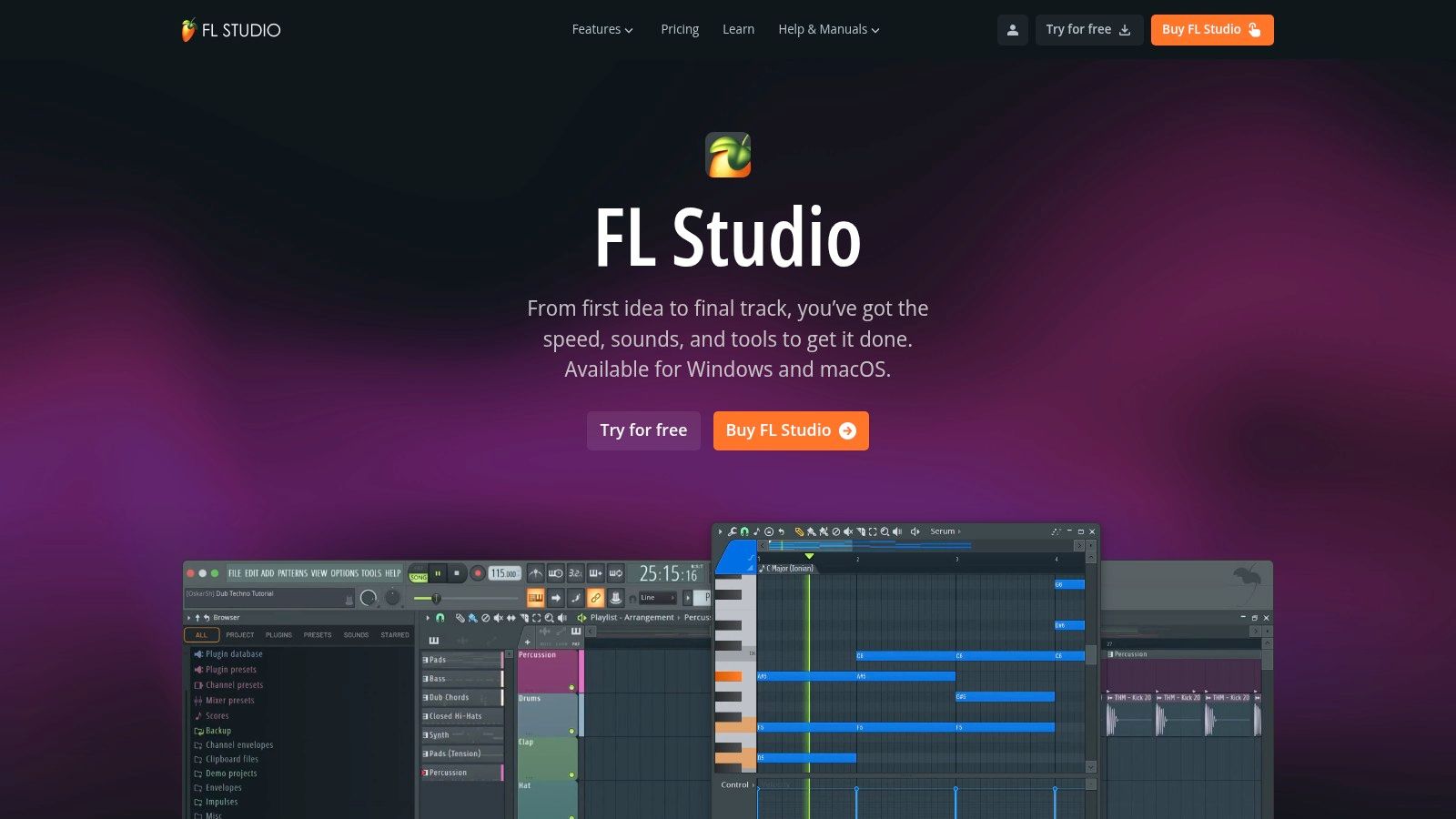
FL Studio suits remixes built from loops, drums, and MIDI parts. Create patterns in the step sequencer and Piano Roll, then arrange them in the Playlist and mix in the same project. That pattern-first workflow is quick for beatmakers, though detailed audio work takes more setup than building a pattern.
The software has a long history. Music Business Worldwide reports that Image-Line released it in 1997 as FruityLoops and that its chief executive says the software receives approximately 30,000 new downloads per day.
Edition Choice Decides Your Remix Tools
- Producer Edition and above: Includes audio recording and stem separation, the tools to look for when remixing finished tracks.
- Edison and Slicex: Use Edison for detailed audio editing and Slicex to chop samples for rearrangement.
- Fruity Edition: Costs less, but lacks audio recording and stem separation, so it is a poor fit for remixes that depend on extracting or recording audio.
For source extraction, FL Studio's stem separation can supply parts for the project, while Isolate Audio offers a natural-language front-end option for preparing stems to use in FL Studio or another editor. The edition matters: Fruity Edition does not include separation.
Purchased editions include lifetime free updates, an advantage over subscription-only software for producers who prefer a one-time purchase. The trade-off is a learning curve around routing and interface logic. If the project starts with sliced samples and programmed parts, FL Studio's pattern workflow fits; if you need to quickly extend a DJ track, its production depth may be more than the task requires.
Best for: Beatmakers building remixes from patterns, sliced samples, and Piano Roll parts.
5. Logic Pro
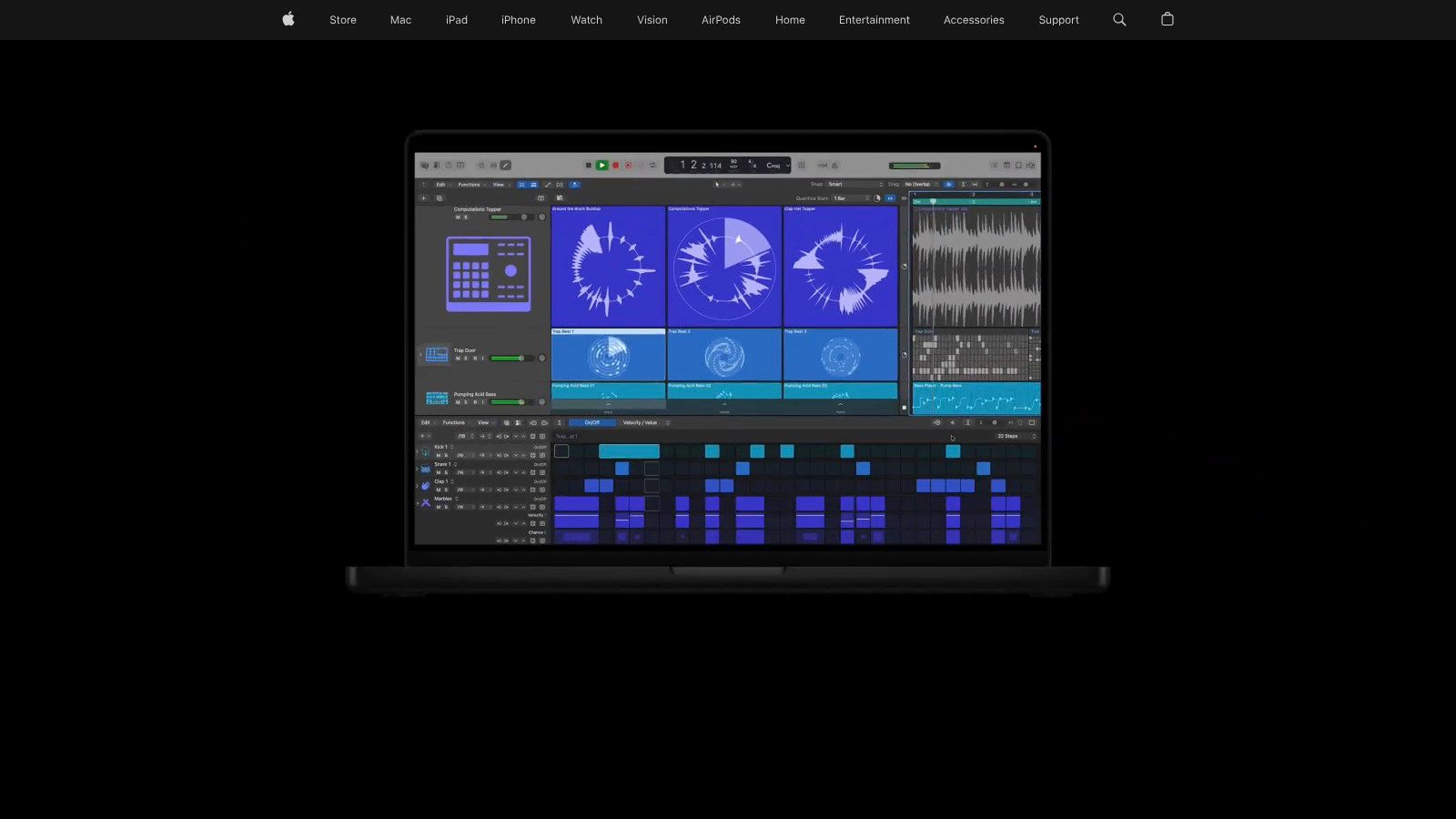
Mac users who want one app from source audio to finished mix usually land on Logic Pro. Stem Splitter can divide mixed audio into vocals, drums, bass, guitar, piano, and other instruments. That wider instrument split goes beyond the four stem default most tools offer.
From there, Flex Time and Smart Tempo handle timing fixes when your source doesn't sit on a grid. Beat Breaker reorders and repeats slices for rhythmic reworkings. Live Loops gives you a clip launching space, while Sampler and Quick Sampler turn extracted audio into playable instruments. The built in instruments, effects, loops, and mixing tools mean you rarely need to leave the app to finish.
Don't trust a stem split on the intro. Test it on the densest chorus, where vocals, guitars, and cymbals overlap. That's where artifacts show.
Two limits are non negotiable. The desktop version is Mac only, so Windows producers are out entirely. Stem separation can also produce artifacts, and a split labeled guitar or piano doesn't guarantee a clean, usable part. Solo each stem at full volume before you build around it.
The depth can also be overkill. If you only need a clean DJ edit with an extended intro, Logic gives you far more than that job requires, and you'll spend time learning tools you'll never open again.
Best for: Mac based producers taking a remix from mixed source audio through to a polished final mix.
6. rekordbox
You don't finish a studio remix in rekordbox. You prepare tracks, set cue points, check beat grids, and perform. That preparation layer is where it earns its place, especially if you play on compatible DJ hardware.
STEMS separates a track in real time into drums, vocals, and instruments. You can mute the vocal for a transition or isolate drums under another track. Groove Circuit goes further and lets you replace the drum part during playback, which turns a standard blend into a live rework. Mix recording and library management sit alongside those performance tools.
Ecosystem size matters here. The 2022 Global DJ Census from Digital DJ Tips placed Rekordbox and Serato at approximately 30% each among respondents' preferred DJ software. That survey reflects that publication's audience rather than an audited installed base, but it shows why supporting export to both platforms covers a large share of working DJs.
Feature access depends on your plan and connected hardware, and paid plans are subscription based. A free plan exists, but check exactly what your controller enables before you plan a set around a feature. For detailed multitrack production and final mixing, a DAW still does the job better.
Best for: Preparing and performing remixes live within a hardware led DJ library.
7. VirtualDJ
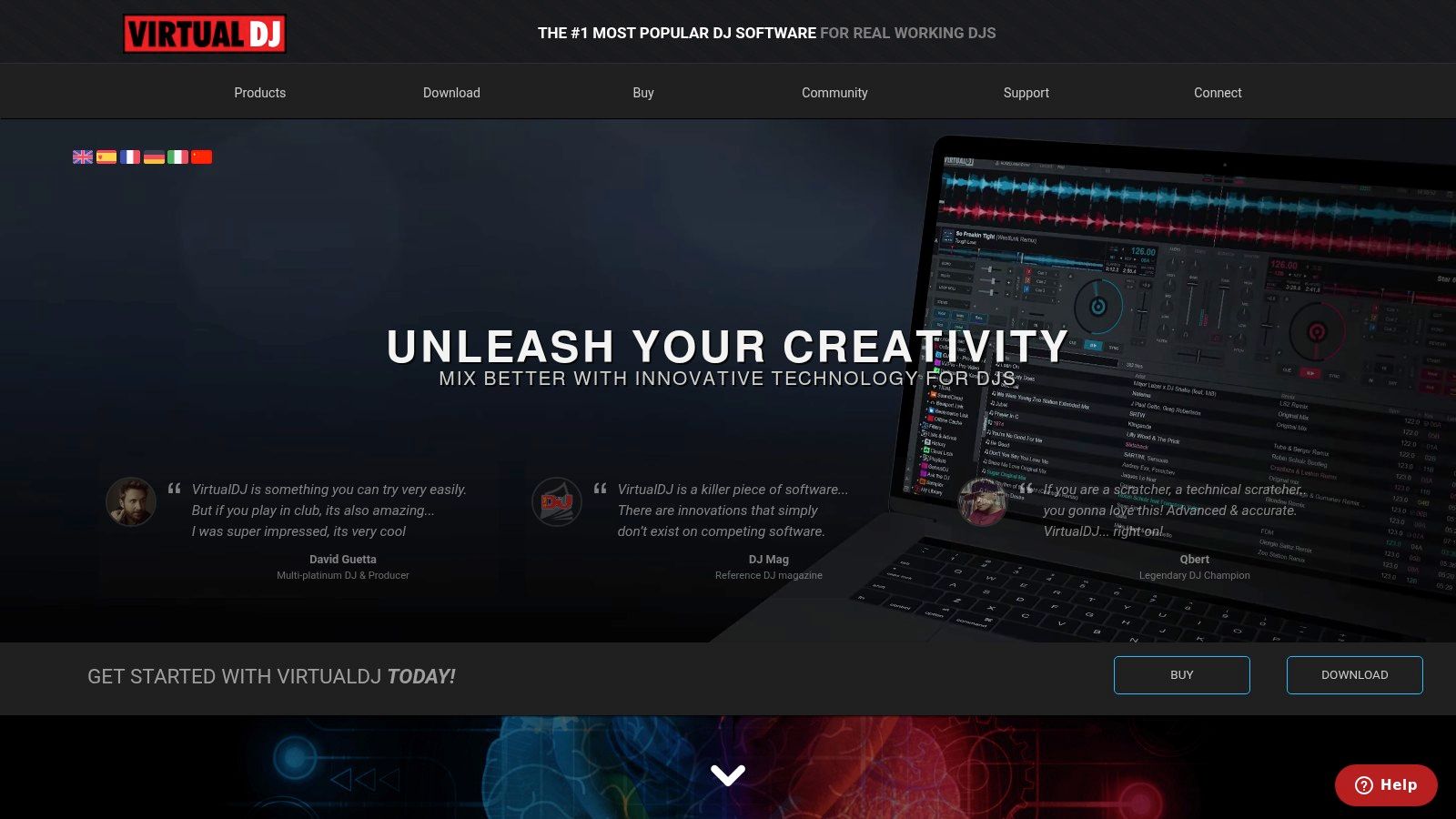
VirtualDJ puts live stem control on the decks. You load two tracks, separate stems in real time, and build a mashup during the set instead of rendering it beforehand. For open format and mobile DJs, that speed is the whole appeal.
Say you want the vocal from one track over the backing groove of another, tested in front of a crowd before you commit to a studio version. This is the tool for that test. If you're learning the underlying technique, this walkthrough on how to mix 2 songs together covers the tempo and key matching you need before stems sound musical.
Licensing Is the Real Decision
- Home plan: Lower cost, but limited to entry level controllers and not licensed for paid gigs.
- Professional plan: Supports a wide range of controllers and paid work.
- Business options: Separate licensing exists, plus plans aimed at video and karaoke use.
Read those tiers before you buy a controller. DJs regularly discover their home license doesn't cover the hardware or gig they just booked. The other limit is purpose. VirtualDJ performs mixes well. It doesn't replace a DAW when you need precise edits, automation lanes, and a polished multitrack bounce.
Best for: Quick live mashups, stem based transitions, and testing remix ideas on the fly.
8. djay Pro
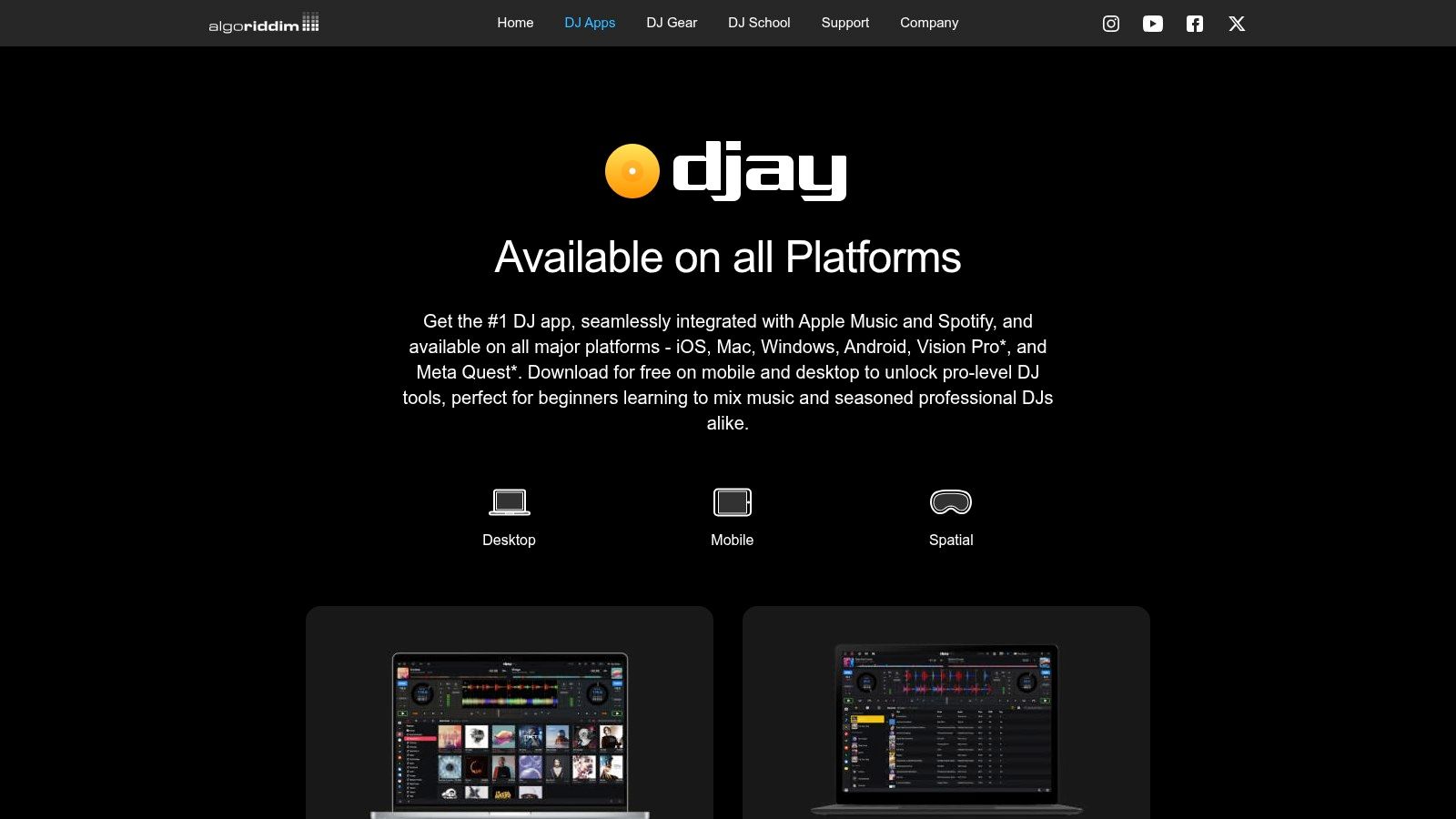
djay Pro builds its performance workflow around Neural Mix. You get real time control over vocal, drum, and backing track elements from the deck, so isolating an acapella or stripping drums for a blend is a performance move, not a pre production task. That design makes live remixing accessible on smaller screens too.
Around that core sit a sampler, looper, crossfader effects, and recording. Content packs add loops, samples, and visuals. Support covers more than 100 MIDI controllers in the product's own listing, plus DVS features for turntable based setups. It runs across multiple platforms and devices, which helps if you rehearse on a tablet and perform from a laptop.
Mobile is a real part of this market now. Market Research Future estimated the smartphone music production software market at USD 105.76 million in 2024, according to its market report page. That context explains why a touch friendly DJ app belongs beside desktop DAWs here.
Check the restrictions before you subscribe. Many advanced features require Pro, four deck mode and video mixing vary by platform, and Neural Mix cannot be used with music streamed from Apple Music or Spotify. If your library lives on streaming, test with local files first.
Best for: Live stem manipulation across desktop and mobile devices with controller support.
9. Traktor Pro 4
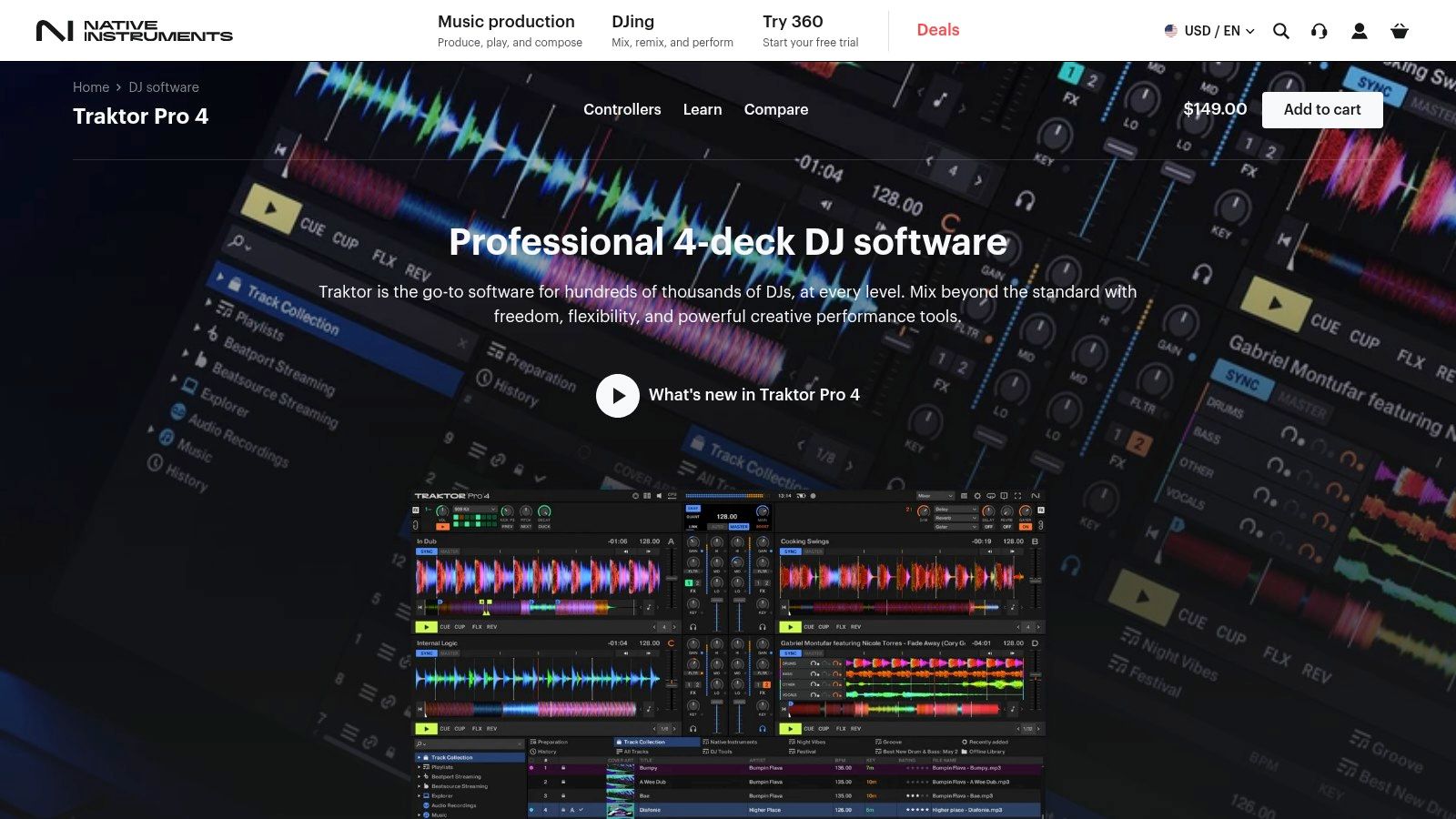
Four decks change what a live remix can be. Traktor Pro 4 lets you run full tracks alongside Remix Decks loaded with samples and loop sections. You aren't just blending A into B. You're layering a drum loop, a vocal chop, and a bass stem over a playing track.
Stem separation here is powered by iZotope RX technology, covering drums, bass, instruments, and vocals. Stem waveforms help you see which part you're about to bring in, which matters when you're working fast. Pattern Player adds drum patterns and kits so you can rebuild a groove under an existing track, and the effects count runs to more than 40 in the product listing.
I recommend Traktor when a DJ wants performance remixing without a subscription. It's available as a one time purchase, unlike several rivals on this list. Flexible layouts also help once your setup grows beyond two decks and a basic controller.
The specialization cuts both ways. It's built for DJ performance, not studio arrangement, so finishing a release ready remix still means exporting ideas to a DAW. Hardware compatibility needs checking before purchase, and the decks, layouts, and performance controls take real practice. Beginners often use a fraction of it for months.
Best for: Creative DJs layering stems, loops, and drum patterns across four decks live.
10. Mixxx
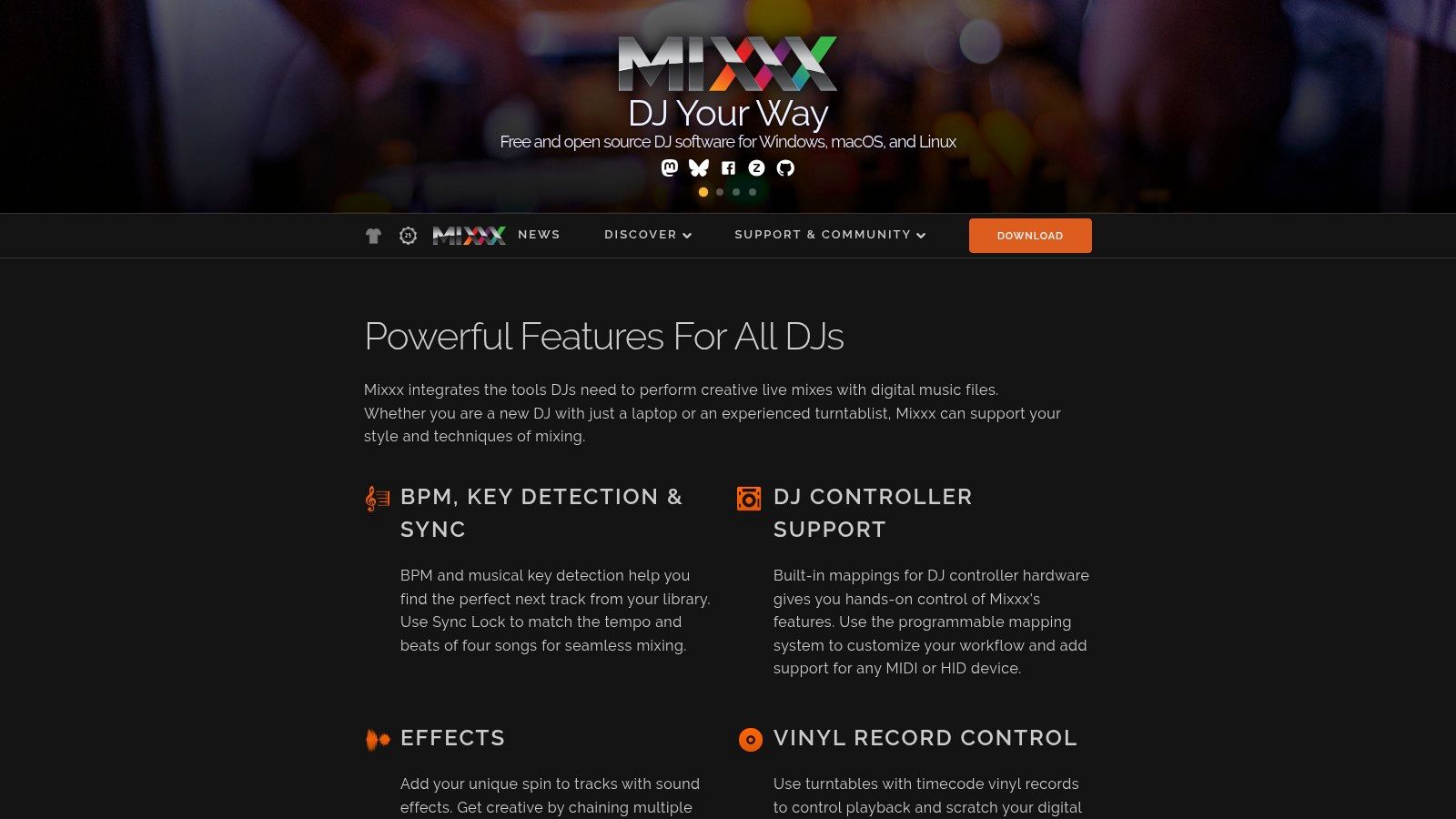
Mixxx costs nothing. No Pro tier, no subscription, no feature locked behind a monthly payment. It's free, open source DJ software for mixing a local music collection, and it runs on Windows, macOS, and Linux.
You get DJ controller support, timecode vinyl control, mix recording, and broadcasting features. It can also read music libraries from several other DJ applications, which lowers the cost of trying it alongside an existing setup. For learning beatmatching, cueing, and basic transitions, it covers the fundamentals without a purchase decision.
Starter test: Learn to mix two local tracks cleanly in Mixxx before you pay for stem features. If the blends aren't tight, stems won't fix them.
Expect hands on setup. Controller mapping and timecode configuration may need manual work that commercial software handles with a preset. Support is community driven, so there's no vendor help desk when a gig is tomorrow. Development follows that community model too, which suits some users and worries others.
Be clear about scope. Mixxx is designed for live DJ mixing, not studio remix production. It won't arrange multitracks, automate a build over 64 bars, or polish a final master. Use it to learn performance and test ideas, then move finished concepts into a DAW.
Best for: Learning DJ mixing and performing from a local library at zero software cost.
How the ten remixing tools compare on best use, free access, stem separation, and pricing model
The right choice depends on the remix job: Isolate Audio extracts a described sound before editing, DAWs handle arrangement and production, and DJ software supports live mixing. This comparison focuses on each tool's best fit, access model, stem options, and pricing structure.
| Item | Best For | Free Option | Stem Separation | Pricing Model |
|---|---|---|---|---|
| Isolate Audio | Isolating specific sounds with text prompts | 5 separations per month | Prompt-based; outputs the target sound and remaining audio | Free tier; Pro at $19/month; custom Enterprise |
| Ableton Live | Loop-based production and live performance | Paid only, no free tier | Included in Suite | Intro, Standard, and Suite editions; Suite required for stems |
| Serato Studio | Beat-making and sample-based remixes | Limited free version | Acapella, melody, bass, and drums | Free tier and subscription |
| FL Studio | Beat production and full song arrangement | Paid only, no free tier | Producer Edition and higher | One-time license with lifetime updates |
| Logic Pro | Mac-based production and remixing | Paid only, no free tier | Stem Splitter separates vocals and instruments | Standalone app purchase |
| rekordbox | DJ track preparation and live performance | Free plan available | Real-time drums, vocals, and instruments | Free and subscription plans |
| VirtualDJ | Live DJ mixing and mashups | Home plan available | Live stem separation | Home, professional, and business licenses |
| djay Pro | DJ performance with live stem control | Free version; Pro adds advanced features | Neural Mix separates vocals, drums, and instruments | Pro subscription for advanced features |
| Traktor Pro 4 | Four-deck DJ performance and live remixing | Paid only, no free tier | Separates drums, bass, instruments, and vocals | One-time purchase |
| Mixxx | No-cost DJ mixing with local music | Free and open-source | No built-in stem separation | Free, with no subscription |
Use Isolate Audio when the source material is buried in a finished recording: describe the sound, then bring the isolated element into the editor you already use. Ableton Live, FL Studio, and Logic Pro focus on production, while DJ tools support performance workflows. Their built-in stem options vary, and Mixxx has none. The table helps narrow the choice by workflow before comparing individual features.
Match the Tool to the Remix Job Before You Buy
Go back to that stalled remix. The vocal you love is trapped in a finished mix, and no amount of arrangement skill fixes missing source material. The fix is ordering your tools correctly. Extract what you need, then build in a DAW, or perform it in DJ software. Buying in the wrong order is how producers end up with an expensive arranger and no usable stems.
For full arrangement and finishing, choose a DAW. Ableton Live suits loop based experimentation that becomes a finished track. FL Studio suits pattern and Piano Roll beat building. Logic Pro suits Mac users who want stem splitting, timing tools, and mixing in one app. Serato Studio sits below those three in depth but gets a beat driven edit started faster.
For live stem work, choose a DJ tool. djay Pro centers Neural Mix across devices. Traktor Pro 4 layers stems, Remix Decks, and Pattern Player across four decks. VirtualDJ makes quick mashups and stem transitions easy, and rekordbox ties stem performance to library preparation and hardware. None of these replace a DAW for a polished studio bounce, and pretending otherwise leads to rough, unrepeatable edits.
If budget is the constraint, start with Mixxx or a free tier and learn on your own library. That principle matches the wider gap in most roundups. An overview of music editing software categories on G2 identifies decision areas including tempo control, library management, automation, stems, integration, and pricing across devices. Generic rankings rarely test handoff friction between those stages, which is exactly where your time goes.
Accessibility and control deserve the same test as sound quality. A summary on GitNux covering remix software and accessibility research reports interviews with 19 participants, where 16 used at least one hardware device as an accessibility aid for DAW functions, and a 2026 survey summary where 57.9% of creators envision AI operating under human direction while only 8.8% expect full automation. Check keyboard navigation, controller mapping, and whether AI results stay editable before you commit.
Test every candidate the same way. Load a real track from your library, not a demo song. Split the hardest section, solo each stem, and listen for watery vocals, missing transients, and bleed. Confirm the edition includes the stem feature shown in marketing, check your platform, and read the licensing terms for paid gigs. If you're building skills alongside the software decision, the Access Courses Online music technology guide is a useful companion read.
Then take the practical first step. If the stems you need aren't available from the source, run the track through Isolate Audio's free tier, describe the target sound in plain English, and import both outputs into your chosen editor. Start one small project, such as a 16 bar loop with the extracted vocal over your own drums. If that loop sounds clean, you've chosen well.
Isolate Audio lets you describe the exact sound you need, from a lead vocal to a piano melody, and download both the isolated element and the remaining audio ready for your DAW or DJ software. Use its free separations to test a difficult track from your own library, then build your remix on stems you actually control. Visit Isolate Audio to extract your first sound and start the arrangement.