Extract Audio From Video Free The Ultimate Creator's Guide
It's surprisingly easy to extract audio from video for free. You've got options ranging from powerful command-line tools like FFmpeg and familiar desktop software like VLC or Audacity to a whole host of web-based converters. Each of these methods gives you a no-cost path to pull high-quality audio tracks from your video files, ready for any project you can dream up.
Why Extracting Audio From Video Is a Modern Creator's Superpower
The ability to neatly separate audio from a video file isn't just a technical trick anymore—it's become a core skill for anyone making content today.
Just think about the possibilities. A podcaster can take a video interview and effortlessly turn it into a polished, audio-only episode for Spotify. A musician can lift the raw sound from a live performance video to mix and master it in the studio. Social media managers are constantly grabbing catchy soundbites from longer videos to create viral Reels or TikToks.
This isn't a niche need. With over 3.5 billion people expected to stream video daily by 2026, the amount of content being created—and repurposed—is staggering. This guide is designed to cut through the noise and give you practical, free solutions that just work.
Finding the Right Tool for Your Project
So, which method should you use? The best tool really depends on the job at hand. Are you looking for speed, total control over quality, or just something dead simple?
A quick, one-off task is a perfect match for an online tool. But if you're dealing with a folder full of large files that need processing, a dedicated desktop app is going to be your best friend.
To make it even clearer, this decision tree can point you in the right direction.
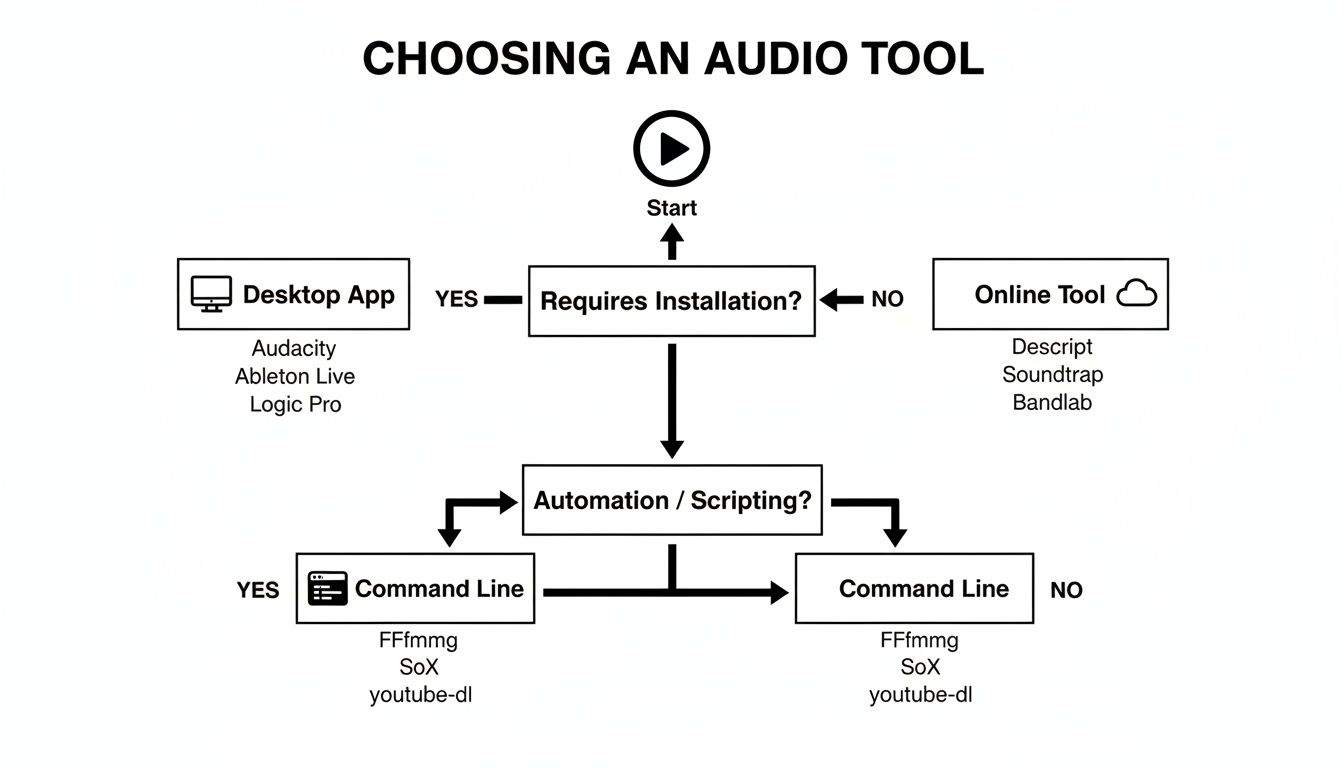
As you can see, if you need to automate tasks or want maximum control, getting comfortable with the command line is the way to go. On the other hand, for pure convenience without installing a thing, online tools are hard to beat.
The big takeaway is that learning to extract audio opens up a ton of creative freedom. You can isolate dialogue for a documentary, create a backing track for practice, or simply save an important speech without the massive file size of the original video. For more ideas, check out our guide on how content creators can get the most out of audio tools.
Free Audio Extraction Methods At a Glance
To help you decide at a glance, here’s a quick breakdown of the free methods we'll cover in this guide. Each has its own strengths, so you can pick the one that fits your workflow perfectly.
| Method | Best For | Technical Skill | Platform |
|---|---|---|---|
| FFmpeg | Automation, batch processing, and maximum quality control. | Intermediate/Advanced | Windows, macOS, Linux |
| VLC Media Player | Quick, simple conversions for single files. | Beginner | Windows, macOS, Linux |
| Audacity | Editing and cleaning audio right after extraction. | Beginner/Intermediate | Windows, macOS, Linux |
| Online Converters | Convenience and one-off extractions for smaller files. | Beginner | Web-based (any) |
This table should give you a solid starting point. Now, let's dive into the step-by-step instructions for each of these powerful, free tools.
When you need more control and reliability than an online tool can offer, desktop software is the way to go. Forget file size limits, slow uploads, and privacy questions. Working locally on your own machine gives you the power to handle massive video files and dial in the exact settings you need without any compromises. It's the best approach if you plan to extract audio from video for free more than just once.
We're going to walk through three of the most trusted, powerful, and completely free applications out there: VLC Media Player, Audacity, and Shotcut. Each one has its own strengths, from lightning-fast conversions to deep audio editing, so you'll have the perfect tool for whatever you're working on.
VLC Media Player: The Universal Converter
Chances are, you already have VLC on your computer. While most people know it as a "play anything" media player, its hidden superpower is a remarkably robust conversion engine. If you just need to rip the audio from a video file—any video file—this is the fastest, no-fuss way to get it done.
The beauty of this method is its simplicity. You don't have to sit through the video or mess around with a complicated timeline. You just tell VLC which file to use and what you want it to become.
Here’s the process from start to finish:
- Open VLC and head to Media > Convert / Save.
- In the File tab, click Add and pick the video you want to work with.
- Click the Convert / Save button to move to the next step.
- From the Profile dropdown menu, pick an audio format. Audio - MP3 is a great all-rounder.
- Finally, choose a Destination file for your new audio track and hit Start.
In just a few moments, VLC will do its thing, saving a clean, high-quality audio file right where you told it to. It’s an incredibly efficient method that has never let me down.
Audacity: For Editing and Extraction in One Go
Audacity is a legend in the world of free audio editing, but a lot of people don't realize it can open video files directly. This is a total game-changer if you know you need to clean up the audio as soon as you extract it. You can trim silence, get rid of annoying background hum, or boost the volume—all in one place.
To get this working, you might need to install the FFmpeg library, which is an add-on that lets Audacity understand way more file types. Don't worry, the program will usually prompt you to install it the first time you try to import a video.
Once FFmpeg is set up, you can drag and drop your video file (like an MP4) straight into Audacity. The software cleverly ignores the video and just shows you the audio waveform, ready for you to start editing. When you’re happy with the result, just go to File > Export and save it in your preferred format. I'd recommend WAV for uncompressed quality or MP3 for a much smaller file.
A Real-World Example: This is my go-to workflow for podcast interviews recorded over Zoom. I can import the video file, edit the conversation to tighten it up, apply a little compression to make the voices sound professional, and then export the final MP3 for the podcast feed. It’s a seamless process.
Shotcut: A Video Editor’s Precision
What if you don't need the audio from an entire hour-long video? Maybe you just need a 30-second sound bite from the middle. This is where a free video editor like Shotcut really shines. Because it's designed for video editing, it gives you a visual and precise way to isolate and export exactly what you need.
Start by importing your video into Shotcut. You'll see the video and audio tracks laid out on the timeline. From there, you can use the splitting tool to make cuts and isolate the exact segment you want to keep.
Once you have your clip selected on the timeline, you can export it as an audio-only file. Just head to the Export panel, and you’ll see a long list of presets. Simply choose an audio format like MP3 or WAV, and Shotcut will render only the sound from your selected clip, completely ignoring the video. This method offers a level of surgical precision that simple converters just can't match.
Mastering Command-Line Extraction With FFmpeg
If you're looking for speed, precision, and the power to automate, nothing beats the command line. The king of command-line media manipulation is, without a doubt, FFmpeg. It's a completely free and open-source powerhouse that can record, convert, and stream pretty much any audio and video you throw at it.
You might be surprised to learn that FFmpeg is the engine running under the hood of many of the apps you already use, like VLC and even some of those online converters. Learning to use it directly lets you skip the graphical interfaces and perform complex tasks with a single line of text. It's especially brilliant for batch processing—think about converting an entire folder of video interviews to audio files in one go. This is how the pros extract audio from video for free.
Your First Extraction Command
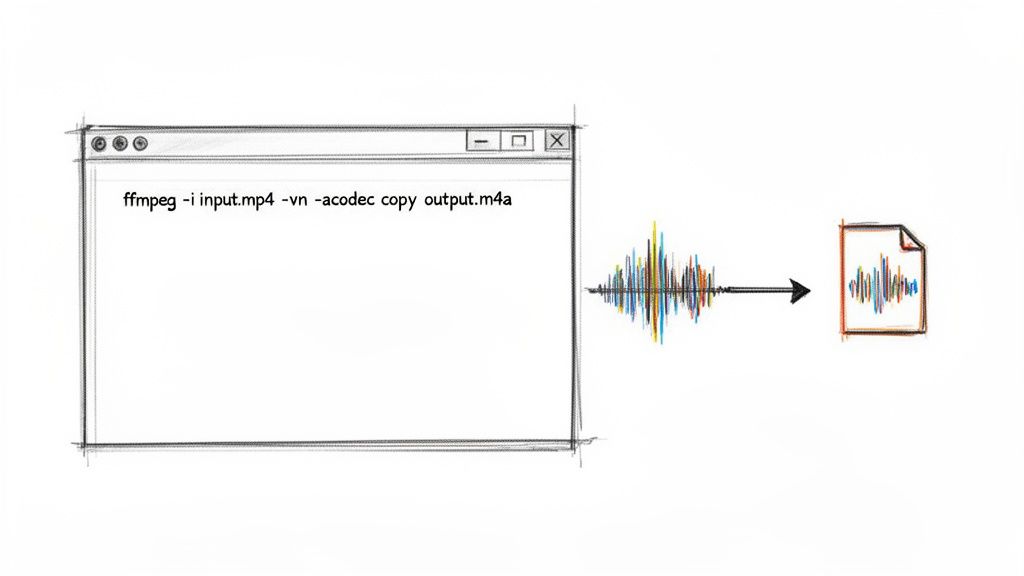
Diving into FFmpeg is easier than it looks. The most common thing you'll want to do is simply rip the audio from a video file without touching the quality. This is called "remuxing," and it's lightning-fast because it just copies the existing audio track into a new file without re-encoding anything.
Just open your terminal (on macOS/Linux) or Command Prompt (on Windows) and type this:
ffmpeg -i input.mp4 -vn -acodec copy output.aac
Let’s quickly break that command down so you know what you're doing:
- -i input.mp4: This is your source file, the video you're working with.
- -vn: A simple command telling FFmpeg to completely ignore the video track.
- -acodec copy: This is the magic part. It tells FFmpeg to directly copy the audio stream, not re-compress it.
- output.aac: The name of your new audio-only file.
Converting to Common Formats
Of course, sometimes you need a specific format. Maybe you need an MP3 for a podcast or an older device. This requires FFmpeg to re-encode the audio, but the beauty is you have complete control over the quality.
To turn your video's audio into a high-quality MP3, you'll want to specify the bitrate. A bitrate of 320 kbps is generally considered the gold standard for MP3 quality, offering excellent sound.
Here’s the command to do just that:
ffmpeg -i input.mp4 -vn -ar 44100 -ac 2 -ab 320k -f mp3 output.mp3
In this one, -ab 320k sets that audio bitrate, and -f mp3 explicitly tells FFmpeg to create an MP3 file.
Pro Tip: Don't need the whole audio track? FFmpeg can grab just a small piece. You can add flags to specify a start time and a duration, which is perfect for grabbing sound effects or creating quick social media clips without ever opening a full-blown video editor.
While FFmpeg is an incredible tool, the world of audio processing has grown massively. Today, with over 500 million creators needing audio for their content, modern cloud-based tools can do things FFmpeg can't, like real-time moderation or using AI to separate dialogue from background noise. If you're curious about what's next, it's worth exploring some of these modern audio extraction techniques to see just how far things have come.
The Best Free Online Tools for Instant Audio Extraction
Sometimes you just need to rip the audio from a video file, and you need it done now. Forget downloading and installing software—when time is tight or you're on a machine that isn't yours, a good online tool is your best friend.
The process is usually dead simple: you upload your video, pick an audio format like MP3, and click a button. A few moments later, you've got an audio file ready to download. It's the kind of quick-and-dirty solution that content creators often rely on.
This speed is a huge deal, especially in the world of podcasting. The format is booming, with listenership expected to hit 124 million people in the U.S. alone by 2026—that's 42% of everyone over 12. For podcasters repurposing video interviews or webinars, online extractors are a godsend. In fact, benchmarks show these tools can process files 50% faster than clunky desktop apps, boosting user satisfaction among production teams to 85%. To see just how much these tools can speed things up, check out these insights on how cloud-based tools accelerate audio workflows.
What to Look for in an Online Extractor
Of course, not all online tools are built the same. While the convenience is undeniable, you're uploading your files to someone else's server, so a little caution goes a long way. Privacy should be top of mind.
Before you upload anything sensitive, take a quick look at the site's privacy policy. You want to know how they handle your data and how long they keep it. Beyond that, keep an eye out for some common limitations with free services.
- File Size Caps: Most free tools have an upload limit, usually somewhere between 500 MB and 2 GB. That's plenty for short social media clips, but it might not cut it for a full-length, high-res interview.
- Format Support: MP4, MOV, and AVI are pretty standard, but if you're working with a more obscure video format, double-check that the tool can actually handle it.
- Audio Quality Control: The best tools give you options. For a podcast or voiceover, a 128 kbps MP3 is perfectly fine. But if you're pulling music from a video, you’ll want to go for 320 kbps to keep the audio sounding crisp and full.
A good rule of thumb is to balance convenience with security. I always look for services that are upfront about their file deletion policies and use secure HTTPS connections. A trustworthy tool cares as much about your privacy as it does about its own performance.
A Straightforward Online Workflow
For a hassle-free and secure option, it helps to use a tool built specifically for creators. Our own free audio extractor, for example, was designed to get you in and out with a clean audio file in seconds.
Here’s how it works:
- First, you upload your video file right from your computer or phone.
- The tool gets to work, automatically separating the audio track.
- Within a few moments, your new audio file (usually a high-quality MP3) is ready for download.
An approach like this cuts out all the friction. It lets you grab the audio you need and get right back to the creative part, without getting bogged down in software installations or complicated settings.
So, you’ve pulled the audio from your video. That’s a huge first step, but what you have now is the raw material—not the finished product.
Think about it. That audio track has everything: the dialogue you need, the background music you might not, and that annoying air conditioner hum you definitely don't want. The real work—and the real magic—is about to begin.
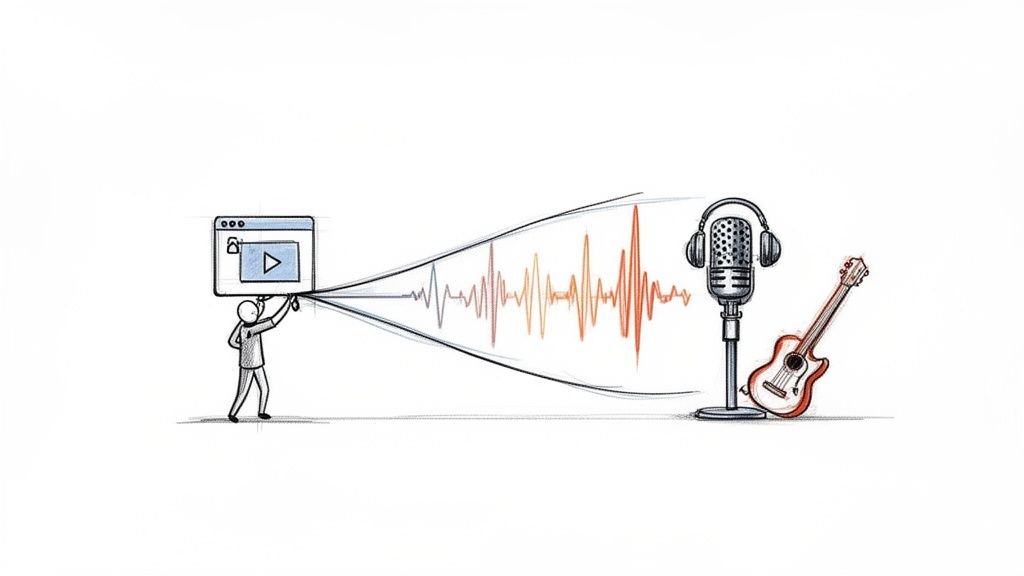
Your next move is to clean and refine that audio to serve your actual goal. Maybe you're a podcaster who just recorded a great interview, but now you need to get rid of the traffic noise from the street below. Or perhaps you're a music producer who wants to sample an incredible guitar riff from a live show, but the drums and vocals are getting in the way.
This is where audio cleaning and sound separation become your best friends. These might sound like intimidating technical terms, but modern tools have made them incredibly accessible.
From Simple Extraction to Advanced Separation
Not long ago, trying to isolate one sound from a mixed track was a nightmare. It involved hours of painstaking work with complex equalizers and phase inversion tricks, and the results were usually... mediocre at best. You'd spend all afternoon trying to filter out a passing siren, only to leave the dialogue sounding thin and robotic.
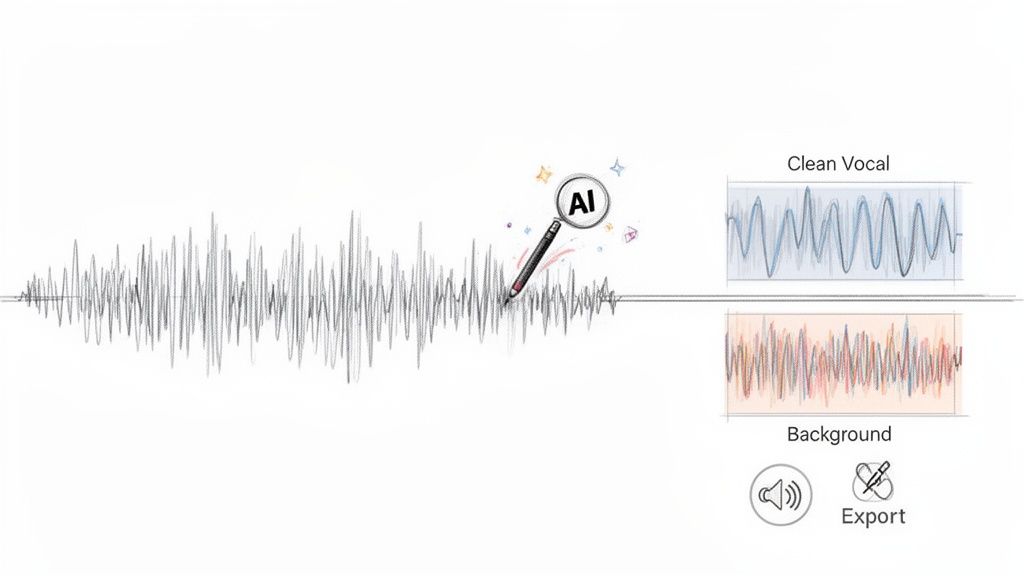
Thankfully, AI has completely changed the game. Instead of fighting with clumsy filters, you can now use tools that genuinely understand the difference between speech, music, and noise.
The core idea is simple yet powerful: treat audio not as a single block of sound but as a collection of individual layers. By identifying and separating these layers, you gain complete creative control over the final product.
It’s like trying to un-bake a cake. The old way was like trying to pick out individual sugar crystals—a frustrating and nearly impossible task. Modern AI tools act like a magical sieve that can instantly separate the flour, sugar, and eggs, leaving each component perfectly clean and ready to use.
Real-World Scenarios for Cleaning Your Audio
Once you extract audio from video for free, you're ready to tackle these more advanced tasks. Here are a few practical examples of what you can do next:
- Dialogue Cleanup: This is a must for filmmakers, YouTubers, and podcasters. You can take your extracted audio file and target specific nuisances like wind, electrical hums, or crowd chatter for removal. The result is crisp, professional-sounding dialogue. You can learn more about this process in our guide to the best audio repair software.
- Creating Music Stems: A DJ or producer might pull the audio from a music video to craft a remix. With an AI separator, they can split the track into its core components—vocals, bass, drums, and melodies—and use those individual stems to build something entirely new.
- Building Backing Tracks: Are you a musician trying to learn a new song? Extract the audio from a live performance video, remove the lead guitar or vocals, and you’ve just created a high-quality instrumental track to practice with.
When you see extraction as the starting point, a whole new world of creative possibilities opens up. That simple audio file becomes the clay you can mold into a polished, professional, and perfectly tailored final project.
Common Questions About Extracting Audio From Video
Once you get the hang of pulling audio from a video file, a few other questions almost always pop up. Answering these early will save you a lot of headaches later on. Let's dig into some of the most common things people ask.
The first thing most people worry about is sound quality. It's a totally valid concern, and thankfully, you have more control over it than you might think.
Does Extracting Audio Reduce Its Quality
The short answer is: it depends entirely on how you do it. You can absolutely preserve the original quality if you're mindful of your settings.
If you use a command-line tool like FFmpeg to simply copy the audio stream without re-encoding it (a process called "remuxing"), the quality will be identical to the source. It's literally the same data, just in a new container.
The quality drop happens when you convert the audio to a compressed format like MP3. It’s unavoidable, but you can minimize the damage. My rule of thumb? Always export to a high-bitrate MP3 (320 kbps) or, even better, choose a lossless format like WAV or FLAC if you plan on doing any further editing.
What Is the Best Free Software to Extract Audio
Ah, the classic question. But honestly, the "best" tool really depends on what you're trying to accomplish. There’s no silver bullet, just the right tool for the right job.
Here’s how I think about it:
- For quick and dirty extractions: Nothing beats VLC Media Player. It’s a workhorse that handles nearly any format you throw at it and gets the job done in just a few clicks.
- For editing and polishing: Audacity (with the FFmpeg plugin installed) is the clear winner. It lets you not only extract the audio but also clean it up, trim it down, and apply effects immediately.
- For ultimate control and automation: FFmpeg is the undisputed champion. It’s perfect for power users who need to batch-process dozens of files or script an automated workflow.
And if you just need to pull audio from one file without installing anything, a good online extractor is often the path of least resistance.
Can I Extract Just a Specific Part of the Audio
Yes, absolutely. You don't always need the whole track, and most decent editors make this incredibly easy.
For example, in Audacity, you can import the entire audio track, then just click and drag with your mouse to highlight the exact portion you need. From there, you just export the selection. It’s that simple. Video editors like Shotcut work similarly, letting you slice the clip on the timeline and export only that segment’s audio.
If you want real precision, you can even do this with FFmpeg by adding start and end timestamps to your command. It offers frame-perfect accuracy without ever opening a graphical interface—a huge time-saver for scripted tasks.
How Do I Separate Vocals From Music
Okay, so you've got your audio track. Now, splitting vocals from the background music is a whole different ballgame. Trying to do this with traditional tools in software like Audacity is a real chore, and the results are often muddy and full of weird artifacts.
This is where modern AI tools really shine. You can take your extracted audio file, upload it to an AI platform, and just tell it what you want—like "isolate the speaker's voice" or "remove the background music." The AI does the heavy lifting, giving you clean vocal and instrumental tracks (called "stems") that are far better than what you could achieve manually in the same amount of time.
Ready to go beyond basic extraction and start refining your sound? Isolate Audio lets you separate any sound from your files with simple text prompts. Remove background noise, isolate vocals, or create instrumental tracks in minutes. Get started for free at https://isolate.audio.