A Guide to Extract Audio From Video Online With AI
The easiest way to pull audio from a video these days is with a browser-based AI tool. You don't have to download any clunky software—just upload your video file, and the platform handles all the processing in the cloud. Within minutes, you get a clean, high-quality audio file (like an MP3 or WAV) ready to go. It's an incredibly quick method for repurposing content.
Why Extract Audio From a Video Online?
Before we get into the "how," let's talk about the "why." Separating audio from video isn't just a technical trick; it's a foundational skill in content creation that can save you a ton of time, boost your quality, and open up entirely new creative avenues for your projects.
The biggest win here is convenience. Traditional video editing software can be a real beast—it’s often complex, demands a powerful computer, and comes with a steep learning curve. Online tools sidestep all of that.
Streamline Your Creative Workflow
Think about a podcaster who just wrapped up a great video interview. Instead of having to re-record everything for an audio-only format, they can just extract the dialogue from the video. Boom. They've got a crisp, ready-to-edit podcast episode perfect for platforms like Spotify or Apple Podcasts, making their content accessible to anyone listening on their commute.
This is a game-changer for musicians, too. Imagine you captured the perfect live guitar solo on video during a gig. With an online audio extractor, you can lift that solo right out of the performance and drop it into a new studio track. You get to keep all the raw energy of the live take without any of the visual baggage.
For filmmakers and editors, the ability to rescue audio is a lifesaver. Picture this: you’ve got a crucial line of dialogue from an on-location shoot, but it's nearly drowned out by wind noise. By isolating the audio, you can often clean up that dialogue and save a scene that would otherwise be completely unusable.
The Power of Browser-Based Tools
The move toward tools that work right in your browser has made this kind of editing accessible to everyone. Here’s why it’s so effective:
- No Installation Needed: You can get the job done from any computer with an internet connection. No downloads, no installations, no hassle.
- Cloud Processing: All the heavy lifting happens on powerful servers, not your local machine. This means your computer doesn’t slow to a crawl, and the whole process is way faster.
- Accessible to All Skill Levels: These tools are built with simple, intuitive interfaces. You don’t need a degree in audio engineering to get professional-sounding results.
Ultimately, learning to extract audio from video online is all about working smarter, not harder. It gives you the freedom to repurpose, refine, and reimagine your content in ways that used to be a massive headache.
How to Isolate Audio From Video Instantly
Forget just ripping a single audio track from a video. Modern AI gives us the power to perform surgical sound extractions, and you can do it right from your browser. This isn't about getting the entire audio file; it's about pinpointing and pulling out specific elements. Think isolating dialogue from a noisy street scene or lifting the perfect drum break from a live performance video.
The best part? You don't need to be a sound engineer.
The process starts with a simple upload. Just head to an online tool like Isolate Audio's extractor and drag and drop your video file—whether it's an MP4, MOV, or AVI—directly onto the page. There’s absolutely no software to install, which is a huge leap from the clunky, resource-hungry video editors of the past.
Tell The AI What You Want in Plain English
This is where the magic really happens. Once your video is loaded, you don’t have to mess with complex timelines or audio filters. Instead, you just tell the AI what you want using natural language prompts. It's as simple as typing a command.
Here are a few real-world examples I've used:
- "Isolate the lead vocals"
- "Extract the background music"
- "Remove the sound of the wind"
- "Get the bass guitar track"
The AI gets to work, analyzing the entire audio landscape of your video to intelligently separate the exact sound you described from everything else. I've been consistently impressed with how accurate this has become, even when distinguishing between sounds that are heavily overlapped in the original recording.
The big shift here is from manual editing to descriptive commands. You no longer need to know how to use an equalizer or a noise gate; you just need to know what sound you want.
After a few moments, the tool will typically give you two distinct audio files. One file is the isolated sound you asked for, and the other contains everything else. This gives you total creative control—you can use the extracted element by itself or remix the remaining sounds without the part you removed.
Choosing Your Format and Downloading
Before you grab your files, you’ll usually get a few choices for quality and file type. Most tools offer presets that let you decide between processing speed and audio fidelity.
- Best Quality: This is my go-to for any serious project. It takes a little longer to process but delivers a lossless or high-bitrate file that's perfect for studio work or a high-production podcast.
- Balanced: A solid middle-of-the-road option that works for most situations. You get great quality without a long wait.
- Fast: When you just need something quick and dirty, this gets you a usable file in seconds. It’s more compressed, but perfect for a quick preview or a social media clip.
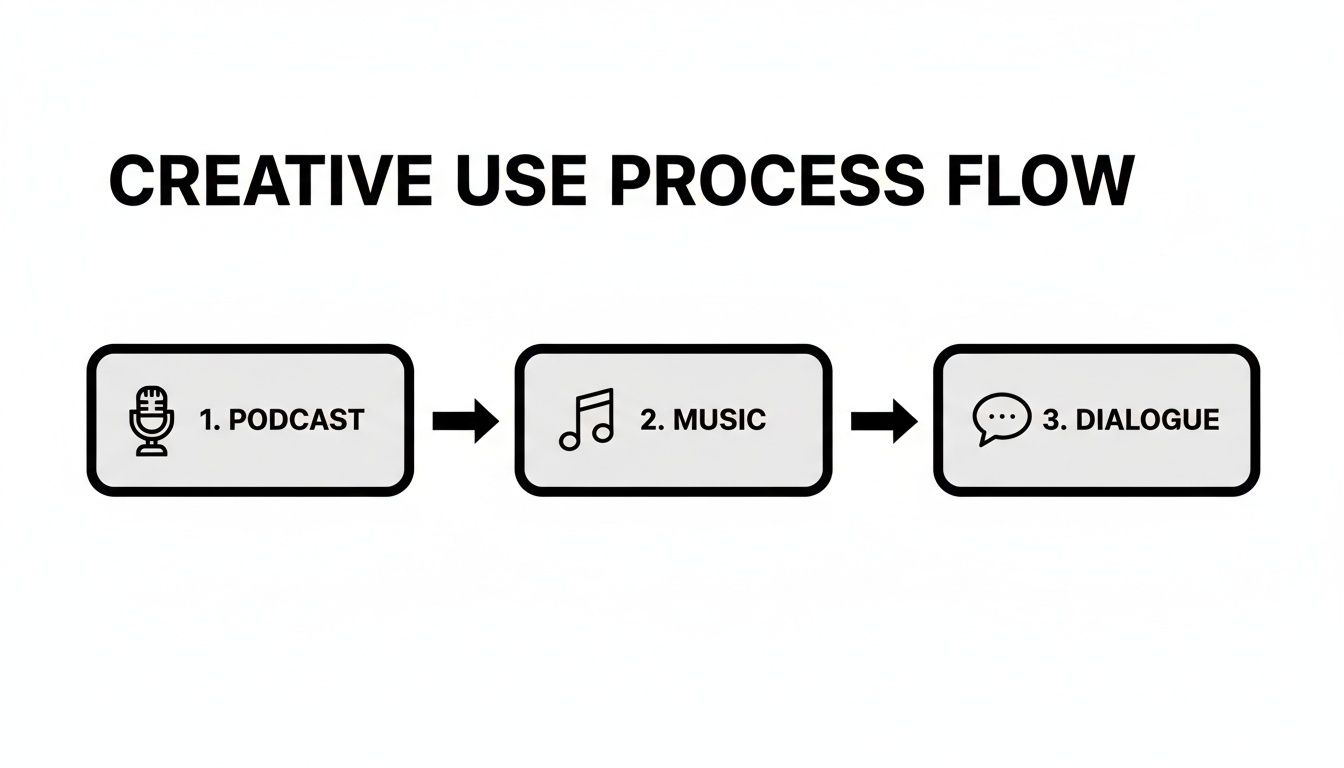
This workflow is incredibly versatile, fitting into all sorts of creative projects.
Whether you're cleaning up dialogue for a podcast, sampling a musical phrase, or redesigning sound for a film project, the ability to deconstruct audio this easily is a game-changer.
Supported File Formats and Outputs
To make things clear, here’s a quick reference for the video formats you can upload and the audio formats you can typically get back.
| File Type | Supported Video Input Formats | Supported Audio Output Formats |
|---|---|---|
| Common Formats | MP4, MOV, AVI, MKV, WMV, FLV | MP3, WAV, FLAC, AAC |
This list isn't exhaustive, as many tools support a wider range, but these are the ones you'll encounter 99% of the time. Once you’ve selected your quality and format (MP3 for portability, WAV for fidelity), you just hit download. The entire process, from uploading your video to having professionally separated audio tracks, often takes just a few minutes.
Go Deeper: Using AI to Isolate Specific Sounds
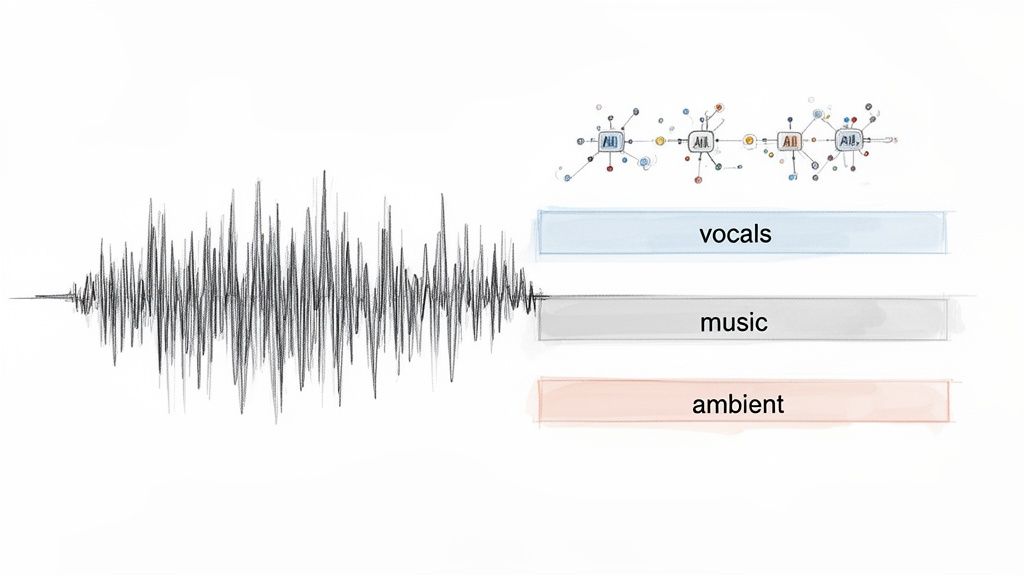
Sometimes, just grabbing the entire audio track isn't enough. What if you need to pull a specific piece of dialogue out of a noisy street scene, or isolate a guitar riff from a full band recording? This is where modern AI tools really shine, moving past simple extraction and into the realm of true audio separation.
Think about a typical vlog recorded outdoors. You’ve got the speaker's voice, but you also have traffic noise, wind, maybe some music from a passing car, and people talking in the background. In the past, cleaning this up was a nightmare. Now, AI can untangle all those layers, letting you pinpoint and extract exactly what you need.
This kind of advanced processing isn't just a novelty; it's becoming a core part of digital workflows. Some platforms are seeing a 150% jump in demand for audio-only processing and are handling over 500,000 short videos a month for speech analysis alone. The reason is simple: it’s cheaper and faster. Feeding a full video file to a transcription AI can cost up to 5x more than just sending the audio track.
How to Write Prompts That Actually Work
The real trick to getting great results from these AI tools is learning how to ask for what you want. Vague prompts lead to messy, inaccurate results. The more specific you are, the better.
Instead of just typing "isolate vocals," get descriptive. A prompt like "extract the main female speaker's voice" gives the AI crucial context to ignore other voices or background noise.
Here are a few examples to get you thinking:
- For Podcasters: Don't just say "remove noise." Try "isolate the two host voices and remove the humming from the air conditioner."
- For Musicians: Instead of a generic "get guitar," specify "extract the clean acoustic guitar melody." This helps the AI differentiate it from, say, an electric bass.
- For Video Editors: A prompt like "isolate the sound of the car engine revving" is far more effective than "get car sound."
Pro Tip: Try to think like an audio engineer. What makes the sound unique? Is it a specific instrument, an action, a texture? Mentioning these details in your prompt gives the AI the clues it needs to deliver a clean, accurate separation.
Dealing with Overlapping Sounds Using Precision Mode
What happens when sounds are tangled together, like when two people talk over each other in an interview or a singer's voice bleeds into the drum mics on a live recording? This is where a standard prompt might struggle.
For these tough cases, you need a tool with a Precision Mode. This feature activates a more powerful, resource-intensive algorithm designed specifically to untangle heavily overlapping audio. It might take a little longer to process, but the results can be stunning. It can mean the difference between getting a clean dialogue track or having to throw the clip away.
This is especially handy if you want to learn how to extract background music from video when it’s buried under dialogue and sound effects. Precision Mode can carefully lift the music out, giving you a usable track for your project.
Creative Ways to Use Your Extracted Audio
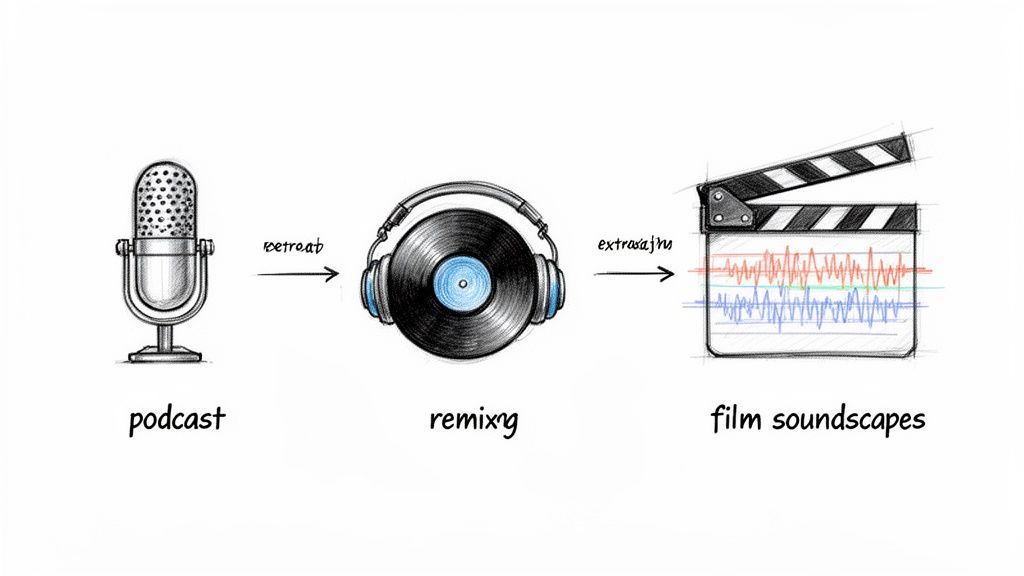
So, you’ve pulled the perfect audio clip from your video. Now what? This is where the real fun begins. Having a clean audio element opens up a whole new world of possibilities, whether you're a podcaster, musician, or video editor.
Think of it less as a technical step and more as a creative launchpad.
The demand for these tools has absolutely exploded. The global market for audio extraction shot up by 22% in the last year alone, hitting a value of €0.77 billion. A huge driver behind this growth is the podcasting world, where creators are constantly looking for smart ways to repurpose video interviews and webinars for their audio-only shows.
For Podcasters and Content Creators
One of the most powerful things you can do is repurpose your content. That one video interview can become a goldmine of material when you extract audio from the video online.
Let's say you just wrapped up a one-hour video chat with an expert. Instead of just throwing it on YouTube and calling it a day, you can:
- Create a Polished Episode: Pull the entire conversation to publish as a clean, high-quality podcast.
- Generate Shareable Audiograms: Isolate the three most powerful quotes from the interview. Slap a simple waveform graphic on them, and you’ve got a dozen short, punchy clips ready for Instagram Reels, TikTok, or LinkedIn.
- Make an Accurate Transcript: Use the clean audio to generate a transcript for your blog. This is great for SEO and makes your content more accessible.
This strategy lets you get so much more mileage out of a single recording session. You can reach different audiences on different platforms without having to create brand-new content from scratch.
For Musicians and DJs
If you're in the music world, audio extraction is like having a bottomless crate of records to sample. You can deconstruct existing recordings to find truly unique sounds for your own tracks.
Imagine a DJ wanting to cook up a one-of-a-kind remix. They could find a live performance on YouTube, isolate the singer’s a cappella vocal, and then drop it over a totally different instrumental. That’s far more interesting than just grabbing a pre-packaged vocal sample everyone else is using.
I once worked with a guitarist who wanted to learn a ridiculously complex solo from a vintage concert video. The audio was a muddy mess. By using an AI tool to isolate just the guitar, he created a perfect practice track he could slow down and learn note-for-note.
Here’s a typical workflow I see musicians use all the time:
- Isolate Vocals: Grab a vocal line from a video to build a remix or bootleg around.
- Extract Drum Loops: Find a live performance with a killer drum break, pull it out, and use it as the backbone for a new beat.
- Build Practice Tracks: Remove the bass or guitar from a song to create a "minus-one" track you can jam along with.
For Video Editors and Filmmakers
Sound design is one of those things that can make or break a film, but it’s often an afterthought. Extracting audio gives editors the power to build rich, immersive soundscapes that truly elevate what's on screen.
For example, a filmmaker might have a scene shot in a quiet studio but needs it to feel like it’s set in a bustling city. They can find stock footage of a busy street, extract the ambient sound—the traffic, distant sirens, people talking—and layer it subtly under their scene. All of a sudden, that sterile studio shot feels alive and real.
This is also a lifesaver for fixing mistakes. If a perfect take is ruined by a sudden background noise, you can sometimes isolate the dialogue, clean it up, and then rebuild the ambiance using clean sounds from other parts of the footage. If you're looking for more inspiration, you can find a ton of creative ideas and techniques for content creators.
Navigating Common Extraction Hiccups
Even the most intuitive online tools can hit a snag now and then. When you're trying to extract audio from video online, running into a problem can be frustrating, but the fix is usually pretty straightforward. Let’s walk through a few common issues and how to get past them without breaking a sweat.
Low-Quality or Distorted Audio
If your final audio file sounds distorted or just plain bad, the first place to check is the source video itself. Remember, an extractor can't magically create quality that isn't there. It can only work with what you give it.
For the best results, always start with the highest-resolution video you can get your hands on. A clean source file is the foundation for clean audio.
File Upload Failures
Stuck on the upload screen? This is almost always a connection or file size problem. First, give your internet connection a quick check. If it's stable, the culprit is likely the file itself. Extremely long or high-resolution videos can be massive, and some browsers or connections might time out during the upload.
Getting More from Your AI Prompts
Sometimes the AI doesn't quite nail what you're asking for, especially if your video has a lot going on sonically. If a prompt isn't giving you the results you want, the trick is to get more specific.
Instead of a generic command like "remove noise," try describing the exact sound you want to get rid of. For example, changing your prompt from "isolate speech" to "isolate the presenter's voice and remove the wind noise" gives the AI much clearer instructions. Think like a director giving notes.
The secret is being descriptive. You're essentially teaching the AI what to listen for in that specific clip. Giving it detailed, targeted instructions almost always leads to a cleaner, more accurate extraction.
A Quick Word on Processing Times
How long should it take? Well, that depends on a few things. The length of your video and the quality setting you choose are the two biggest factors. A short, five-minute clip on a "Fast" setting might be done in under a minute, while a full-length movie on "Best Quality" is going to need a bit more time to process.
For pros who need to work through multiple files, batch processing is a game-changer. Modern tools can now chew through up to 100 files at once, condensing hours of manual work into just a few minutes. And with 73% of users citing privacy as a top concern, many are turning to browser-based tools that process everything locally, meaning your files never even hit a server.
You can dive deeper into how audio extraction is changing professional workflows at SolveigMM.
Got Questions? We've Got Answers
When you're looking to extract audio from video online, a few common questions pop up. Getting these cleared up beforehand can save you a lot of headaches and help you get the exact sound you're after.
Is It Actually Legal to Rip Audio From Any Video?
This is a big one, and the answer really boils down to copyright and what you plan to do with the audio.
If you’re pulling audio from a video you created yourself, you're in the clear. Go for it. But when you start dealing with copyrighted material—think movie clips, music videos, or another creator's content—it gets tricky. Using that audio for anything public or commercial without getting permission first is almost certainly copyright infringement.
Now, for personal projects, like grabbing a guitar riff to practice over, you might be covered by "fair use." Just remember that fair use laws can be murky and vary by location.
My rule of thumb? Stick to content you own or have permission to use. If you're not sure, it's always safer to find a royalty-free alternative or just use your own work.
Will I Lose Audio Quality When I Extract It?
The quality of the sound you extract is completely dependent on the quality of the original video's audio track. You simply can't create high-fidelity sound from a low-quality source.
A good online tool is built to maintain the original audio fidelity perfectly. That's why you'll see options to download in lossless formats like WAV or FLAC—they prevent any quality degradation from compression.
If the video you start with has muffled, grainy, or heavily compressed audio, that's exactly what your extracted file will sound like. For the best possible results, always, always start with the highest-quality video you can get your hands on.
What's the Difference Between an AI Separator and a Basic Video to MP3 Converter?
Ah, this is a crucial distinction. Think of a standard video to MP3 converter as a blunt instrument. It just grabs the entire audio track—dialogue, music, sound effects, everything—and mashes it all together into a single MP3 file. Simple, but not very flexible.
An AI audio separator, on the other hand, is like a surgical tool. It uses artificial intelligence to listen to and understand the different components of the audio. You can then tell it what you want.
- You could say: "Just give me the vocals."
- Or maybe: "I only want the background music."
- You can even get specific: "Isolate the sound of the sirens."
The tool then gives you two distinct files: one with the isolated sound you asked for, and another with everything else. It’s the difference between taking a photo of a crowd and being able to perfectly cut out a single person from that photo.
Ready to see what a precision tool can do for your projects? With Isolate Audio, you can use simple, natural language to pull any sound from any video. Give it a try for free and hear for yourself what a difference AI makes.