How to Split Audio Files Without Losing Quality
A long recording is ready to publish, but it needs to become separate episodes, interview clips, or tracks. The split itself is easy. The harder part is choosing a method that won't add clicks, shift the cut, reduce sound quality, or strip information you'll need later.
The safest starting point is to keep the original untouched and make a small test export before processing the full recording. The right workflow depends on whether each new file is just for listening or will be edited, processed, or cited as a source.
Choose the Right Split Method for Your Use Case
| Use case | Best method | Tool | Output format |
|---|---|---|---|
| Podcast episode or ad breaks | Silence-based labels, then export multiple | Audacity or Adobe Audition | MP3 listening copy, plus WAV master |
| Music stems or remix sections | Manual cuts on beats or bars, no re-encode | Reaper | 24-bit WAV at project rate |
| Sound effects and sample libraries | Zero-crossing cuts with 5–10 ms fades | Audacity or Reaper | 24-bit WAV at project rate |
| Interview clips for video | Timestamp cuts at sample precision | FFmpeg or Audition | WAV or FLAC |
| Archival or research recordings | Lossless segments, original kept untouched | FFmpeg or Audition | FLAC or Broadcast WAV |
The short answer: match the split method to what the segments are for, and preserve a higher-quality master when you also need convenient listening copies.
A podcast editor can often use pauses to find likely episode or ad-break boundaries, then review the labels before exporting. In a 2024 survey of more than 500 podcasters, 24% selected Audacity as their main editing software, according to The Podcast Host survey reported by Mix. That makes it a familiar choice for this job, but it doesn't remove the need to check each cut. Pauses can contain breaths or the soft beginning of a word.
Music edits call for a different kind of precision. A cut between beats can disrupt the groove even if there's no click, so place the edit on a beat or bar and keep the file in a lossless format for further work. For sample libraries, start and end at clean waveform crossings where possible, then use short fades to soften any remaining edge.
Decide before exporting: Is this a listening copy, or a file someone will edit, process, or cite later?
Interview excerpts often need to match picture edits or a transcript, so timestamp accuracy matters more than automatic silence detection. Researchers and archivists should prioritize reproducibility, keep the source file intact, and preserve relevant metadata in the exported segments.
For creators who also need to divide video into shareable clips, Klap has a guide to turning videos into parts with Klap. Audio cuts still need their own listening and quality checks, especially when a clip starts or ends close to speech.
How to Split Audio Manually in Audacity, Reaper and Audition
Manual editing gives you control over the exact point where one segment ends and the next begins. Before cutting, check that the project uses the source file's sample rate and channel count. A mismatch can cause speed or pitch problems when you export.
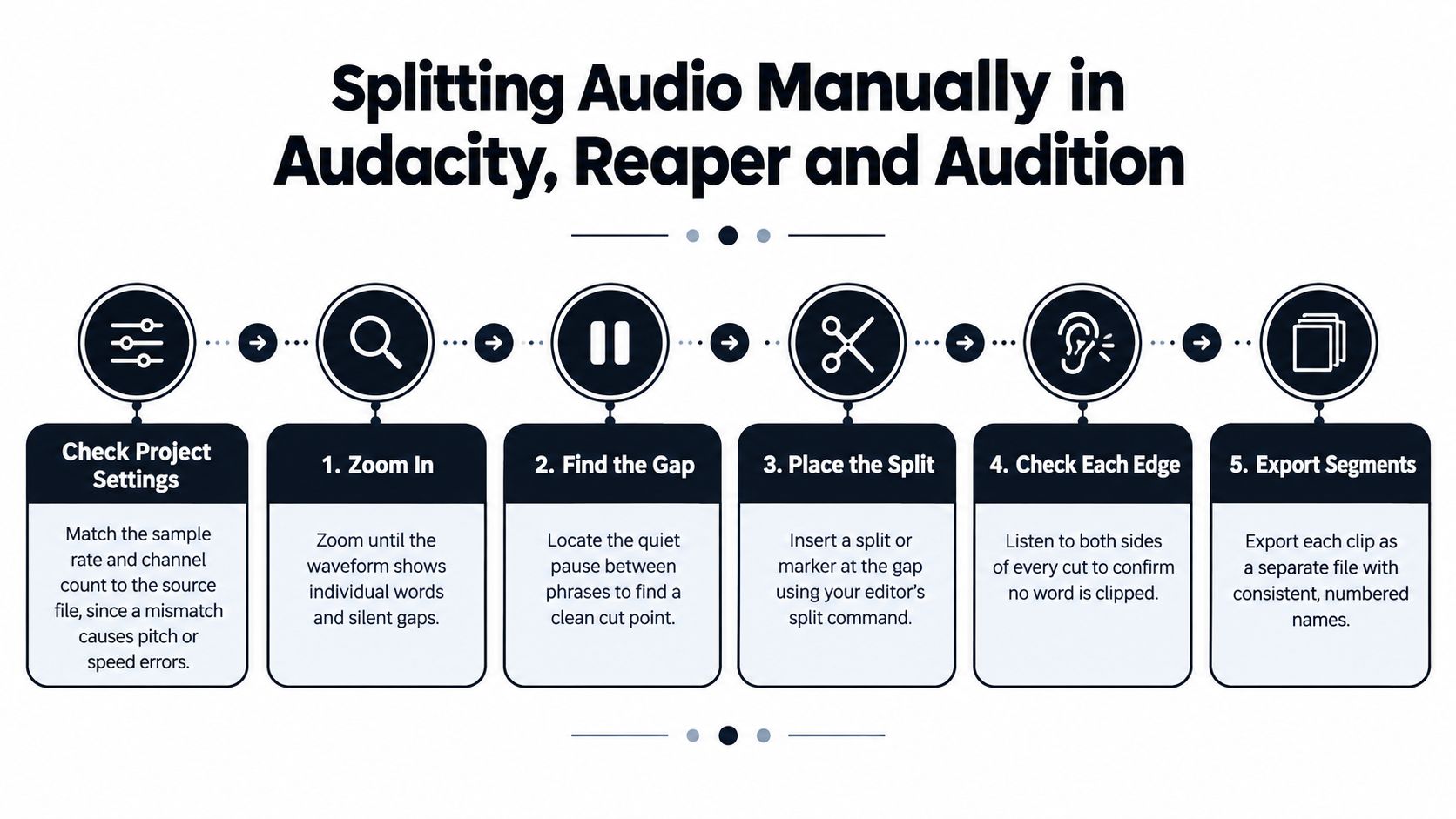
Zoom in on the waveform. Increase the zoom until you can distinguish individual peaks and pauses. This helps you place a cut between phrases or on a beat; cutting while zoomed out can leave you guessing about the precise boundary.
Find the musical or spoken boundary. Listen around the intended edit and look for a gap, a phrase ending, or the beat that fits your material. Don't assume the first quiet-looking area is a safe cut: a consonant, breath, or reverb tail may still be audible there.
Set the split in your editor. In Audacity, select the area between the intended cut points and choose Add Label at Selection, then name the label after the clip. In Reaper, place the edit cursor and press S to split the item; in Adobe Audition, use the Razor tool or the clip-menu split command, then trim the clip edges.
Soften the edges. Add a short fade at each cut, or use a short equal-power fade if the room tone changes across the edit. Check both sides of the boundary so the fade doesn't swallow a quiet syllable or leave an audible dip.
Listen, adjust, and save. Play each edit at normal speed, then zoom in to inspect any click or abrupt change in ambience. Save the project so labels and cut points remain available if you revise the episode or need another export.
A frequent mistake is splitting on the first quiet frame after a word. That can clip a consonant or create a pause that sounds unnatural in context. Listen through the edit with a little audio before and after it, rather than judging the isolated boundary alone.
The tools have different strengths, and your editor choice should reflect the work you really do. This overview of audio editing software options can help if you're choosing a program for a broader workflow.
Automatic Silence Splitting and Batch Export
Silence detection works well when a long speech recording has clear pauses between the sections you want to separate. It's less reliable when the speaker talks continuously, the room is noisy, or a quiet pause is part of the delivery rather than a boundary. Use the detector to propose cut points, then listen and move any label that clips speech or leaves an awkward break.
A useful silence workflow starts with the recording's actual noise floor. A fixed threshold can identify quiet passages in a clean recording but miss them in a noisy one, so calibrate the detector against the file rather than assuming one setting fits every microphone. The EBU R 128 loudness recommendation also calls for judging boundaries by more than the detector reading: continuity, ambience, and loudness matter to the finished result.
Calibrate before exporting
In Audacity, use Analyze > Silence Finder to mark quieter regions and create labels. Listen to a few detected boundaries first, then adjust the threshold until it distinguishes real pauses from low-level speech and background noise. A minimum silence length should reflect the recording: brief interview pauses may need a different setting from a show with deliberate dramatic gaps.
Leave a little audio around each detected point. Padding helps preserve initial consonants, breaths, and room reverb that a strict cut at the quietest frame might remove. Keep some natural ambience where it contributes to a smooth transition instead of stripping every pause to digital silence.
Export labeled clips as a batch
Once the labels are in place, use Export Multiple to make one file per labeled section. Choose a clear filename prefix and consistent numbering, then export a test segment and listen before you process the whole recording.
Don't normalize each segment separately just to make the files look equally loud. Independent normalization can make adjacent clips jump in volume. Set the episode's overall loudness first, then cut the segments; if the delivery needs a specific broadcast target, measure the full program using a compliant loudness meter rather than treating each chunk as a separate mix.
For a batch of recordings, repeat the same labeling routine and save reusable settings where your editing workflow allows it. Spot-check an early, middle, and late file. A detector can report a valid quiet region while still producing a boundary that sounds abrupt, so the final test is whether the cut is technically clean and unobtrusive to a listener.
Command-Line Splits with ffmpeg
| Goal | Command | Note |
|---|---|---|
| Cut one segment by start and end time | ffmpeg -i in.wav -ss 00:01:00 -to 00:02:00 -c:a pcm_s24le out.wav |
Input seeking after -i is slower but more accurate |
| Fast cut of a compressed file | ffmpeg -ss 00:01:00 -i in.mp3 -t 00:01:00 -c copy out.mp3 |
Quick, but encoder padding can shift the boundary |
| Fixed-length segments of 60 seconds | ffmpeg -i in.wav -f segment -segment_time 60 -c copy part%03d.wav |
Use a PCM codec instead of copy when cuts must be exact |
| Find silence times for a cut list | ffmpeg -i in.wav -af silencedetect=noise=-40dB:d=1 -f null - |
Prints silence start and end times; turn them into cut points with padding |
FFmpeg gives you two main choices: seek quickly or cut more accurately, and copy the existing compressed stream or decode and encode the segment. Putting -ss before -i is a fast way to seek, but input seeking after -i decodes up to the cut and is a better choice when boundary accuracy matters. The FFmpeg format documentation describes segmenting, including fractional segment lengths, but compressed audio still has frame and encoder-delay constraints.
Use -c copy when speed matters and a small boundary uncertainty is acceptable. For an exact edit, decode to PCM and export with a suitable PCM codec, as in the first command. Re-encoding is slower, but it gives you control over sample-accurate cut points and avoids relying on compressed-frame boundaries. Keep the source sample rate and channel layout unless conversion is intentional.
A dependable command-line workflow looks like this:
- Inspect the input. Run
ffprobeand confirm the codec, sample rate, channel count, and duration before choosing output settings. - Find possible pauses. Run
silencedetectto list candidate start and end times, then review the results against the speech or music. - Build the cut list. Convert the chosen boundaries into timestamps or sample positions, allowing a little padding when the edit needs to retain a breath, consonant, or reverberation.
- Export one test segment. Use stream copy for a quick compressed cut or PCM for a sample-accurate export. Check that the resulting file starts and ends where intended.
- Verify the batch. Use
ffprobeto check duration and timestamps, and confirm the files decode without errors. Test a segment near the beginning, middle, and end before trusting the full batch.
A nominal segment length isn't proof of an exact boundary. Padding, priming samples, frame durations, and container timestamps can affect how a compressed file reports or plays its edges. For edits that must be reproducible, decode to PCM, split on sample boundaries, and encode once at the delivery stage.
Keeping Quality and Metadata Intact When You Split
Choose the export format for the file's next use. Lossy formats such as MP3, AAC, and Ogg Vorbis discard audio information to reduce file size. For further editing or preservation, use a lossless format such as WAV, Broadcast WAV, AIFF, or FLAC. See this guide to lossless audio file formats.
| Format | Type | Best use | Watch for |
|---|---|---|---|
| WAV (PCM) | Uncompressed | Editing, stems, archives | Large files; set bit depth and rate explicitly |
| Broadcast WAV (BWF) | Uncompressed with metadata | Archives needing source and cue data | Some tools drop the metadata chunk on export |
| FLAC | Lossless compressed | Archives and listener delivery | Smaller than WAV; metadata via tags |
| AIFF | Uncompressed | Apple-based production | Metadata support varies between editors |
| MP3 | Lossy | Podcast listening copies | Encoder padding can shift exact boundaries |
| AAC or M4A | Lossy | Apple-friendly listening copies | Re-encoding each segment can reduce quality |
| Ogg Vorbis | Lossy | Open-source and game audio | Repeated re-encoding can reduce quality |
Three ways to handle the source
Lossless trimming at codec boundaries copies the existing encoded audio without another lossy encode. It suits listening copies when the available cut points are acceptable, but it does not guarantee a sample-level cut.
Sample-accurate editing decodes the source to PCM, places cuts on sample boundaries, and encodes once in the delivery format. Use it when a video edit must line up with speech or another process depends on precise timing.
Archival segmentation leaves the original untouched and exports lossless segments, with the source's sample rate, bit depth, and channel layout documented. Broadcast WAV can carry description, originator, date, coding history, and cue-sheet information to help identify a segment's source.
Check what an export carries forward
A clean-sounding edit can still lose chapter markers, timecode, origin details, or cue information. Check the exported file's metadata when other editors, researchers, or archivists will rely on those details.
Cuts away from waveform zero crossings can click. Re-encoding every segment separately can also reduce quality unnecessarily. Preserve the original and export lossless segments when the files may serve purposes beyond listening. Smaller files are not worth losing information that later work may need.
Splitting Difficult Mixes With AI Isolation
A silence detector can't split cleanly between sounds that never stop. A commentator talking over a crowd, dialogue over music, or vocals over a dense beat may have no quiet gap at the point you need. In that situation, isolate the target sound first, then cut the resulting audio.
An AI separation tool can take an audio or video file and a plain-language description, such as “crowd cheering” or “piano melody,” and return the isolated sound alongside the remainder. The workflow is straightforward:
- Upload the audio or video file.
- Describe the sound you need to extract.
- Review the isolated element and the remaining audio.
- Choose a quality preset that fits the task, such as one intended for final files, drafts, or quick checks.
- Try Precision Mode when sources overlap heavily, then split the outputs using your usual editing method.
In 2024, 78% of podcast creators reportedly used AI tools for editing tasks such as transcription and noise reduction, according to Alpha Data as cited by WorldMetrics. That figure describes use of AI editing tools generally, not a guarantee that any particular separation will be clean.
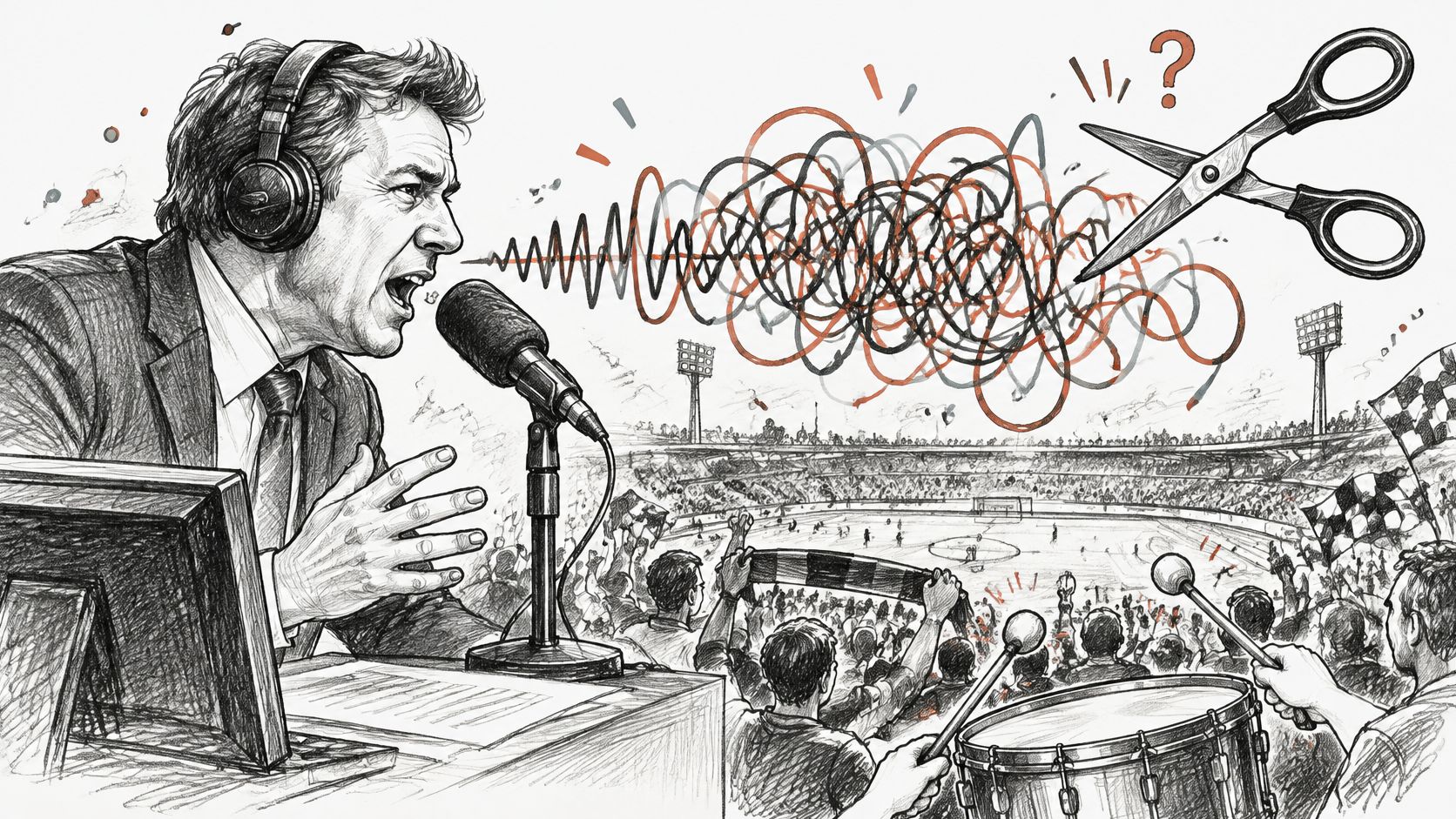
Separation can leave artifacts at the edges of the extracted sound. Compare both outputs with the original at every planned cut point, and keep the source mix untouched in case you need to adjust the prompt or rerun the process. Mark separated files as processed rather than treating them as archival masters.
For a closer look at audio source separation, focus on the practical limit: isolation may make a cut possible, but it doesn't remove the need to listen for artifacts or confirm that the intended words and sounds remain intact.
Verify Every Segment Before You Publish
Choose a method that suits the purpose of the files, export one test segment, and listen before you run a batch. A segment that opens and plays is not necessarily a clean segment. Check the boundary, the file properties, and any metadata the next person needs.
Use this checklist on every set of exports:
- Confirm duration. Compare each file with the planned cut list. If you need tight timing, check for drift rather than assuming the nominal segment length is exact.
- Check timestamps. Confirm the start and end points against your labels or cut list.
- Test decoding. Verify that files near the beginning, middle, and end of the batch play without errors.
- Listen for defects. Check for clipped samples, unexpected silence, clicks, clipped words, and abrupt changes in ambience.
- Measure loudness appropriately. Measure the full episode rather than normalizing each segment independently. For broadcast work, EBU R 128 uses a target of −23 LUFS, measured with ITU-R BS.1770-compliant methods.
- Review names and metadata. Check that filenames follow a numbered pattern and that important title, origin, or cue information survived export.
- Protect the source. Keep the original file untouched so you can recreate a segment or compare the edit against the recording.
If a mix is difficult to separate, test a short clip in Precision Mode, compare the processed output with the original at the planned boundaries, and only then decide whether to run the rest of the batch.
Isolate Audio lets you upload an audio or video recording, describe the sound you want to extract, and receive the isolated element alongside the remainder. Try Isolate Audio on a short test clip first, then check the results against your original before committing to a full edit.