How to Remove Vocals from MP3: AI and Manual Methods
You need a backing track tonight. The song is already on your laptop as an MP3, the singer is front and center, and you don't have stems, a session file, or time to rebuild the arrangement. You just need to remove vocals from MP3 files cleanly enough for the job in front of you. That's the right standard. A karaoke file, a remix, and a rehearsal track fail for different reasons, and chasing a perfect studio stem from a finished MP3 wastes time.
Which Method Removes Vocals Best for Your Track
Start with the job, not the tool. The table below puts the five common routes side by side so you can pick before you process anything.
| Method | How it works | Typical quality | Cost and time | Best for |
|---|---|---|---|---|
| Isolate Audio prompt-based separation | Describe the target sound; output is the isolated element plus the remainder | High on pop and rock mixes; weaker on dense live recordings | Free tier to test; Pro for unlimited separations; minutes per track | Targets like backing harmonies or a spoken announcement |
| Demucs or UVR desktop | Neural stem separation run locally on a fixed set of stems | Good on standard stereo mixes; varies with the model chosen | Free; setup required; slower without a GPU | Offline batches and users comfortable with installs |
| Online two-stem removers | Upload, split into vocal and instrumental, download | Fixed split; artifacts vary by track | Free with file or count limits; minutes | One-off karaoke versions |
| Phase inversion in Audacity | Invert one channel and mix down so centered audio cancels | Clean only for strictly centered vocals; hollows bass and kick | Free; about ten minutes once learned | Older centered-vocal recordings |
| EQ vocal cut | Narrow notch in the vocal band to reduce presence | Thins the mix; vocal ghost remains | Free; manual trial and error | Light reduction, not clean removal |
A rule of thumb that saves time
A single centered lead on an older stereo mix may yield to phase inversion. It costs nothing and you hear the result fast. It falls apart when the vocal has stereo width, exaggerated reverb, or doubles.
Removing backing harmonies while keeping the lead is a different task. That needs a prompt-based or stem-based tool that can name a target, not a trick that cancels everything in the middle. The same logic applies if you're trying to remove vocals for karaoke backing tracks, where even a faint leftover lead will compete with the person singing.
Two routes get full walkthroughs below. One is Isolate Audio, because describing the target solves cases a fixed split can't. The other is manual phase inversion with EQ, because it's free, offline, and still useful as a quick test.
Why an MP3 Makes Vocal Removal Harder
An MP3 is a finished, lossy mix, not a set of separate vocal and instrument tracks. Once those sounds are mixed and encoded together, vocal-removal software has to estimate what belongs to each source.
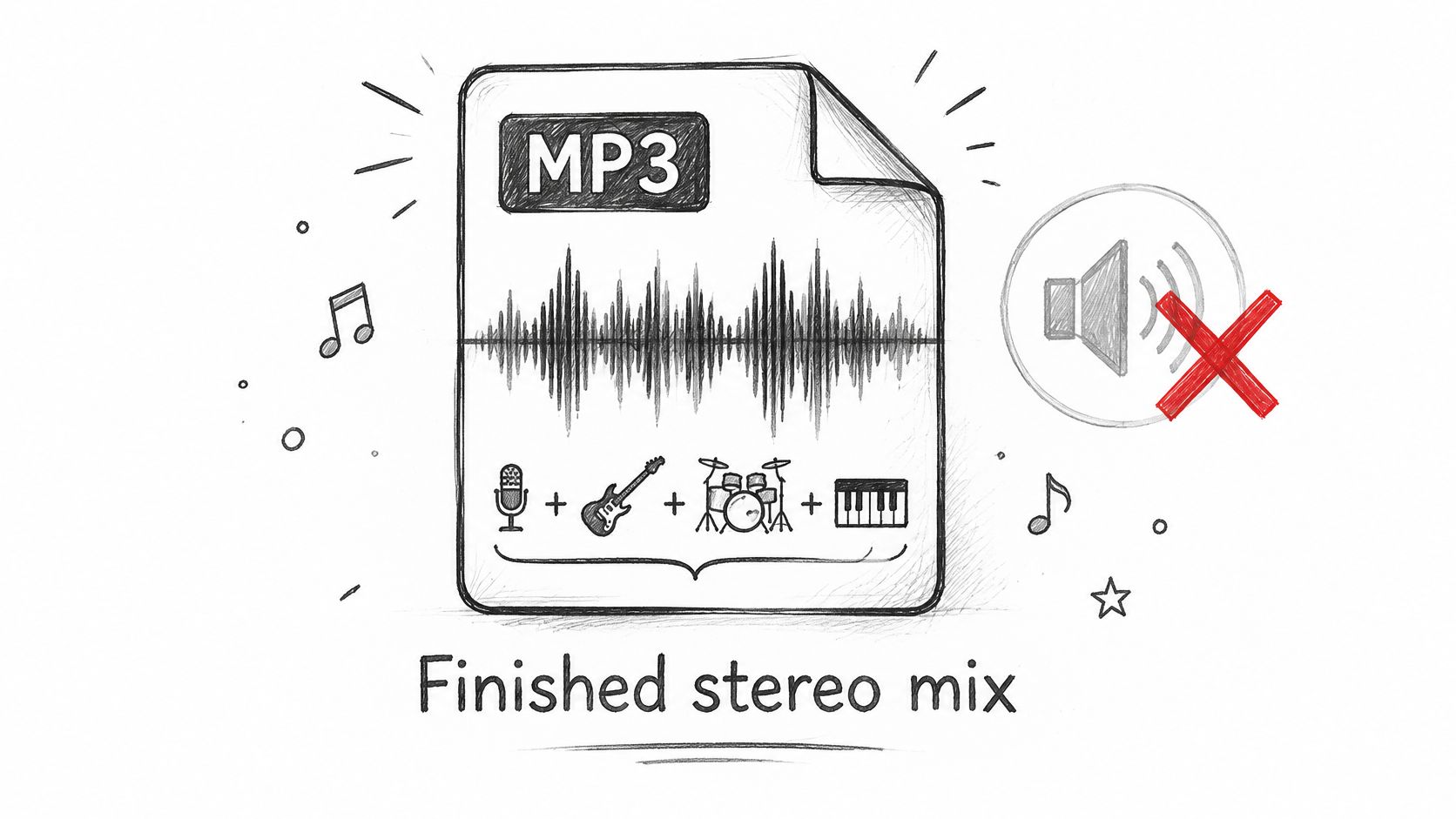
MP3 uses perceptual coding: it reduces or approximates audio details judged less audible. The Fraunhofer material on how MP3 and AAC coding works explains the coding approach. In practice, a three-minute song is about 32 MB as CD-quality PCM. Its MP3 size depends on bitrate, for example, about 3 MB at 128 kbps or 7 MB at 320 kbps.
What that means in practice
- Lower bitrate leaves less detail. Vocal-removal software has a coarser signal to work with, so artifacts can become more noticeable.
- Avoid repeated re-encoding. Each lossy export can discard more detail. Keep the original file and export a fresh result when changing settings.
- A clean studio stem is not recoverable from an MP3. The software estimates sources from audio cues; it cannot restore the separate tracks from the original session.
Check which file types Isolate Audio supports before uploading, and use the highest-quality source available. Judge the result by its intended use and by listening: a karaoke track, remix, and rehearsal backing have different tolerances for vocal residue and artifacts. For some uses, a good-enough backing track is preferable to one processed until the music sounds damaged.
How to Remove Vocals with Isolate Audio Step by Step
This is the workflow I'd use first on a modern pop or rock mix. It's also the workflow that handles targets a two-stem split can't name.
The interface is built around one idea. You upload a file and describe what you want pulled out.

The five steps
- Upload the original file. Open Isolate Audio and upload your MP3. The platform also accepts WAV, FLAC, M4A, and OGG, so use a lossless source if you have one. A better source gives the model more real detail to separate and fewer compression artifacts to misread.
- Describe the target in plain English. Use lead vocal for a full removal. Use backing harmonies if you want to keep the lead and strip the harmonies. Use spoken announcement for speech between songs. Specific names matter, because remove vocals from MP3 isn't one single task when a track contains several kinds of voice.
- Pick a preset and set Precision Mode. Choose Best for final masters where time isn't critical, Balanced for most tracks, and Fast for quick previews. Turn on Precision Mode for overlapping sources, such as a vocal sitting directly on a piano part. That's where a standard pass most often thins the instrument or leaves consonants behind.
- Process, then listen to both outputs. You get the isolated element and the remainder. The remainder is your accompaniment candidate. The isolated element is your audit track, because it shows exactly what got removed. If you hear guitar or snare in the isolated vocal, the model took too much.
- Export the remainder in the right format. Choose WAV when you'll edit, level, or re-process the file. Choose MP3 only as final delivery. Lossless formats and longer durations need a Pro plan, which also brings priority queue access.
Settings worth understanding before you commit
Balanced is the right starting point for most songs. It keeps processing time reasonable and doesn't push the separation so hard that pads turn watery. Best earns its keep when the file will be exposed, for example a karaoke track playing loud in a quiet room with nothing covering the artifacts.
Fast has a real use too. Run it on a new source to learn whether the track separates at all. If a Fast preview already shows the chorus collapsing, you know the arrangement is hostile and you can plan a more careful pass, or a different approach, before spending time on a full render.
Practical rule: Test the hardest eight bars first. If the densest chorus survives, the verse almost always will.
This short walkthrough shows the upload, prompt, and export flow in the browser.
Two cautions that protect the result
Upload the original rather than a re-saved copy. Each extra encode throws away more of the signal the model needs. Don't normalize or clip before separation either. Aggressive pre-processing can amplify artifacts and push quiet details into distortion that the model then treats as part of the music.
Finish with a quick comparison routine. Play the remainder against the original in the same section, at matched volume. Check that the bass, kick, and any centered instrument are still present. Catching a lost instrument here takes seconds. Catching it after you've built a set around the file doesn't.
Removing Vocals Manually with Phase Inversion and EQ
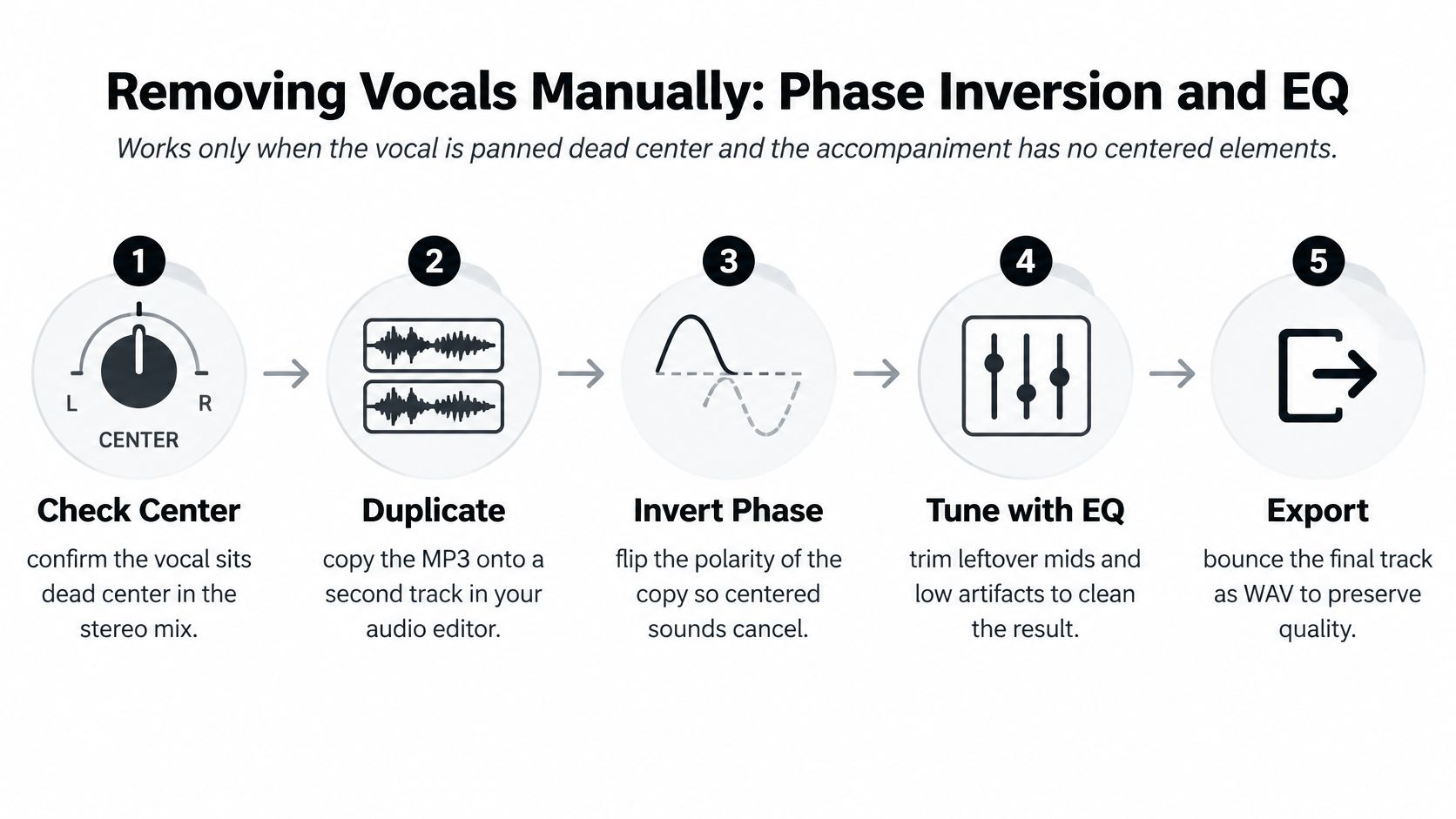
One condition decides whether this works. The vocal must sit dead center and the accompaniment must have real stereo width. This method predates AI separation and depends on the common practice of placing lead vocals near the center of a stereo image, as described in an overview of MP3 history and center-channel cancellation. Identical signal in both channels cancels when one side is inverted. Everything else stays.
The Audacity steps
- Import and confirm stereo. A mono file can't be cancelled this way, because there's no difference between channels to exploit.
- Split the track. Use Tracks, then Split Stereo Track, so you can edit one channel on its own.
- Invert the right channel. Select it and apply Effect, then Invert. You've flipped its polarity against the left side.
- Mix back to one track. Select both tracks and use Tracks, Mix, then Mix and Render. Centered content now cancels.
- Listen in mono. The vocal should drop away. Bass and kick often hollow out at the same time, because they live in the center too.
- Clean up with a narrow EQ notch. If a faint vocal remains, use Effect, Equalization with a narrow cut in the vocal presence band. Expect some thinning of snare and guitars as the trade.
- Export as WAV first. Encode a delivery MP3 last, at the highest bitrate available, so you only take one final lossy hit.
Where real tracks break it
Stereo reverb on the vocal survives, because it isn't identical in both channels. Doubled takes survive for the same reason. Centered bass, kick, and snare disappear along with the voice, which is why these backing tracks so often sound hollow.
If you want the underlying mechanics, this explanation of phase cancellation in audio covers why identical signals null, and why near-identical signals only partially reduce.
Use this route for older centered mixes, a quick karaoke rough, or a sanity check before paying for a tool. Don't use it as your main method on modern stereo productions. You'll spend longer patching the low end than a proper separation would take.
Batch and API Workflows for Many Files
A rehearsal set may contain dozens of tracks, but one vocal-heavy chorus can still make a batch unusable. Set up a repeatable workflow, then judge each backing track by its intended use. A karaoke track may tolerate a faint vocal trace; a remix or rehearsal backing may need cleaner separation. In every case, listen before committing. No tool can recover studio stems from an MP3.
Run the pipeline in order
Decode each MP3 to PCM, keeping both stereo channels and the original sample rate. Separate the stems, export the accompaniment as WAV, then create the delivery MP3. This order avoids adding another lossy encode before separation and keeps a lossless intermediate for review. The research on reliable music source separation pipelines offers technical context, but this sequence is a practical recommendation, not a workflow attributed to that study.
MUSDB18 is a benchmark dataset of 150 professionally mixed stereo songs, split into 100 tracks for training and 50 for testing. Treat results on datasets like this as context, not a promise about your archive. Your files may have different mastering, vocal effects, or compression.
Test small, then commit
- Choose representative tracks. Try a few genres first, including a dense chorus and a live recording.
- Listen for the intended use. A karaoke track can pass with a faint residual vocal if the backing sounds natural. For a remix, artifacts in exposed instruments may matter more than a trace of voice. A rehearsal backing has its own threshold. Decide by listening at the volume and on the system where it will be used.
- Use precision passes selectively. Check choruses, doubled vocals, and reverb tails. Spend extra processing only when the remaining voice is more distracting than the artifacts a further pass may create.
- Log each file. Save the original filename, preset, target prompt, sample rate, and loudness so you can repeat settings and compare versions.
If reference stems are available, objective scores can help reveal regressions between settings. They cannot tell you whether a pad sounds watery at performance volume, so listen to the backing track in context.
For volume work on Isolate Audio, Pro plans include unlimited separations and priority queue access. Teams processing large archives can review how API access tokens work for Isolate Audio to assess API access and custom integrations for their workflow.
Edge Cases Where Vocal Removal Goes Wrong
Most failures aren't random. They cluster around the same six situations, and each one has a practical fix worth trying before you abandon the track.
| Case | What usually goes wrong | Fix |
|---|---|---|
| Backing vocals under a lead | Lead gets damaged or harmonies survive | Name the target, such as lead only or backing harmonies, and check the remainder |
| Spoken words between verses | Speech-like ad-libs remain in the instrumental | Run a separate pass with a spoken announcement target |
| Live recording with crowd | Cheering and chatter bleed into the remainder | Target the crowd separately and use Precision Mode |
| Centered vocal with stereo reverb | Reverb tail stays audible after removal | Use a precision pass, then a light EQ on the tail |
| Doubled chorus vocals | Residual voice concentrates in the chorus | Split the file at the chorus and process that section alone |
| Vocal overlapping piano | Piano sounds thin and watery | Choose Balanced over Best and accept some loss |
Remove vocals is not one task
Most stem models assume four categories, vocals, drums, bass, and other. That setup doesn't provide enough flexibility for real-world applications, according to 2025 research on sparse and overlapping vocal separation. The same work proposed a model specifically for sparse vocal regions and reported a cSDR of 11.03 dB, described as the best reported result in that work.
That number is useful as a reality check, not a shopping criterion. It tells you intermittent vocals, a spoken line here and a chant there, are a genuinely hard case that researchers are still building dedicated models for. Your two-line intro announcement isn't failing because you picked the wrong button.
A model can only remove the target you actually defined. Vague targets produce vague separations.
Choir passages, crowd chants, and a vocal printed with its own reverb all sit outside the tidy four-stem picture. Define the exact target, test the hardest section first, and keep the remainder output for comparison. If a live recording needs the crowd gone as well, treat that as a second, separate separation job.
Choose Your Method and Check the Instrumental
A high benchmark score doesn't guarantee a usable file. A 2025 listener study of the MUSDB18 test set collected roughly 30 ratings per track and found that commonly used SDR scores don't consistently predict perceived quality, as reported in the 2025 MUSDB18 listener study. SI-SAR predicted some accompaniment stems better, while SDR did better for vocals.
The listening checklist
- Headphones, then mono. Centered artifacts hide in stereo and show up in mono.
- Quiet passages. Watery or phasey artifacts are most exposed here.
- Dense choruses. Listen for musical bleed where everything plays at once.
- Cymbals and sustained pads. These damage first when a model cuts too hard.
- Speech-like ad-libs. Leftover words are more distracting than faint sung bleed.
| Purpose | Tolerates | Rejects |
|---|---|---|
| Karaoke | Bleed too faint to hear over the voice | Any audible lead vocal or ad-libs |
| Remix | Light musical bleed and a little reverb | Watery or phasey pads and damaged cymbals |
| Rehearsal backing | Some harmony bleed in the mids | Missing instruments or distorted drums |
| Video editing | Faint bleed under dialogue or ambience | Missing bass or kick and leftover speech |
A backing track made from a commercial recording is still derived from copyrighted work. Keep it private, or get permission or a license before publishing or selling it, and credit the original artists.
Do one thing next. Run a single representative track through Balanced, export the remainder as WAV, and compare it in mono and on headphones against the original. Batch the rest only after that file passes.
Upload your hardest track to Isolate Audio, describe the exact vocal you want removed in plain English, and compare the remainder against the original on headphones and in mono. You'll get both the isolated element and the backing track candidate, so you can judge what was taken out before you commit to a full set.