
Vocal Remover Free: How to Remove Vocals Instantly
You've got a finished song, a rehearsal tomorrow, and no track. You upload the file to a free vocal remover, wait for the result, and hear a watery snare, missing guitars, and a faint vocal still singing behind the chorus. That outcome isn't unusual. Removing vocals means separating sounds that were already blended together, and the right method depends on how the original mix was built.
A quick browser tool can be enough for a karaoke practice track. A local separator gives you more control and privacy. Traditional phase cancellation still works on some stereo mixes without AI, while modern neural separation handles arrangements that defeat the old trick. The useful question is which vocal remover is free. It's what “free” delivers, what it removes, and how much cleanup you're prepared to do afterward.
Why Removing Vocals Is Harder Than It Looks
A vocal remover works backward from a finished stereo mix. The original vocal, drums, bass, guitars, effects, and automation have already been combined into left and right channels. Your software has to estimate which parts belong to the voice without access to the original recording session.
The old stereo shortcut
Traditional vocal removal relies on a physical property of many commercial mixes. Producers often place the lead vocal in the center, which means a similar vocal signal appears in both stereo channels. If you invert one channel and combine it with the other, matching center information can cancel while material placed farther left or right remains.
That sounds cleaner than it is. The center also contains kick drums, snare, bass, keyboards, guitars, and effects. If those elements share the same position, phase cancellation removes some of them too. Stereo widening, doubled vocals, chorus, delay, reverb, and mastering compression further weaken the assumption that the voice is identical on both sides.
Practical rule: A phase trick can remove a centered vocal, but it can't know whether a centered snare or bass note belongs in the final instrumental.
The history of karaoke helps explain the appeal of this workflow. A modern precursor dates to 1972 in Kobe, Japan, when Nippon Columbia introduced technology that removed vocal tracks from recordings, according to KaraFun's history of karaoke. The underlying idea remains the same today, but the processing moved from simple channel manipulation toward spectral analysis and neural networks. Open-source AI source-separation models became usable for home karaoke in 2019, which helped move vocal removal beyond specialist studios.
AI models approach the problem differently. They analyze patterns across time and frequency, then estimate a vocal stem and an accompaniment stem. That usually handles panned vocals, harmonies, and dense arrangements better than a simple stereo inversion, although it can create its own artifacts. For a useful explanation of why audio can disappear or be muted in social video, Tokify explains sound removal offers helpful context around audio processing and platform behavior. For the AI-specific workflow, see Isolate Audio's AI vocal remover guide.
The Phase Cancellation Method Explained
You can test the classic method in Audacity without installing an AI model. It's fast, transparent, and worth trying when the source is a conventional stereo master with a strongly centered lead vocal.
Try it in Audacity
Import the track. Open Audacity and drag in a stereo WAV or MP3. Work from the highest-quality file available, because lossy compression can make the remaining artifacts more obvious.
Split the stereo track. Open the track menu and choose the option that separates the left and right channels into independent mono tracks. You need to manipulate one side without changing the other.
Invert one channel. Select one mono channel, then use the effect or waveform command that inverts its polarity. This is the step that makes matching center information oppose itself.
Play both channels together. The vocal may drop sharply, leaving instruments that were spread across the stereo field. If the track becomes quiet overall, that's a warning that important centered elements are cancelling too.
Export and inspect. Listen through headphones and monitors. Check a verse, a chorus, a section with cymbals, and any exposed break. Don't judge the result from a single quiet passage.
The reason it works is straightforward. A center-panned signal is represented similarly in both channels. Flipping the polarity of one copy creates opposing waveforms, so the shared component is reduced when the channels combine. Side information, which differs between channels, survives to a greater degree.
Know when to stop using it
Phase cancellation breaks down when the vocal contains stereo reverb, delays, doubled takes, or modulation. It also struggles when the singer is offset from the center or when instruments occupy the same central position. The resulting acoustics often sound thin, hollow, or underwater, and a vocal reverb tail can remain even after the dry voice has disappeared.
It's also easy to confuse loudness reduction with successful separation. A quieter track may have lost drums and bass along with the vocal. This phase-cancellation audio guide provides a focused technical reference for the method and its limits.
Use the technique as a quick diagnostic, not as a universal answer. If the vocal drops while the rhythm section remains solid, you may have a useful backing track. If the whole mix collapses, restore the original file and move to source separation.
Browser AI Versus Local Installation Tools
The phrase “vocal remover free” covers two very different workflows. A browser service gives you a file upload, remote processing, and a download. A local application gives you model choices and offline control, but you supply the computer, storage, setup time, and troubleshooting.
Browser tools prioritize convenience
Browser-based AI is the practical choice when you need one backing track quickly. You don't need Python, model files, or a compatible GPU. The trade-off is that free access often comes with limits. One public service offers conversion for only 30 seconds of a song, while another speech-focused service limits free accounts to one download per day and files up to 10 minutes, as shown by Vocal Remover.
Those restrictions aren't random annoyances. Source separation requires substantial computation, especially when a model analyzes a full mix rather than applying a basic stereo filter. Free browser tools may also restrict export quality, file size, queue priority, account access, or the number of songs you can process. A comparison of current tools highlights why checking preview rules and export conditions matters, rather than assuming that a visible “free” button means unlimited use. This best AI tools guide gives broader context on evaluating online AI services, while this software guide to isolating vocals focuses more closely on the audio task.
Local tools trade setup for control
Local open-source options, including Ultimate Vocal Remover and models available through the open-source ecosystem, keep your files on your own machine. That matters for unreleased songs, client material, and recordings covered by confidentiality agreements. You can also process without an internet connection and test different model settings instead of accepting one cloud preset.
The cost is practical rather than financial. Installation can involve large model downloads, a desktop workflow, and GPU hardware. Independent testing coverage indicates that a strong free local setup can reach approximately 90% to 94% vocal removal quality, but it requires installation and GPU hardware, while browser tools are easier to use and generally offer lower quality. Treat that as a trade-off, not a guarantee for every song.
| Workflow | What you gain | What you give up |
|---|---|---|
| Browser AI | Fast setup, no local model management, convenient access | Upload limits, account gates, queues, and less control |
| Local software | Privacy, repeatable processing, model selection, offline use | Installation, hardware demands, and a steeper learning curve |
Free means different things in each category. Browser access may be free until you need a full export. Local software may have no usage fee, but it still consumes storage, processing time, and electricity.
Using Isolate Audio for Professional Results
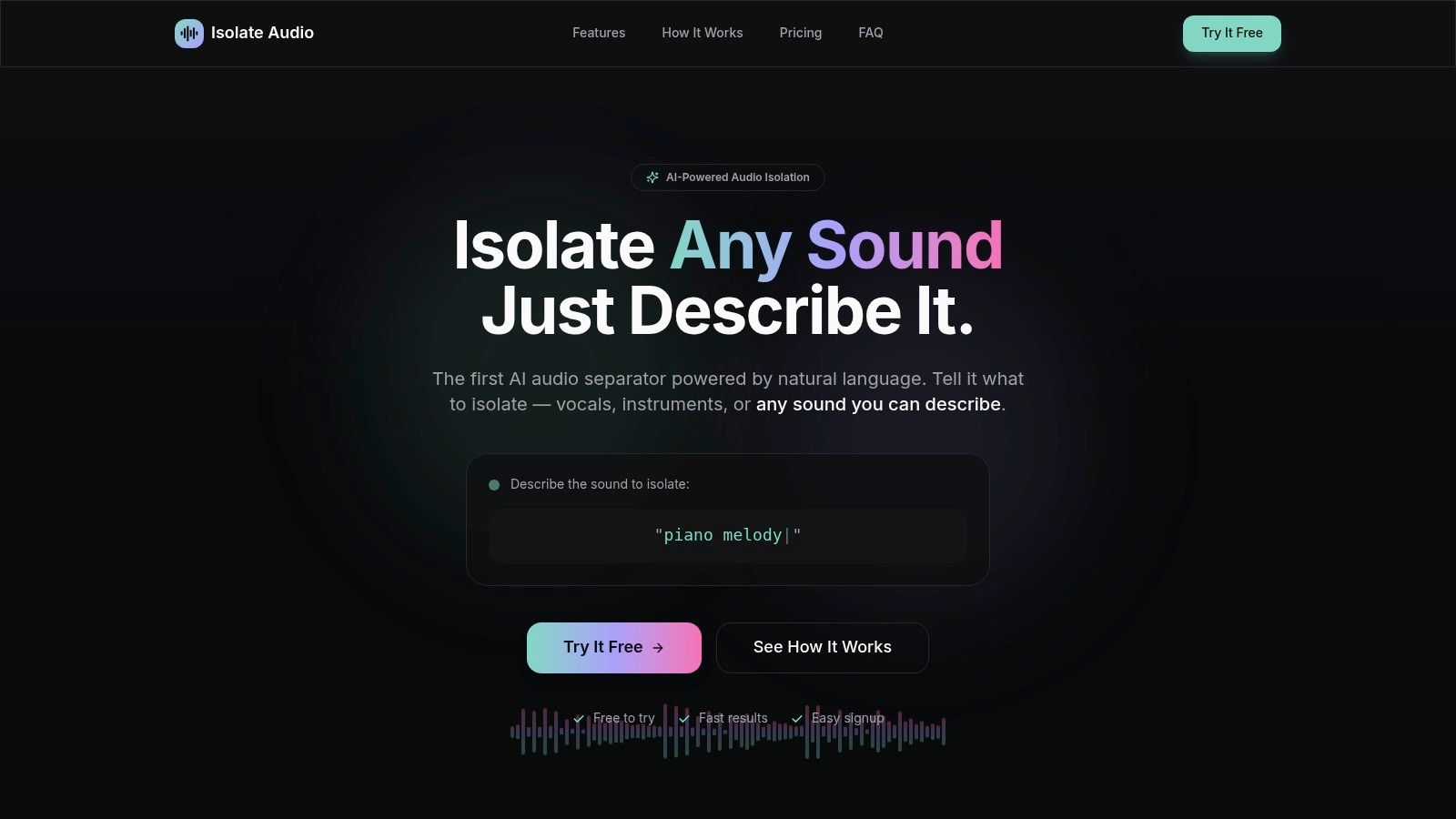
For a straightforward karaoke track, ask for the vocal and keep the remainder. For a difficult mix, a prompt-based separator can be more useful than a fixed two-stem button because you can describe the sound you want to isolate. Isolate Audio accepts audio or video uploads and lets you describe the target element in plain English, including vocals, while its free tier offers 5 audio separations per month, according to the publisher information provided for this article.
Start with a clean request
Upload the best source you have rather than a screen recording or a heavily recompressed social-media file. Choose Vocals when the target is the complete sung or spoken voice, then select the output that retains the remainder for a karaoke version. The platform provides Best, Balanced, and Fast quality presets. Use Fast for a rough decision, Balanced for ordinary practice material, and Best when the stem will enter a production session.
Prompt-based control becomes useful when “vocals” is too broad. A producer might request “lead vocal without backing harmonies,” while a video editor might isolate “spoken dialogue from the music bed.” You can also target elements such as a piano melody, crowd cheering, or a specific background sound, then keep the remainder as a separate output.
That flexibility doesn't remove the need for critical listening. Natural-language instructions describe the target, but they don't restore information that was masked by the original mix. Dense choruses, strong vocal effects, and overlapping instruments can still leave leakage or create a processed texture.
Use Precision Mode selectively
Precision Mode is intended for challenging mixes where sources overlap. Turn it on when the standard pass leaves obvious vocal bleed in guitars, cymbals, or synths, or when an isolated vocal contains too much accompaniment. It can be slower, so there's little reason to use it on a quick demo before you know whether the basic separation is suitable.
A practical sequence looks like this:
- First pass: Use the vocal target with Balanced quality and listen to both the isolated vocal and the remainder.
- Second pass: If the chorus is messy, repeat it with Best quality and Precision Mode.
- Focused pass: Change the description when the unwanted sound is specific, such as a piano line masking a vocal phrase.
- Production pass: Download the result in the highest available format and keep the untouched source alongside it.
The video below shows the product workflow in context.
Listen for consonants, cymbal decay, bass transients, and reverb tails. A vocal can sound impressively isolated in a short verse and fall apart when the arrangement reaches its loudest section. Test the hardest part of the song before building a full remix around the result.
Choosing the Right Workflow for Your Project
Start with the deliverable, not the tool name. A singer learning a cover needs a stable backing track. A remixer may need an acapella with minimal cymbal bleed. A producer working on unreleased material may reject any cloud upload, regardless of convenience.
| Your situation | Sensible first choice | Main reason |
|---|---|---|
| Quick rehearsal track | Browser AI | Minimal setup and rapid results |
| Older or simple centered mix | Phase cancellation test | It may work without model processing |
| Dense modern production | AI separation | Better suited to overlapping sources and effects |
| Private or unreleased recording | Local installation | The file stays on your machine |
| Specific non-vocal sound | Prompt-based isolation | You can name the element instead of choosing a fixed stem |
| Large batch of files | Local workflow or service with suitable access | Repeated processing needs predictable throughput |
File duration changes the calculation. A short song excerpt is easy to test in a browser, but long-form dialogue or a rehearsal recording may hit duration or download limits. Free services are particularly frustrating when they process a file and reveal the export restriction only at the end, so check the terms before uploading anything important.
Mix complexity matters just as much. A sparse arrangement with a centered lead vocal is a good candidate for phase cancellation or a basic AI pass. A heavily layered rock chorus, vocoded electronic lead, or live recording needs a model that can distinguish similar frequencies and changing stereo positions. Even then, expect to inspect the result rather than accepting it automatically.
Choose the least complicated workflow that produces an acceptable stem, then move up only when the source demands it.
Finally, decide whether “acceptable” means usable in headphones or release-ready in a mix. Practice tracks can tolerate residual ambience. A commercial remix, sample, or acapella for further processing needs far stricter inspection, plus the necessary rights to use the underlying music.
Fixing Artifacts and Polishing Your Stems
A free vocal remover rarely produces a finished mix on the first export. Common problems include watery cymbals, phasey consonants, blurred transients, and remnants of reverb. You can reduce their impact, but post-processing can't recreate an instrument that the separator removed along with the voice.
Clean the remainder first
Start with a high-pass filter if the accompaniment has muddy low-end residue from the vocal processing. Set the cutoff by ear rather than applying a fixed number. Raise it until rumble and vocal warmth recede, then stop before the bass or kick loses weight.
Use a narrow EQ cut only when you can identify a persistent tonal artifact. Broad, aggressive cuts often make the backing track sound hollow. If the vocal reverb survives, a gentle reduction in the most obvious midrange area can help, but the exact frequency depends on the singer, microphone, and arrangement.
Repair movement and edges
Compression can stabilize an isolated vocal, but use a light setting. Heavy compression raises quiet bleed and makes the model's artifacts more noticeable. For a karaoke mix, mild bus compression may restore some cohesion, while a vocal stem often benefits from careful de-essing and automation instead.
Manually lower or fade sections where the separator produces clicks, abrupt ambience changes, or a burst of accompaniment. Short crossfades at edits prevent exposed waveform edges from drawing attention. Check the stem in mono as well as stereo, because phase problems can become more severe when channels combine.
For a broader explanation of preparing separated material for a remix, this guide to stems for remixing is a useful companion.
Use the result in context. A stem that sounds rough in isolation may sit naturally under a new track, while an apparently clean stem can become distracting after EQ, saturation, or loud mastering. Keep the original mix, the untouched separation, and the processed version as separate files so you can return to an earlier stage.
Isolate Audio lets you describe the sound you want to isolate from an audio or video file, including vocals, specific instruments, dialogue, or background sounds, with quality presets and Precision Mode for difficult mixes. Try the free allowance for a song you own, compare the vocal and remainder outputs, and continue at Isolate Audio when you need a practical browser workflow.