Lossless vs Lossy Audio: Which Format to Use
A file's extension isn't proof of its history. A study on lossy-audio-compression identification reported average classification accuracy of 96.8% for lossy files and 99.8% for lossless files, highlighting a distinction that matters in production: detecting compression history is different from reading a filename. A WAV created from an MP3 still contains the MP3's limitations.
The useful question in lossless vs lossy audio isn't which sounds better. It's which information you need to preserve, what you intend to do next, and where smaller files become more valuable than exact reconstruction.
Lossless and Lossy Formats at a Glance
MP3 encoding can reduce file size by approximately 60–90%, while FLAC reductions typically run about 30–70%, depending on the recording and compression settings, according to the Library of Congress guide to digital audio types. Those percentages describe two different operations. Lossy compression permanently discards signal information judged less perceptible to listeners. Lossless compression preserves the original digital samples and reconstructs them exactly; uncompressed PCM WAV sits alongside both as a familiar production reference.
The savings answer different problems. A musician keeping multitrack sessions needs recoverable source material; a listener downloading a finished episode needs convenient access. Each format persists because the other's trade-off fails somewhere in the chain.
Lossless and lossy formats by bitrate and best use
The Library of Congress FLAC format description gives an approximately 700–1,000 kbps range for CD-quality material, which the FLAC row below adopts. Bitrate is a storage characteristic; it does not score quality uniformly across codecs.
| Format | Compression | Typical bitrate | Best use |
|---|---|---|---|
| WAV (PCM) | None, uncompressed | Determined by sample rate, bit depth, and channel count | Recording and editing master |
| FLAC | Lossless | About 700–1,000 kbps for CD-quality material | Archive, editing, and separation source |
| AAC | Lossy | Set in the encoder or by the destination platform | Streaming and mobile listening |
| MP3 | Lossy | 320 kbps delivery setting | Final consumer delivery |
| MP3 | Lossy | 128 kbps delivery setting | Speech previews and casual listening |
The MP3 rows show 128 kbps and 320 kbps as common encoder settings, two examples among the bitrate options encoders offer. No bitrate guarantees that every recording will sound equally convincing at that setting.
Read the FLAC row as a workflow choice: you reduce storage while postponing the irreversible decision about which information to remove. Read the MP3 rows as delivery choices: you accept that decision in exchange for easier distribution.
Practical rule: Preserve information while the project can still change. Reduce delivery size when the work is ready to leave production.
Compatibility can bend the rule's implementation. If your editor handles WAV reliably but doesn't import FLAC, keep WAV for the working session and use FLAC for the archive. Preserving the samples matters more than insisting on a particular lossless extension.
How Lossy Compression Discards Audio and When You Hear It
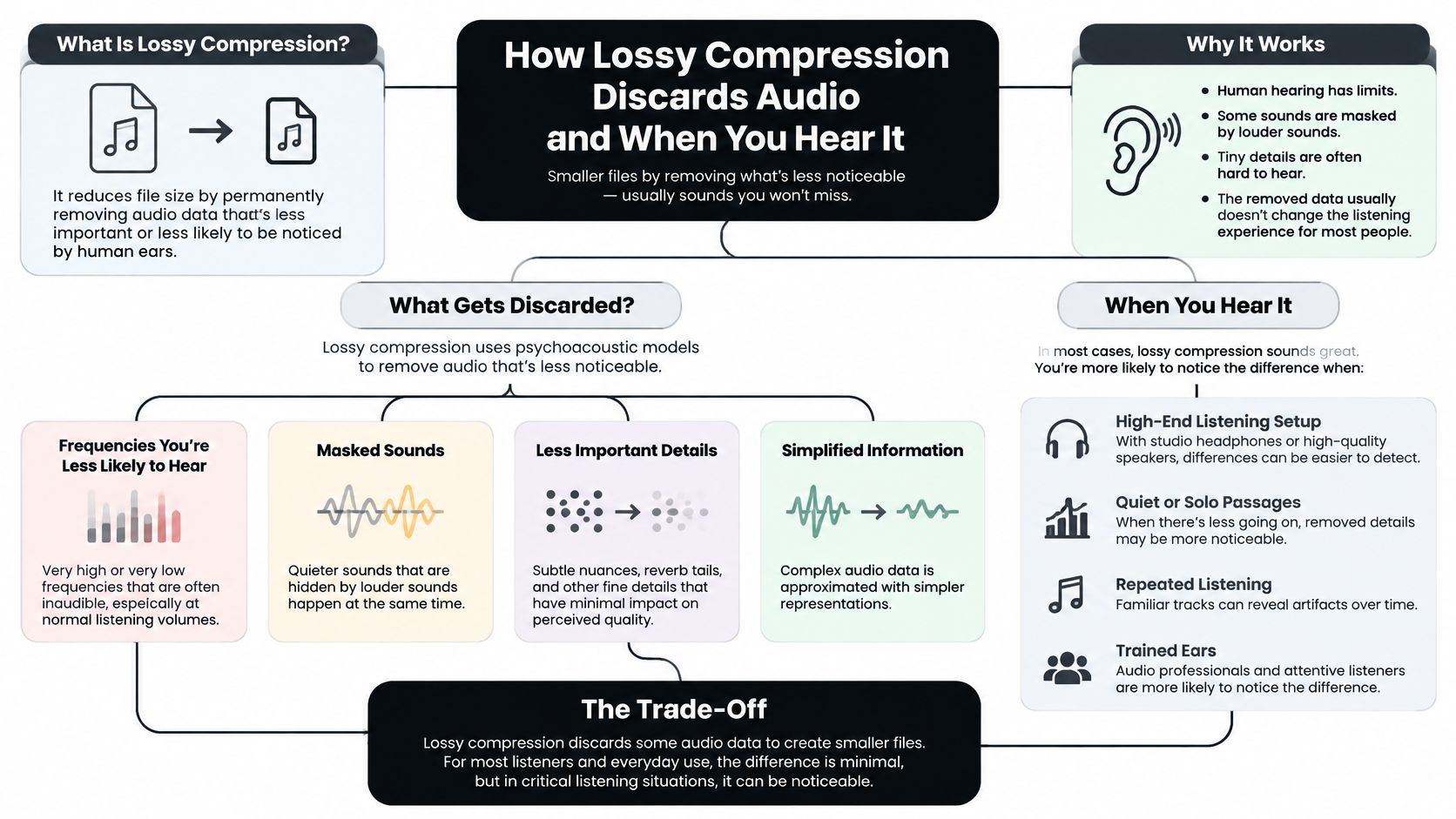
Audible difference and mathematical difference aren't the same test. A lossy file can work well for listening without reproducing the original samples exactly. Conversely, an artifact that passes unnoticed during casual playback may become objectionable when you edit, isolate, or heavily process the recording.
A technical review presented at the Australian Acoustical Society conference reports zero reconstruction error for FLAC, ALAC, and WavPack across tested signals, while lossy AAC, MP3, Ogg Vorbis, and Opus introduce bitrate- and signal-dependent error. The same review gives CD-quality stereo PCM, 16-bit at 44.1 kHz, an uncompressed bitrate of approximately 1,411 kbps. That's the relevant distinction: exact reconstruction versus an approximation designed for efficient listening.
What the encoder considers expendable
Lossy encoders use psychoacoustic masking to allocate their limited data budget. A loud sound can make nearby quieter details harder to perceive, including details close to it in frequency or time. The encoder represents perceptually important components more carefully and represents other components less precisely.
That doesn't mean an MP3 merely deletes everything above a fixed frequency. The decisions depend on the codec, settings, and material. A busy chorus, a sustained vocal, and a noisy audience create different encoding problems.
Lossless coding takes a different approach. Conceptually, a predictive encoder estimates samples from surrounding information and stores the prediction differences efficiently. The decoder can reconstruct the original because the encoder hasn't thrown those differences away.
This is also separate from recording resolution. Our guide to audio bit depth explains that part of the signal chain; selecting a lossless codec doesn't improve the resolution or quality of an already limited source.
Where artifacts become noticeable
Listen for changes in texture and timing, not just an obvious reduction in brightness. The most revealing passage may be a quiet vocal ending rather than the loudest section.
- Pre-echo: A sharp attack acquires a faint blur immediately before it, weakening the sense of a clean onset.
- Warbling: Sustained tones or background textures develop unstable, watery modulation.
- Smeared transients: Cymbals, hi-hats, and percussion lose some of their sharply defined leading edges.
- High-frequency artifacts: Breath, cymbal decay, and ambient air become thinner, grainier, or less natural.
Dense mixes, exposed vocals, crowd noise, cymbals, and overlapping sources deserve particular attention. Don't assume a bitrate that worked for a spoken introduction will handle an audience applauding underneath music equally well.
An acoustic telemetry comparison illustrates why codec choice and signal complexity matter alongside file size. Its specialized transmission results shouldn't be treated as universal music-listening benchmarks, but the practical implication is sound: judge an encoding method on the material and task it must handle.
Run a listening test that answers your question
Choose a short excerpt containing a difficult transition, such as a cymbal strike followed by a vocal tail. Export a lower-bitrate and a higher-bitrate version from the same lossless source, then compare them with the original on headphones.
Keep playback levels matched and conceal the filenames if possible. Switch between versions at the same musical moment rather than listening to entire songs from memory. Focus on the attack, decay, and background texture before making a broad judgment about clarity.
A file that sounds acceptable in the complete mix hasn't necessarily passed a test for stem extraction.
Separation changes what's exposed. Once you remove competing sounds, an artifact previously hidden by the arrangement can become easier to hear. Evaluate the isolated result, not just the upload.
Finally, conversion isn't restoration. Decoding an MP3 into WAV preserves the decoded approximation; it doesn't recreate discarded information. Another lossy export can introduce additional encoding error, so keep that export outside the intermediate production chain whenever possible.
File Sizes and Storage Needs per Hour
For planning, use a consistent reference rather than comparing unrelated downloads. Consider a hypothetical hour of CD-quality stereo audio at the PCM bitrate established above. Multiplying bitrate by duration and converting bits to bytes gives approximately 635 MB, using decimal storage units.
The table is a worked calculation, not a measurement of a particular recording. It excludes small container and metadata overheads; the AAC row is an explicitly selected export setting rather than a claim about a universal AAC bitrate.
Approximate file size per hour of stereo audio
| Format | Share of WAV size |
|---|---|
| WAV (PCM) | Reference, about 635 MB per hour |
| FLAC | Illustrative 50–70% storage scenario, about 317–444 MB per hour |
| AAC at a selected 256 kbps | About 18%, or 115 MB per hour |
| MP3 at 320 kbps | About 23%, or 144 MB per hour |
| MP3 at 128 kbps | About 9%, or 58 MB per hour |
For a hypothetical twenty-hour library, those assumptions produce approximately 12.7 GB of WAV, 6.3–8.9 GB of FLAC, or 2.9 GB of the higher-bitrate MP3 example. These are arithmetic planning examples, not promises about an encoder's output.
FLAC requires a range because lossless compression responds to the recording's structure. Sparse or predictable material can compress more efficiently than material containing complex, less predictable information. Check representative files from your own sessions before estimating an entire archive.
Storage decision: Compare the cost of keeping a recoverable master with the cost of having to repeat a recording or accept an inferior source later.
Bandwidth changes the calculation for access copies. On the same connection, a smaller file needs less transfer time, which makes lossy audio useful for remote review and mobile delivery.
Choose delivery settings around the destination's requirements and test the difficult passages. Don't replace an archive with smaller listening copies merely because those copies are easier to upload.
Use-Cases for Editing, Separation and Delivery
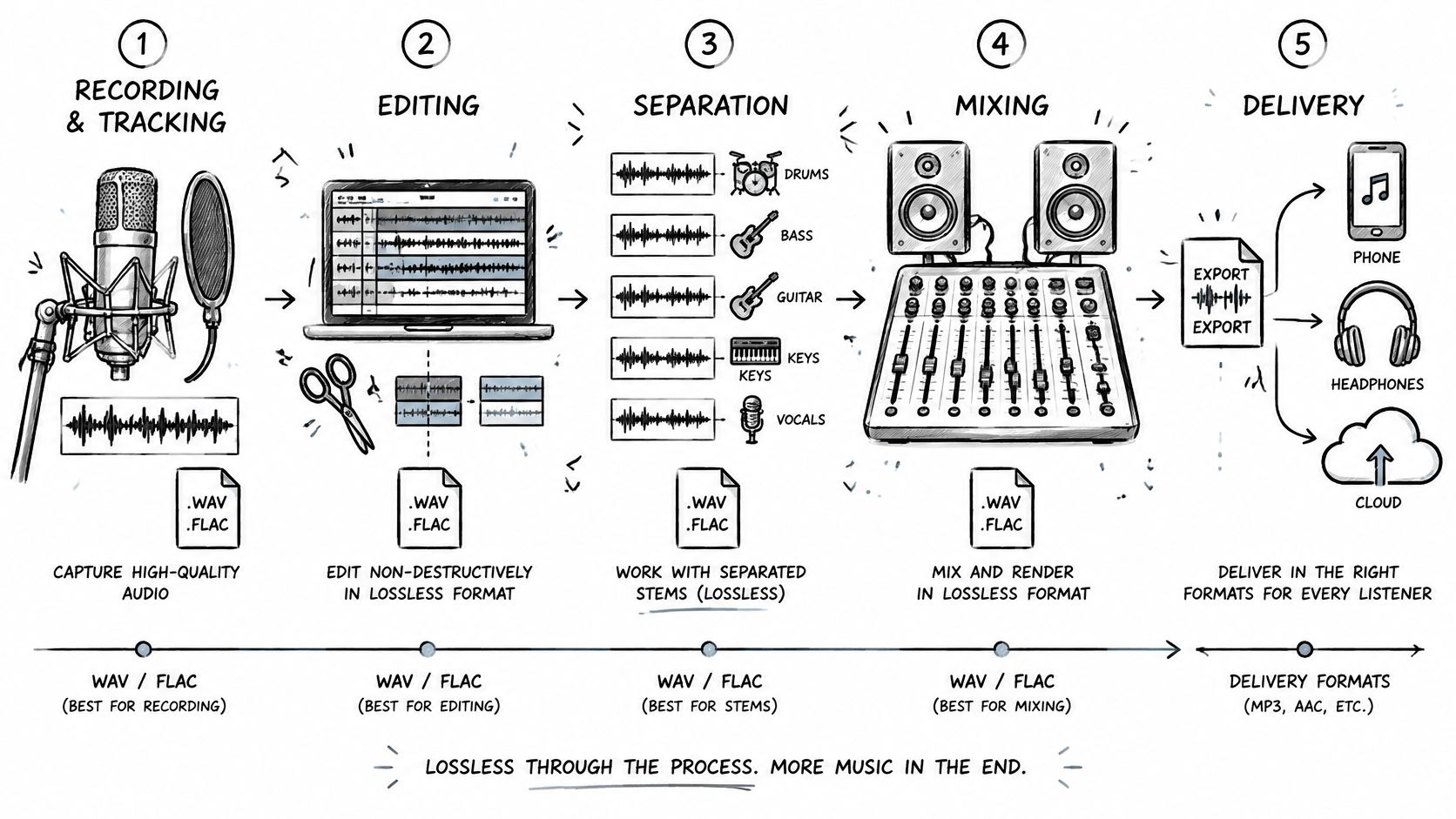
The right format follows the next operation. Editability, compatibility, storage, and destination are more useful criteria than a blanket ranking of extensions. The Council on Library and Information Resources preservation guidance supports retaining a preservation master while creating access copies for routine use.
Capture and production
Recording and tracking: Record to WAV at settings appropriate to the session and equipment, rather than automatically choosing every device's maximum setting. For a home guitar session, TrueFire's guide to how to record guitar at home provides useful recording context before file delivery becomes the concern. Keep the recorded takes intact so later comping doesn't depend on preview exports.
Editing and restoration: Keep working audio lossless while making cuts, adjusting levels, and applying cleanup. For example, a podcast editor can retain the recorded dialogue and edited master as WAV while sending a compact listening copy to the host. Lossless storage prevents additional codec loss, though it doesn't make processing itself reversible.
Audio separation and stem extraction: Choose the original mix rather than a downloaded review copy. If you need dialogue from an interview with background music, preserving the source gives the separator the available recording detail instead of a delivery approximation. When preparing excerpts, our guide to how to split audio files can help you organize the material for a focused task.
Handoffs and publication
Collaboration: Share the lossless master or access to it, and label previews clearly. A producer can send an MP3 for arrangement approval while providing a WAV for the engineer who will perform the final mix. Specify whether the recipient should listen, edit, or replace material; those tasks need different handoffs.
Streaming, podcast publishing, and previews: Create the destination's required delivery file from the approved master. For a video editor, that might mean supplying lossless dialogue to the mixer but a compact preview to the director.
- Working files: Name them by source, stage, and revision so collaborators don't mistake a preview for production audio.
- Access copies: Identify the intended use, such as review or publication, rather than presenting them as interchangeable with the master.
The useful boundary is whether more production work remains. A finished listening copy and an editable source are different deliverables, even when both play convincingly.
Choosing a Format for Isolate Audio Uploads
Upload WAV or FLAC whenever the original lossless source is available. If only a lossy recording survives, use that recording rather than creating a larger file solely to change its extension. Select the best genuine source, not the largest filename.
We accept MP3, WAV, FLAC, M4A, OGG, WebM, and video files such as MP4, and handle conversion. Our supported file types guide helps you match an existing recording to the upload workflow.
Isolate Audio plans for lossless and lossy uploads
| Plan | Price and separations | Max file length | Output formats |
|---|---|---|---|
| Free | $0, 5 separations per month | 5 minutes | MP3 at standard quality |
| Pro | $19 per month, unlimited separations | 30 minutes | WAV and FLAC at best quality |
| Enterprise | Includes Pro; custom commercial terms | Custom file size limits; confirm duration requirements | Includes Pro's WAV and FLAC outputs |
Free fits short experiments when MP3 output is acceptable. It includes standard quality processing and community support, making it useful for evaluating whether a target sound can be separated before designing a larger production workflow.
Pro suits projects that need lossless outputs for continued editing. Alongside its processing and output options, it includes a priority queue, Precision Mode, and email support. Precision Mode enables enhanced accuracy for complex recordings with overlapping sounds; it's relevant when the target competes with other sources rather than appearing cleanly on its own.
Match the plan to the complete recording
A hypothetical forty-five-minute interview exceeds Pro's thirty-minute file limit. Don't choose Pro on the assumption that lossless output also means unrestricted duration. Split the recording into suitable sections, or discuss an Enterprise workflow with us, including the duration requirement.
Enterprise adds API access, bulk processing, custom file size limits, dedicated support, custom integrations, and an SLA guarantee. Those features address operational scale rather than changing the distinction between a source master and a delivery copy.
For interview work, separation and transcription are separate tasks. Once you've prepared an appropriate listening copy, AIDictation's MP3 audio transcription tool is a relevant next step if you also need text; retain the production audio independently.
Before committing: Test a short, difficult excerpt using the original lossless source and a lossy copy derived from it. Compare equivalent output settings so you're evaluating the input format rather than different processing choices.
Listen for whether the target remains intact and whether unwanted material leaks through. That comparison is more useful than choosing a plan from file size alone.
Export a Lossless Master and Deliver Lossy Copies
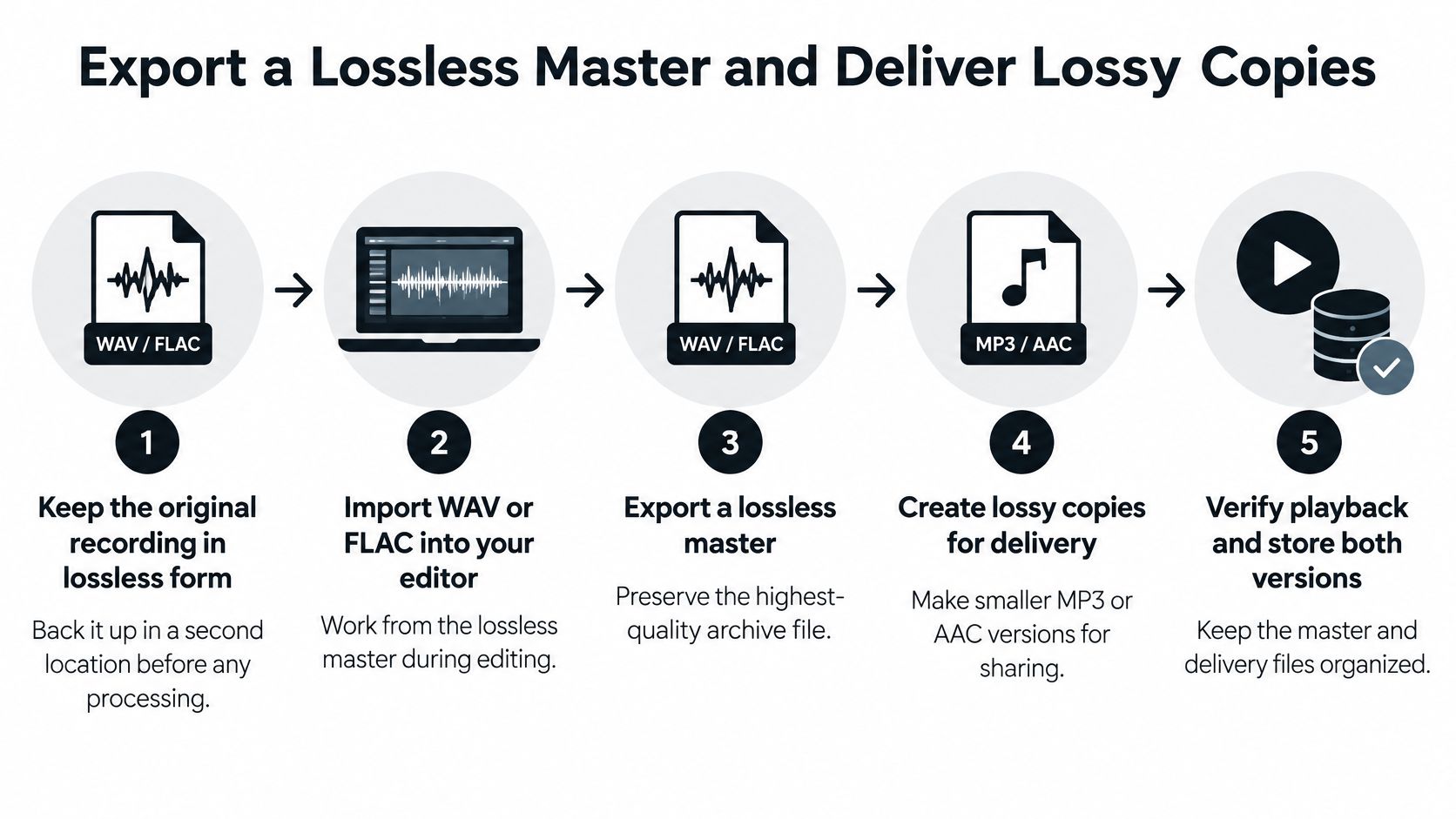
Make the master first, then create the access copy. This order keeps publication requirements from determining what survives in your production archive. It also gives you a clean starting point when a collaborator requests a revision or a different destination needs another format.
The workflow below separates preservation, processing, and delivery instead of treating every export as interchangeable.
Keep production recoverable
Preserve the original recording. Keep the original lossless file and back it up in a separate location before processing. Use a working copy for edits so an accidental overwrite doesn't become your only surviving version.
Edit from WAV or FLAC. Perform cuts, level adjustments, and noise work without exporting intermediate lossy files. Save the editor project as well as rendered audio, because a rendered lossless file doesn't preserve every editable processing decision.
Upload the source and describe the target. Use plain English, such as piano melody or crowd noise, to identify what you want to isolate. Choose Best for studio quality, Balanced for everyday use, or Fast for quick results, according to the purpose of that pass.
Verify before publishing
Download and inspect both outputs. Each separation returns the isolated sound and the remainder; you can use either, both, or combine them. Check headphones playback around sharp attacks and sustained tones, and listen to the remainder for target material that should have stayed in the isolation.
Create the finished delivery copy. Export MP3 or AAC from the approved master using the destination's required settings, rather than converting an earlier preview. Listen to the actual exported file, including its beginning and ending, before sending or publishing it.
Store the production stages and settings. Keep the original, the useful lossless processing results, and the approved master with clear revision names. Add a short note recording the target description, quality preset, and export settings so a future revision doesn't begin with guesswork.
Keep the archive selective enough to understand. Preserving every confusingly named experiment isn't the same as preserving a usable production history; identify which files are originals, candidates, and approved results.
A completed handoff should contain a lossless master, a destination-ready delivery copy, and a concise settings note. The master supports future production, while the smaller copy serves the listener. That's the practical resolution of lossless vs lossy: assign each format a job instead of asking either one to do everything.
Isolate Audio lets you describe a sound in plain English and download both the isolated element and the remainder. Visit Isolate Audio to test a difficult passage from your best available source, compare the results, and keep a lossless output when further production is planned.