Remove Background Music From Audio: Isolate Dialogue Quickly
If you're a creator, you've probably been there: trying to surgically remove background music from audio with traditional tools, only to end up with a muffled, robotic mess. It's a common and incredibly frustrating dead-end. The old methods just weren't built for this kind of delicate work.
Why Traditional Music Removal Tools Fall Short
Trying to rescue a great piece of audio from a noisy background track is a familiar struggle. The classic approaches, like EQ and phase inversion, were never really designed to untangle the complex web of frequencies found in modern recordings. They’re blunt instruments in a situation that demands a scalpel.
Think about it in real-world terms. You just wrapped up an amazing podcast interview at a bustling coffee shop, but now the café’s indie-pop playlist is fighting for attention with your guest's key insights. Or maybe you're a filmmaker who needs to swap out a temp track, but the original score is now permanently baked into the scene's critical dialogue. These aren't niche problems; they're daily roadblocks for creators.
The Downside of Old-School Techniques
The real issue with these older tools is the compromise they force on you. Every "fix" comes with a catch, and often the so-called solution is worse than the original problem.
- Equalization (EQ): The idea is simple: find the frequencies where the music lives and cut them. The problem? Human speech occupies many of those same frequencies. So, when you slash the music, you also gut the voice, leaving it sounding thin and distant.
- Phase Inversion: This trick can work magic, but only in a perfect scenario where you have the exact instrumental version of the background track. You flip its phase, layer it, and the identical music waves cancel each other out. But getting that perfect instrumental is a long shot, and any tiny difference results in weird, warbly artifacts.
- Early Stem Splitters: The first wave of algorithmic splitters gave us a glimpse of the future, separating audio into basic buckets like "vocals" and "everything else." They were a step up, but the results were often riddled with robotic-sounding artifacts. These tools couldn't tell the difference between a singing voice and spoken dialogue, and they got easily confused by complex musical arrangements.
At their core, these tools just don't understand sound. They see a collection of frequencies, not the distinct layers of a human voice, a guitar strum, and a drumbeat. They lack context.
This constant battle against artifacts and degraded audio quality is exactly why we needed a smarter approach. Creators needed a way to remove background music from audio without destroying the very dialogue they were trying to save. The failures of the old guard paved the way for a new generation of AI tools that don’t just analyze frequencies—they comprehend them. This shift has turned what was once an impossible task into a simple step in the creative process.
How to Remove Background Music Using AI Prompts
Forget the frustrating limitations of old-school audio tools. Let's walk through a much more intuitive workflow: telling an AI exactly what you want it to do. This isn't about clicking through a complex menu of filters and settings; it’s a creative conversation where you guide the AI with plain English to get the perfect result.
And like any good audio work, it all starts with giving the AI the best possible source material.
The quality of your audio file is the bedrock for a clean separation. It's tempting to use a common MP3, but their lossy compression literally throws away audio data to shrink the file size. That missing information can create weird artifacts and make it much harder for an AI to tell the difference between dialogue and the music it's trying to untangle.
For the best shot at a clean result, always start with a high-quality, uncompressed format if you have it. A WAV or FLAC file keeps every bit of the original audio, giving the AI a crystal-clear sonic picture to work with. This one choice can make a massive difference, leaving you with crisp dialogue and far less musical residue.
The Art of Writing Effective AI Prompts
Once you've got your high-quality audio file uploaded, the real magic begins. This is where you speak directly to the AI in natural language. The key is to be as specific and descriptive as you can. The AI is incredibly powerful, but it can’t read your mind.
Instead of a vague command like "remove music," which leaves too much room for interpretation, you'll get far better results by being direct. Think about what you truly want to isolate and what you want to get rid of.
For instance, a podcaster trying to rescue an interview recorded in a noisy café could use a prompt like:
- "Isolate the main speaker's voice and remove all background music and café chatter."
- "Separate the spoken dialogue from the instrumental coffee shop playlist."
That level of detail helps the AI zero in on the vocal frequencies you want while actively ignoring the unwanted ambient sounds.
The core principle is simple: describe the sound you want to keep, not just the sound you want to remove. By telling the AI what to save, you give it a clear target, leading to a much more precise and natural-sounding separation.
The technology driving this has come a long way. Machine learning algorithms are now hitting up to 95% accuracy when separating speech from background noise. It's no surprise the market for these tools is booming, jumping from USD 563 million to USD 608 million in just one year, with forecasts showing that trend continuing. This just shows how much creators are relying on AI to achieve professional-grade audio.
Effective AI Prompts for Music Removal
To get the most out of an AI audio tool, it helps to see how specific prompts work in different situations. Here's a quick guide to phrasing your requests for common audio challenges.
| Scenario | Recommended Prompt | Expected Outcome |
|---|---|---|
| Podcast Interview | "Separate the two speakers' voices from the background rock music and remove the guitar solo." | Clean dialogue from both hosts, with the intrusive music and specific instrumental completely eliminated. |
| Video Production | "Isolate all spoken lines and environmental sound effects. Remove the synth-pop background track." | Preserves the essential diegetic sound of the scene while cleanly stripping out the musical score. |
| Music Remixing | "Extract the lead vocal melody and remove all drums, bass, and piano instrumentals." | A clean acapella track of the main vocal performance, ready for remixing or sampling. |
| Educational Content | "Isolate the lecturer's voice and remove the low-humming electronic music playing underneath." | A clear, intelligible voiceover without the distracting ambient music. |
These examples show how being more descriptive—mentioning specific instruments or sound types—gives the AI the precise instructions it needs to deliver a clean track.
What to Do When the First Attempt Fails
Of course, even the most advanced AI can stumble when faced with a truly messy audio track. Old-school tools would often leave you with distorted, robotic, or just plain ineffective results, forcing you to start over.
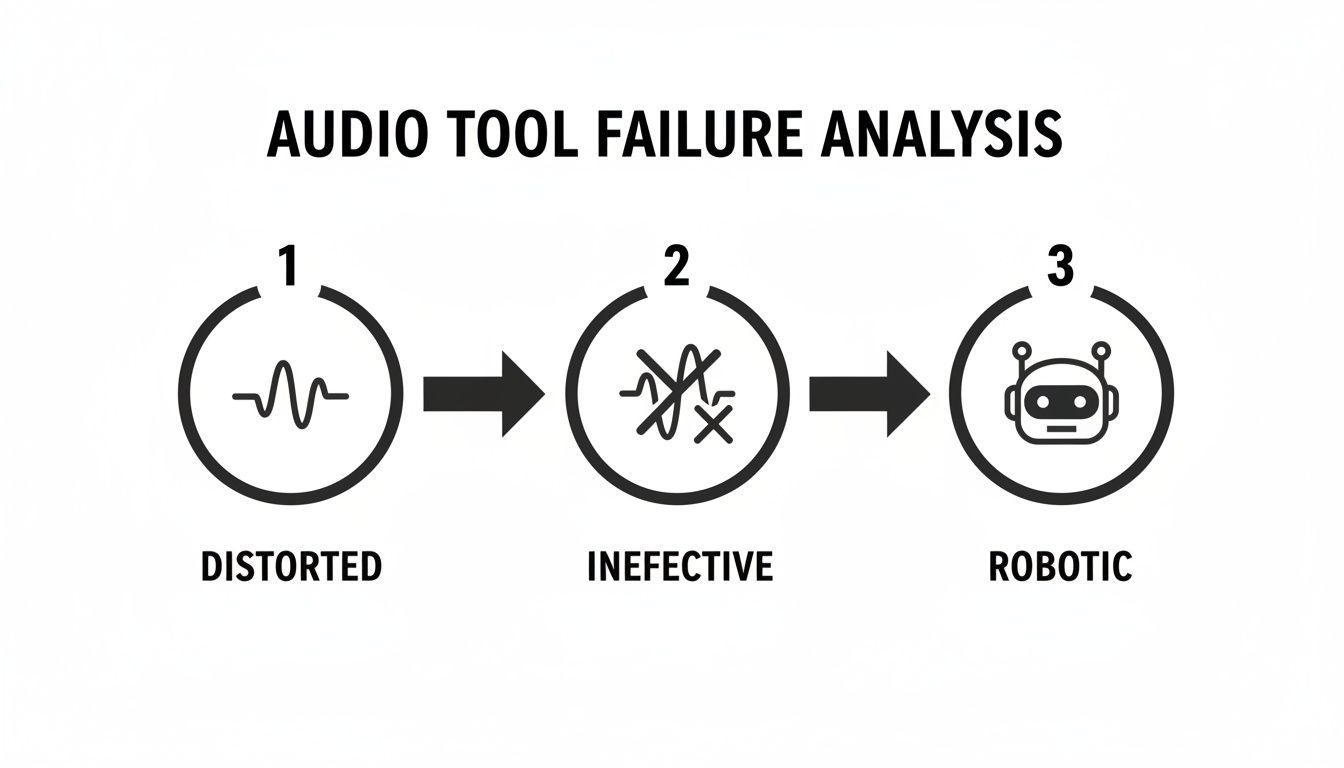
This is a classic example of how basic tools can degrade audio, making it sound worse with each failed attempt. But with a good AI tool, a less-than-perfect first pass is just a starting point for refinement.
If your initial prompt doesn't quite nail it, don't sweat it. The most common problem you'll run into is "bleeding," where faint traces of the music are still audible behind the isolated voice.
Here’s a simple troubleshooting process:
- Refine Your Prompt: Get even more specific. If you can still hear a faint guitar, tweak your prompt to add "...and remove the acoustic guitar."
- Iterate: Try phrasing your request a bit differently. Sometimes "Isolate the voice" yields a better result than "Remove the music," or the other way around.
- Change Your Focus: If isolating the voice is proving tricky, try asking the AI to isolate the music instead. You can then use a technique called phase inversion in your audio editor to cancel out the music from the original track, which can sometimes leave you with a cleaner vocal stem.
This iterative approach is the best way to master the tool. Every attempt gives you feedback, teaching you how the AI thinks and responds to your commands. This is where AI-powered tools truly shine; they provide a flexible, conversational workflow instead of a rigid, one-shot process. These techniques are at the heart of what makes modern stem separation software so powerful. By experimenting a little, you can tackle nearly any audio challenge and successfully remove background music from audio, keeping the dialogue you need clear and intact.
Taking Your Audio to the Next Level with Advanced Controls
Okay, so you've nailed the basics of writing a good prompt. That's honestly half the battle when you need to remove background music from audio. But what happens when you run into a truly stubborn file? Or when "good enough" just isn't? This is where the advanced controls come into play.
Think of these settings as your secret weapon. They give you the granular control needed to tackle the messiest audio and polish the final track until it shines. A solid prompt gets you in the ballpark, but these settings help you hit a home run.
Dialing in the Right Quality Preset
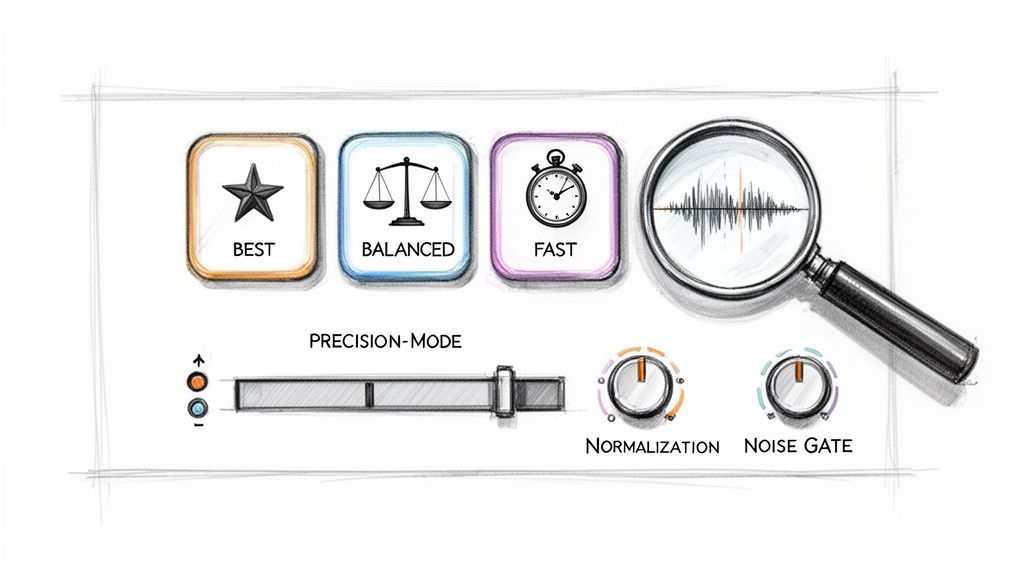
Most AI tools give you a few quality presets to choose from, and they're more than just fancy names. They fundamentally change how the AI "listens" to your file, creating a trade-off between speed and final quality. Knowing which one to use and when is a huge time-saver.
- Fast Mode: Think of this as your draft or preview mode. It processes everything in a flash, giving you a quick-and-dirty result. I use this exclusively to test out different prompt ideas to see if the AI is grabbing the right sound. It's not for final use, but it's perfect for iterating quickly.
- Balanced Mode: This is your everyday workhorse setting. It finds a nice middle ground, giving you a much cleaner result than Fast Mode without the long wait times of the highest setting. It's a great option for projects where time is a factor.
- Best Mode: This is the one you want for your final export. It throws all the available processing power at your audio, performing a much deeper and more nuanced analysis. Always, always switch to this for your final render. You'll get the cleanest separation and the fewest unwanted artifacts.
My personal workflow is to start in Fast Mode to experiment. Once I find a prompt that gives me the best starting point, I'll switch over to Best Mode and run it one last time for the final file. It saves me a ton of frustration and waiting around.
When to Use Precision Mode
So, what do you do when the dialogue and music are practically glued together? You know the situation—a quiet, whispered line of dialogue happens right as the dramatic movie score swells. This is exactly what Precision Mode was built for.
This feature is designed for the most challenging audio scenarios where frequencies are overlapping all over the place. A standard separation might leave behind bits of strings or horns in the vocal track, creating a muddy, unusable result.
Precision Mode uses a much more intensive algorithm to pick apart these tangled sounds. Instead of just taking a broad look, it slows down and examines the audio almost frame-by-frame, making smarter decisions about what’s a voice and what’s a cello, even when they’re fighting for the same sonic space.
Expert Insight: I like to think of Precision Mode as an audio microscope. It lets you zoom in on the exact points where the voice and music are most entangled, allowing for a much cleaner split. It's the tool you pull out when nothing else is working.
Fair warning: using this mode will take longer. It's not for every file. But for that one critical piece of audio that you just can't get clean otherwise, it can be an absolute project-saver.
A Little Post-Processing Goes a Long Way
Once the AI has done the heavy lifting, a couple of quick touch-ups in your audio or video editor can make a world of difference. These final polishing steps are what separate amateur audio from a truly professional result.
Don't worry, you don't need to be a seasoned audio engineer for this. These are simple, effective techniques.
1. Normalization
After you isolate the dialogue, it might sound a bit quiet. Normalization is a simple, often one-click, process that boosts the overall volume so that its loudest point hits a target level (usually just under 0 dB). This gives you a strong, consistent volume without causing any distortion.
2. Light Noise Gating
Even a great separation can sometimes leave behind tiny bits of musical residue during the silent pauses between words. A noise gate is perfect for this. You set a volume threshold, and it automatically mutes any sound that falls below it. A gentle noise gate will clean up those gaps beautifully without ever touching the actual dialogue.
These final steps are standard practice in the industry and are often the final touches in a complete audio repair workflow. If you want to dive deeper, exploring dedicated audio repair software can open up a whole new world of tools. By pairing powerful AI separation with these basic post-processing techniques, you can confidently remove background music from audio and end up with clean, broadcast-ready dialogue every single time.
Putting AI Music Removal into Practice
All the theory and settings in the world don't mean much until you see how a tool actually performs in a real-world mess. Let's walk through a few common situations where you'd need to remove background music from audio and see how getting specific with your prompts can make all the difference. Think of these as mini-case studies that show just how flexible this tech can be.
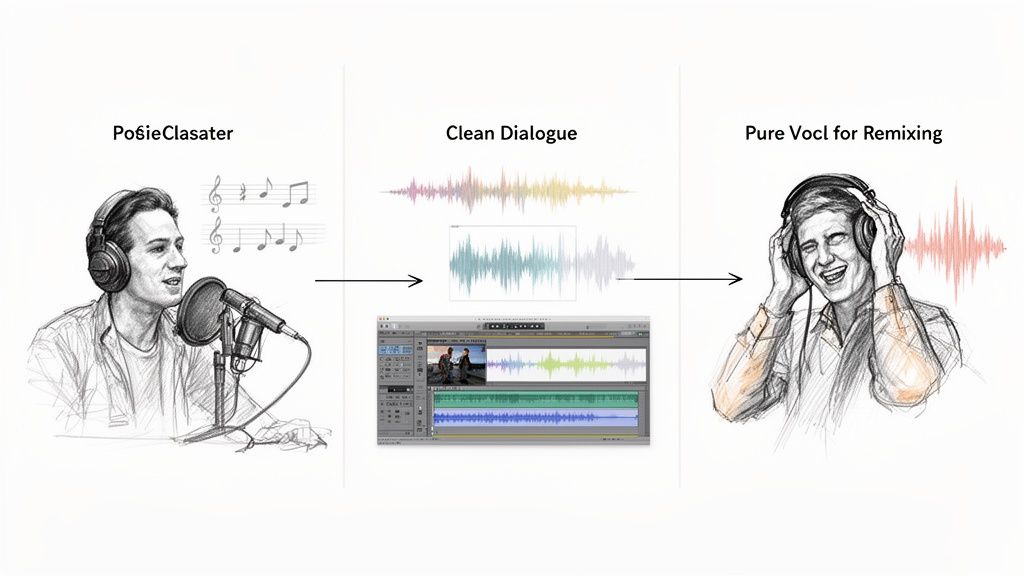
For the Podcaster Rescuing an Interview
Picture this: you've just wrapped up a killer remote interview. The content is gold, but you notice your guest had a radio playing softly in their room. It's not loud, but it’s just distracting enough to make the final episode sound amateurish. I’ve seen this happen countless times, and it’s a classic podcaster headache.
The Challenge: A low-level, ambient song is bleeding into your guest's audio, muddying the dialogue and tanking the professional feel of your show.
The Fix: A generic command won't cut it here. You need to be descriptive. I’d use a prompt like this: "Isolate the guest's spoken voice and remove the faint pop music playing in the background."
This prompt is effective because it tackles the problem from both sides. It clearly identifies the audio you want to keep ("guest's spoken voice") and what you want to ditch ("faint pop music"). This gives the AI the exact context it needs to perform a clean separation and save your interview from the recycling bin.
For the Video Editor on a Deadline
Video editors are constantly handed footage from clients with copyrighted music already baked in. If you need to swap that out for a licensed track for a commercial project, you can't just slap a new song over it. You have to remove the original music first, all without losing crucial dialogue or on-screen sound effects (Foley).
The Challenge: A video clip has dialogue, key sound effects, and a copyrighted song all mashed into a single audio track. Your mission is to surgically remove only the music. For a deeper dive into this, check out our full guide on how to remove the music from a video.
The Fix: This situation calls for a more surgical instruction. A great prompt would be: "Isolate all human speech and environmental sound effects like footsteps and doors closing. Remove the entire instrumental score."
The key here is explicitly telling the AI to preserve the Foley sounds. By doing that, you prevent it from misinterpreting those sounds as part of the music and accidentally stripping them out. This level of fine-tuned control is something older, non-AI tools just couldn't handle.
This is a perfect example of AI solving a complex post-production problem that, just a few years ago, would have meant hours of painstaking, manual editing.
For the Musician Creating a Remix
For musicians, producers, and DJs, the ability to pull a clean acapella from a finished track is a game-changer. It unlocks a whole world of creative potential. Whether you're building a remix, crafting a mashup, or just want to isolate a vocal performance to study it, you need a way to strip out every instrumental element without wrecking the vocal quality.
The Challenge: You’ve got a fully mixed song and need to extract a pristine, studio-quality vocal track for a new project.
The Fix: For this, your prompt needs to be direct and leave no room for error. I'd go with something like: "Extract the lead and backing vocals. Remove all drums, bass, guitar, and keyboard instrumentals from the track."
This command works so well because it’s incredibly specific. By listing the exact instruments you want gone, you're guiding the AI to scrub every non-vocal element, leaving you with a clean acapella that’s ready to be dropped right into your DAW.
The explosion in demand for this kind of clean audio is reflected in the market. The global background noise reduction software market was valued at USD 2.31 billion last year and is projected to soar to USD 45.02 billion by 2034. This growth isn't surprising when you consider that nearly 71% of consumer electronics now have this technology embedded, making crystal-clear audio a standard expectation. You can read more about this trend over at Business Research Insights.
These real-world scenarios show that AI audio separation isn't just some tech novelty. It's a genuinely practical and powerful tool that solves daily frustrations for creators of all kinds.
Troubleshooting Common Separation Issues
Even the best AI can stumble on a really challenging audio file. When you remove background music from audio, you’ll sometimes run into little issues that need a bit of extra work to get just right. Think of this as your field guide for solving those common hiccups.
The most common problem you'll likely encounter is "ghosting" or "bleeding." This is when you can still hear faint traces of music hanging around behind the main dialogue. It usually happens when the music and speech are crammed into the same frequency range, making it tough for the AI to make a perfectly clean split.
Refining Your Results
If your first pass isn't quite there, the first thing to do is tweak your prompt. Don't just re-run the same command. Get more descriptive. If you can hear a bit of guitar in the background, try something more direct: "Isolate the spoken voice and specifically remove the acoustic guitar track." That little bit of extra context can make all the difference.
Still hearing artifacts? It's time to bring in the heavy machinery: Precision Mode. This setting is built for exactly these kinds of messy situations. It runs a much deeper, more resource-intensive analysis of the audio, untangling intertwined sources with incredible accuracy. It takes a little more time, but the payoff in quality is almost always worth it.
Another thing you might notice is that the isolated dialogue sounds a bit weak or too quiet once the music is gone. That's perfectly normal. The original mixed track was louder overall, so removing an element will naturally lower the total volume. A quick normalization pass in your favorite audio editor will boost the dialogue back to a solid, professional level without adding any unwanted noise.
The real goal isn't just separation; it's getting a clean, usable track. Don't hesitate to experiment with different prompts and settings. Every attempt teaches the AI—and you—something new.
Finally, what about audio soaked in reverb or echo? Sometimes, the AI can get confused and interpret those resonant tails as part of the music, which can leave the dialogue sounding clipped or unnatural.
You’ve got a couple of options here:
- First, try prompting the AI to "isolate the dry spoken dialogue and remove background music and reverb."
- If that doesn't fully solve it, applying a simple noise gate during post-processing is a fantastic fix. It will clean up the silence between words, neatly clipping off any lingering reverb.
Once you get the hang of these troubleshooting tricks, you'll be able to tackle even the most difficult audio files and consistently pull out clean, professional-sounding results.
Got Questions? Here Are Some Quick Answers
Even with the best guide in hand, you'll probably have a few questions as you start pulling background music out of your audio with AI. Let's tackle some of the most common ones I hear from people just getting started. This should help you sidestep common pitfalls and get better results, faster.
The big questions usually revolve around what AI can really do. It's powerful, but it's not magic. An AI's success depends heavily on what you give it. Think of it this way: separating a clean studio vocal from a simple piano track is a walk in the park compared to untangling dialogue from a chaotic street recording with traffic, crowd chatter, and a distant band.
And, of course, the quality of your source file is paramount. If you feed the AI a grainy, low-bitrate MP3, it can't magically invent the audio detail that's already been lost to compression. Starting with a high-quality WAV or FLAC file gives the tool much more data to work with.
What Kind of Audio Files Can I Use?
Most modern AI tools are built for convenience and can handle just about any common audio or video format you throw at them. You'll find they have no problem with MP3, WAV, FLAC, M4A, OGG, and even video files like MP4 or WebM. The platform typically does the heavy lifting on the backend, so you don't need to mess with converting files beforehand.
The real lesson here isn't about the file type, but the file quality. Always, always use the highest-quality source you can get your hands on for the cleanest results.
How Is This Different From a Regular Stem Splitter?
This is a really important distinction. A traditional stem splitter is like a blunt instrument—it's been trained to look for a few fixed categories, usually "vocals," "drums," "bass," and "other." That's fine for basic music production, but it’s incredibly rigid. It has no idea how to isolate a police siren, for instance, or tell the difference between a sung vocal and spoken dialogue.
Prompt-based AI separation is a whole different ballgame. It's a smart tool. Instead of being stuck with those few predefined stems, you can tell it precisely what you want. You can ask it to find "the sound of rain" or isolate just "the lead guitar solo." This gives you a level of surgical control that standard splitters simply can't offer.
It's the difference between a tool with four preset buttons and one that actually understands what you're trying to achieve. That’s what makes AI so useful for solving tricky, real-world audio problems.
The hardware that makes this kind of processing possible is a booming industry. The global market for noise suppression components jumped from USD 25.03 billion to USD 28.33 billion in a single year. Experts predict it will soar to USD 86.33 billion by 2034, all thanks to our growing demand for crystal-clear audio. You can dig into the industry data behind this growth on Precedence Research.
Will Using AI Mess Up My Audio Quality?
The whole point of using a quality AI tool is to improve your audio by getting rid of the stuff you don't want. But let's be realistic—the process isn't always perfect. If you get too aggressive on a really messy track, you might hear some slight artifacts in the final result.
Here’s how you can avoid that and get the best possible outcome:
- Start with a great source. As mentioned, high-quality audio in, high-quality audio out.
- Be specific. Give the AI a clear, detailed prompt so it knows exactly what to look for.
- Go for the best. Always choose the "Best" quality setting for your final export. It's worth the wait.
- Get precise. For really challenging audio, don’t hesitate to use Precision Mode.
Following these simple rules gives the AI the best shot at delivering a clean, crisp separation while preserving the integrity of the sound you actually want to keep.
Ready to hear the difference for yourself? With Isolate Audio, you can remove background music from audio, pull out dialogue, and clean up your recordings in just a few minutes. Try it for free today!