Separate Instruments From A Song: How to separate instruments from song
For decades, pulling a single instrument out of a finished song was the audio equivalent of unbaking a cake. It was a frustrating, often impossible task reserved for audio engineers with endless patience and a deep bag of tricks. You'd spend hours wrestling with EQs and phase inversion, only to end up with a muddy, artifact-riddled mess that was hardly usable.
Thankfully, those days are long gone.
A New Era In Audio Separation
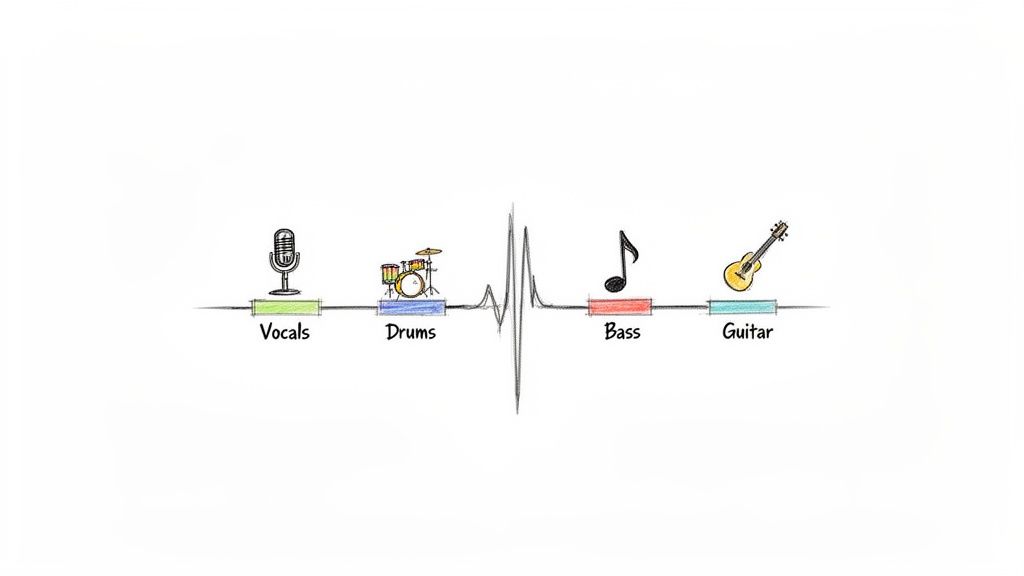
The game-changer has been artificial intelligence. Instead of manually trying to carve out frequencies, modern AI models have been trained on immense libraries of music. They've learned to recognize the unique sonic fingerprints of different instruments—the sharp attack of a snare, the warm decay of a piano chord, or the subtle vibrato in a human voice.
How AI Unmixes Your Track
When you feed a song into an AI separation tool, the algorithm gets to work analyzing the entire audio file. It doesn't just guess at what's what; it identifies the patterns and characteristics it's been taught and digitally reconstructs each sound into its own separate audio file, or stem.
The magic is that the AI understands context, not just frequencies. This is what allows it to do some incredible things:
- Isolate Vocals: Pull a clean acapella, even from a chaotic, instrument-heavy mix.
- Extract Drums: Snag a perfect drum loop for sampling or creating a remix.
- Separate Bass: Create a solid, isolated bass track to practice along with.
- Isolate Melodies: Pinpoint a specific guitar riff or piano part you want to learn.
To really appreciate how far we've come, it helps to see the old and new methods side-by-side.
Audio Separation Methods At A Glance
| Feature | Traditional Methods (e.g., EQ, Phasing) | Modern AI Tools |
|---|---|---|
| Accuracy | Low to moderate. Often leaves behind artifacts and "ghost" sounds from other instruments. | High. Can produce remarkably clean and isolated stems with minimal bleeding. |
| Speed | Extremely slow. Can take hours of meticulous manual work for a single track. | Very fast. Most tools deliver separated stems in just a few minutes. |
| Ease of Use | Difficult. Requires a deep understanding of audio engineering principles and software. | Easy. Most are designed with simple, user-friendly interfaces (drag, drop, click). |
| Best For | Minor adjustments or situations where a perfect separation isn't critical. | Creating high-quality stems for remixes, practice tracks, sampling, and transcription. |
Essentially, what once required deep technical skill and a lot of time can now be done by anyone in minutes.
The Force Behind Better Audio
This shift isn't just a niche trend; it's being driven by massive industry growth. The global AI-powered audio enhancer market is projected to explode from $1,256.8 million in 2025 to an incredible $22,429.8 million by 2035.
The media and entertainment sector, which accounts for 40.3% of this market, is fueling the demand for faster, better ways to separate audio for everything from cleaning up movie dialogue to producing music. You can read more about these audio market trends to see just how big this is becoming.
This explosion in technology means that tools once exclusive to high-end studios are now accessible to everyone. Whether you're a DJ, a musician, or a content creator, you can achieve professional-grade results without a steep learning curve or expensive software.
Choosing Your Tools and Preparing Your Audio
Before you can even think about splitting a song into its component parts, you have to get your house in order. This means picking the right tool for the job and feeding it the best possible audio file you can find. Honestly, getting this part right is probably the most critical step in the whole process. If you start with a weak foundation, everything you build on it will be shaky.
The right tool really comes down to what you're trying to accomplish. Are you a DJ who needs to pull a vocal and an instrumental for a set tonight? A quick and easy online AI separator is your best friend. But if you're a post-production engineer cleaning up dialogue for a film, where every tiny artifact is a deal-breaker, you’ll want the surgical precision of a spectral editor like iZotope RX.
For most everyday tasks, though, the speed and sheer power of modern AI platforms are a perfect match.
Selecting an AI Separation Tool
The market for these AI tools is absolutely booming, which is great news for us. The whole consumer audio market is projected to hit $315 billion by 2033, and that money is fueling some serious innovation. We're already seeing AI-powered features expected in over 40% of mid-to-high-tier audio products by 2026. You can read more about this market explosion to see just how fast things are moving.
When you're shopping around for a tool, here’s what I look for:
- Fixed vs. Flexible Stems: A lot of the older tools box you into a few options: Vocals, Drums, Bass, and "Other." That's fine, but the newer platforms let you isolate anything you can describe with text. This opens up a world of creative possibilities.
- Ease of Use: Is it a simple drag-and-drop interface, or do you need an engineering degree to figure it out? Most of the good online tools are built for speed and simplicity.
- Quality Settings: You want options. A "high quality" mode might take a few extra minutes to process, but the payoff in cleaner stems with fewer weird digital artifacts is almost always worth it.
My personal rule of thumb is to match the tool to the task's deadline and destination. For roughing out remix ideas or making a quick practice track, a web-based AI tool is a no-brainer. If I'm working on something for a commercial release, I’ll often start with an AI separation and then do my final polishing in a dedicated spectral editor.
Sourcing the Best Audio File
Let me be crystal clear on this: your output quality is 100% limited by your input quality. You simply cannot pull a pristine, clean stem from a crusty, low-bitrate MP3 you downloaded ten years ago. It just doesn't work. The AI needs as much data as it can get to do its job properly.
Think of it like trying to restore a blurry, pixelated photo. You can sharpen it and mess with the contrast, but you can never magically bring back the details that were lost when the image was compressed. Audio is exactly the same.
This is why the file format is so crucial:
- Lossless Formats (WAV, FLAC, AIFF): This is what you want. These are the gold standard because they contain 100% of the original audio data from the master recording. They give the AI the richest, most detailed sonic information to analyze, which translates directly to cleaner, more accurate separations.
- Lossy Formats (MP3, AAC, OGG): These formats achieve their small file sizes by strategically throwing away audio data. While that’s fine for your daily commute, the "lost" data often includes the subtle high-frequency details and harmonic overtones that an AI uses to tell a cymbal from a synth pad. Using an MP3 will almost always result in more audio bleed (where parts of one instrument leak into another's track) and other unwanted noise.
Always, always try to track down a WAV or FLAC version of the song. If you bought the track from a store that offers high-quality downloads like Bandcamp or Beatport, go back and grab the lossless version. The difference it makes is night and day.
Getting Started with AI-Powered Instrument Separation
Alright, you've got your high-quality audio file. Now for the fun part: feeding it to an AI and watching the magic happen. What used to be a headache-inducing task for audio engineers is now often as simple as uploading a file and telling the software what you want.
Across most modern platforms, the initial workflow is refreshingly straightforward. You'll typically start by uploading your WAV or FLAC file, often with a simple drag-and-drop right into your web browser.
This first phase is all about setting the stage for the AI to do its best work.
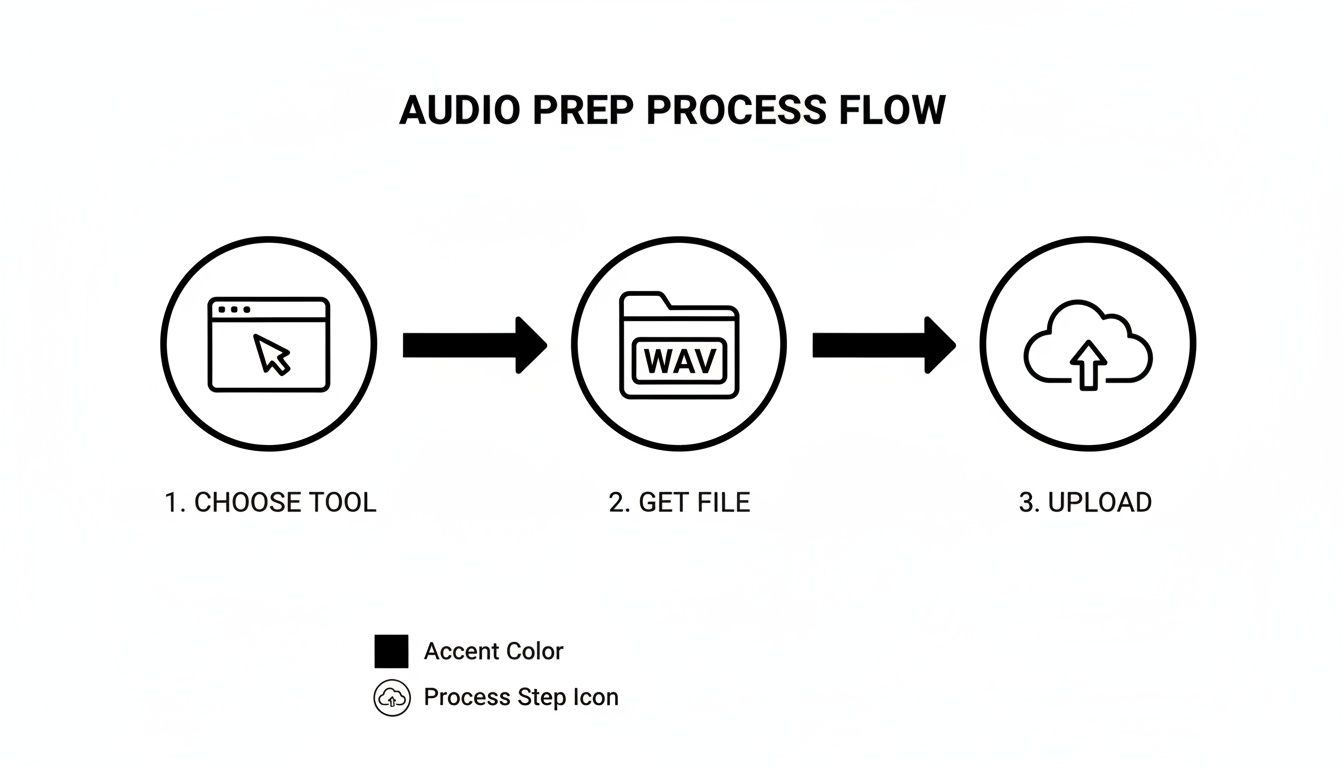
It really boils down to this: pick the right tool for the job and give it the best possible source material to work with.
Crafting the Perfect Prompt
Once the file is uploaded, you’ll need to tell the AI what to isolate. This is where tools like Isolate Audio really depart from older software that limits you to fixed categories like 'Vocals' or 'Drums'. Here, you get to use natural language.
The secret to a great result is specificity. A vague prompt leads to a vague result.
- Vague Prompt: "guitar"
- Specific Prompt: "the clean, arpeggiated electric guitar on the right side"
The more descriptive you are, the better the AI can lock onto the exact sound you're hearing in your head. Try using words that describe its tone (distorted, clean, bright), its function (rhythm, lead, solo), or even where it sits in the stereo mix (panned left, right, or center).
I remember needing to pull a subtle synth pad from a really dense electronic track. My first attempt, just "synth pad," gave me a jumbled mess of three different synths. I tweaked it to "the high-pitched, shimmering synth pad that plays during the chorus," and it nailed it—a perfectly clean stem on the next try.
Dialing in Quality and Precision
Most modern AI tools let you choose between processing speed and output quality. This is a critical step, as it directly affects the final sound of your separated audio stems.
Here’s a look at the kind of options you’ll likely encounter:
- Fast Mode: This is your go-to for quick previews or testing an idea. The file processes in a flash, but you might notice more audio "bleed" from other instruments or some digital artifacts.
- Balanced Mode: This is the happy medium and usually the default setting. It delivers a clean separation in a reasonable amount of time, making it a great starting point for most projects.
- Best Quality Mode: When you need pristine results, this is the one to pick. It uses much more processing power to get the cleanest separation possible. It takes longer, but the wait is absolutely worth it for creating professional stems with minimal artifacts.
You might also see a Precision Mode on some platforms. This setting is a lifesaver for really tough audio—think two guitars playing similar parts that overlap, or a vocal buried under a synth. Ticking this box tells the AI to dig deeper and perform a more granular analysis. Our guide to the best stem separation software dives into how different tools approach these advanced features.
After you've set your options and written your prompt, you hit go. The processing can take anywhere from a few seconds to several minutes, depending on the track's length and the quality settings you chose. When it's finished, you'll almost always get two files to download: the instrument you wanted and another file containing everything else but that instrument.
How To Refine And Use Your Separated Stems
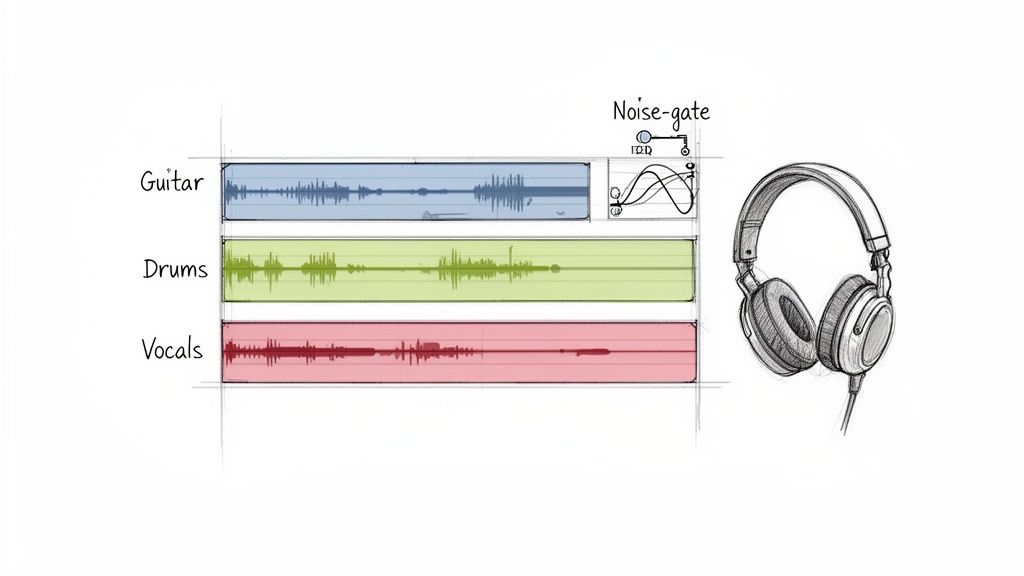
Downloading your new audio files feels like a win, but don't close your laptop just yet. The real creative work is about to begin: cleaning up your stems and putting them to use. Even the most advanced AI can leave behind tiny digital fingerprints, so a quick quality-control check is always a smart move.
Grab a good pair of headphones and listen to each stem on its own. You're hunting for common audio artifacts—those digital ghosts that sometimes haunt a track after you separate instruments from a song. This might manifest as a faint, watery echo of the vocal on a guitar track, or maybe a bit of hi-hat hiss that snuck into the bass stem.
These little imperfections are often called "bleed," and they're a totally normal byproduct of unmixing a complex track. The good news? You can usually polish them up with tools you probably already own.
Applying Simple Cleanup Techniques
You don't need to be a seasoned audio engineer to handle the basics. A few simple tweaks inside any Digital Audio Workstation (DAW)—whether it's GarageBand, Audacity, or Ableton Live—can make a world of difference.
Equalization (EQ): This is your secret weapon. If you hear a bit of low-end rumble from the kick drum on your vocal stem, you can use an EQ to gently roll off those bass frequencies. In the same way, if a guitar stem has some high-frequency hiss from a cymbal, a high-shelf cut can clean it right up.
Noise Gate: A noise gate is a fantastic tool that automatically mutes any audio that falls below a certain volume. It's incredibly useful for getting rid of low-level background noise or bleed in the silent moments between notes. For instance, you could set a gate on a vocal stem to silence any faint instrumental bleed that only appears when the singer takes a breath.
Fades: Never underestimate the power of a simple volume fade. If an artifact only pops up for a split second, you can often just automate the volume to dip down and manually erase it from the track.
The goal isn't surgical perfection. It's about making the stem clean enough for what you need it for. A little bleed is perfectly fine for a practice track, but for a commercial remix, you'll want to be much more meticulous.
Putting Your Stems Into Action
Once your stems are polished, a whole world of creative possibilities opens up. The professional audio market, which includes all the software used for this kind of work, is projected to hit a massive $14,661.2 million by 2033. This boom shows just how valuable these workflows have become, with the United States alone accounting for 77% of the North American market. You can dive deeper into these numbers in this professional audio market report.
For producers and DJs, these isolated elements are pure gold for sampling and remixing. Imagine taking the bassline from one track, the vocal from another, and a drum loop you just made to build something completely new. Having a solid grasp of what audio stems are is a huge advantage here; for a great primer, check out our guide on what are stems.
Musicians have just as much to gain.
- Create Backing Tracks: Pull the bass and drums out of a song to create an instant rhythm section you can practice guitar solos over.
- Transcription: Can't quite make out that complex piano part in a busy mix? Isolate it. This makes transcribing melodies and chords by ear so much easier.
- Karaoke and Performance Tracks: Remove the lead vocal to create a high-quality instrumental for singers to perform with.
Ultimately, refining and using your stems is all about bridging the gap between the technical process of separation and your own creative expression.
Dealing with Tricky Tracks: Troubleshooting Common Separation Problems
https://www.youtube.com/embed/_FQ80jgu_z1w
Even with the most advanced AI on your side, some tracks just don't want to cooperate. When you're trying to separate instruments from a song, especially a really dense or complex mix, you're bound to hit a few snags. But don't get discouraged—most of these common issues have a fix.
One of the most common headaches is instrument bleed. This is that frustrating moment when you isolate a guitar part, only to hear the ghostly, watery remnants of the lead vocal haunting the background. It happens because the frequencies of those instruments were overlapping in the original mix, making it incredibly difficult for even a smart algorithm to draw a perfectly clean line.
Songs swimming in heavy effects can also be a real challenge. Think of a track drenched in reverb or a guitar solo with a long, cascading delay. The AI can get confused, struggling to figure out where the actual instrument ends and its atmospheric tail begins. This often results in weird artifacts or chunks of the effect ending up in the wrong stem.
Tackling Instrument Bleed
When you run into bleed, your first line of defense is to try re-processing the file with a higher quality setting. If your tool has a "Precision Mode" or a similar high-fidelity option, enable it. This simple switch often gives the AI the extra horsepower it needs to make a much cleaner distinction between those tangled sounds. You’d be surprised how often this one change clears things up.
If that pesky bleed is still hanging around, it's time for a little post-processing. A bit of careful EQ work can be your best friend here. For example, if you've got a low-end thump from the kick drum muddying up your isolated bass stem, you can use a high-pass filter to gently roll off those specific low frequencies. Our guide on how to remove drums from a song dives deeper into these kinds of surgical fixes.
Getting the Most Out of Poor Source Audio
So what do you do when the audio you're starting with is... well, not great? We've all been there—sometimes, all you have to work with is a low-bitrate MP3 or an old mono recording. You can't magically create information that was never there in the first place, but you can definitely take steps to get the best possible outcome.
The golden rule for low-quality audio is to manage your expectations. The goal isn't always a flawless, studio-grade stem. Sometimes, "good enough" for practice or figuring out a part is a huge win.
Here are a few pointers for wrestling with those less-than-ideal source files:
- Max Out the Settings: Always run the separation on the highest quality or precision mode available. The AI needs every ounce of processing power it can get to make sense of the limited data in the file.
- Mono In, Mono Out: If your source file is mono, your separated stems will be too. That's perfectly fine for creating a backing track to practice over, but just know you won't be getting any stereo width from it.
- Focus on Clarity, Not Perfection: When you're cleaning up a stem from a rough source, aim for making the main instrument intelligible. Don't drive yourself crazy trying to kill every last artifact. A little bit of background noise is an acceptable trade-off for a usable track.
6. Common Questions (And Quick Answers) About Audio Separation
As you get into separating audio, a few questions always pop up. Let's tackle the most common ones I hear from producers, musicians, and audio editors, covering everything from legal gray areas to getting the cleanest possible results.
Is It Legal to Separate Instruments From a Copyrighted Song?
This is the big one, and the answer really boils down to what you plan to do with the stems.
If you’re just pulling the bass and drums out of a track to create a personal practice loop, you’re almost certainly fine. This kind of personal, non-commercial use is generally considered fair use.
But the second you think about using those stems in a project you'll share publicly or sell—like a remix on Spotify, a DJ set, or a YouTube video—the rules change. For that, you absolutely need to get permission and a license from the copyright holders. Don't skip this step.
My rule of thumb: If it's just for you in your studio, go for it. If anyone else is going to hear it, get the paperwork sorted out first.
What’s the Best Audio Format to Use for Separation?
Your final stems will only ever be as good as the file you start with. It’s a classic "garbage in, garbage out" situation.
Always, always use the highest quality, lossless audio format you can get your hands on. These files contain all the original audio data, which gives the separation software the most information to work with, leading to much cleaner stems.
- Your Best Bet: WAV, FLAC, or AIFF files.
- If You Must: A high-bitrate MP3 (320kbps) can work in a pinch.
- Stay Away From: Low-quality MP3s (128kbps or less) or audio ripped from streaming sites.
Trying to separate a low-quality MP3 is like trying to restore a blurry photo—the essential details are already gone, and you’ll end up with a lot of digital noise and artifacts.
Why Do I Still Hear Faint Bits of Other Instruments in My Isolated Track?
That faint lingering sound of a cymbal in a vocal track or a bit of guitar in a bass stem is called "audio bleed" or "artifacting". It's totally normal.
It happens because instruments in a mix naturally share frequency ranges. The snap of a snare drum can occupy the same sonic space as the attack of a piano chord, for instance. Even the best AI models can sometimes struggle to untangle these completely, especially in really dense or heavily processed mixes.
Most modern tools have a high-quality or "precision" setting that can help reduce bleed. If that doesn't quite do it, a little bit of targeted EQ on the finished stem can often clean up the last of those unwanted sounds.
Here are a few of the most common questions people have when they first dive into audio separation.
| Question | Answer |
|---|---|
| Is it legal to separate instruments from a copyrighted song? | For personal use, like practicing an instrument, it is generally considered fair use. However, if you plan to use the stems in a commercial project, such as a remix you intend to sell, you must get permission from the copyright holders. Always verify the laws in your region. |
| What audio format is best for separation? | Always use the highest quality file you can get. Lossless formats like WAV, FLAC, or AIFF contain the most audio data and yield the cleanest results. Compressed formats like MP3 discard data to reduce file size, which can lead to more artifacts in the separated stems. |
| Why can I still hear other instruments in my isolated track? | This is called 'audio bleed' and occurs because instruments in a mix share overlapping frequencies. Modern AI models are excellent at minimizing this, but it can still happen in dense or complex mixes. You can often improve the result by using a higher quality setting or by cleaning up the stem afterward with tools like EQ. |
Hopefully, these answers clear things up and give you the confidence to start experimenting.
Ready to put this all into practice? With Isolate Audio, you can separate any instrument from any song using simple text prompts. Get clean, high-quality stems for your remixes, practice sessions, or production work in just a few minutes. Try it for free today.