Software Remove Vocals Compared: Accuracy, Price and Fit
The usual advice, upload a song and choose the tool with the cleanest vocal preview, misses half the job. A separator can produce an impressive voice track while stripping cymbals, guitar attacks, or bass detail from the backing mix. Anyone choosing vocal removal software is really picking between four standalone categories, not just brands, with a DAW-integrated option for producers who want to stay inside their session.
Vocal Removal Software at a Glance
Vocal removal software categories at a glance
| Tool type | Best for | Typical output | Price model |
|---|---|---|---|
| Cloud AI separator with natural-language prompts (Isolate Audio) | Isolating any sound you can describe, including vocals | Isolated sound plus remainder | Free plan with paid Pro tier |
| Desktop stem separator | Batch work on albums or large libraries | Vocals, drums, bass, and other instrumental stems | Paid license or subscription, according to the application |
| Local open-source model | Technical users who want full control | Vocal and instrumental stems | Free to run, hardware and setup cost |
| Online karaoke maker | One song quickly, for singing along | Instrumental track | Free access with paid exports or processing allowances |
| DAW plug-in with stem tool | Producers already working in one DAW | Separated stems routed into the session | Plug-in license or included DAW feature |
Match the workflow before the model
A prompt-based cloud separator suits jobs that don't fit a fixed stem menu. Our tool accepts a plain-English description of the sound you want, rather than restricting you to vocals, drums, bass, guitar, or piano. Each separation returns the isolated sound and the remainder, so you can use either output or combine them.
Processing runs in the cloud, with nothing to download or install. That makes a browser sufficient, but it also makes uploading part of the workflow. For unreleased recordings, decide whether cloud processing fits your project's handling requirements before choosing on sound alone.
Desktop separators make more sense when you're organizing an album's worth of files and want offline processing. Check whether batch export preserves filenames and places matching stems together. A good model becomes frustrating quickly if every export needs manual housekeeping.
Control versus convenience
Local open-source models offer control over model versions, processing settings, and repeatable runs. They don't require a service subscription, but setup, dependencies, storage, and capable hardware are your responsibility.
- Karaoke makers minimize decisions when all you need is a backing track. Check the full accompaniment, not just the preview.
- DAW stem tools reduce exporting and reimporting. Their practical advantage is session integration, not an automatic guarantee of cleaner separation.
- Cloud tools remove local installation work, but output formats, processing allowances, and precision options still matter.
Judge every category on output, formats, speed, presets, and price. Choose the category that matches your job first, then compare brands within it.
How Vocal Removal Software Actually Works
A karaoke track that sounds clean can still fail as a remix stem. A podcast cleanup that works can wreck a music mix. The difference starts with what the software estimates.
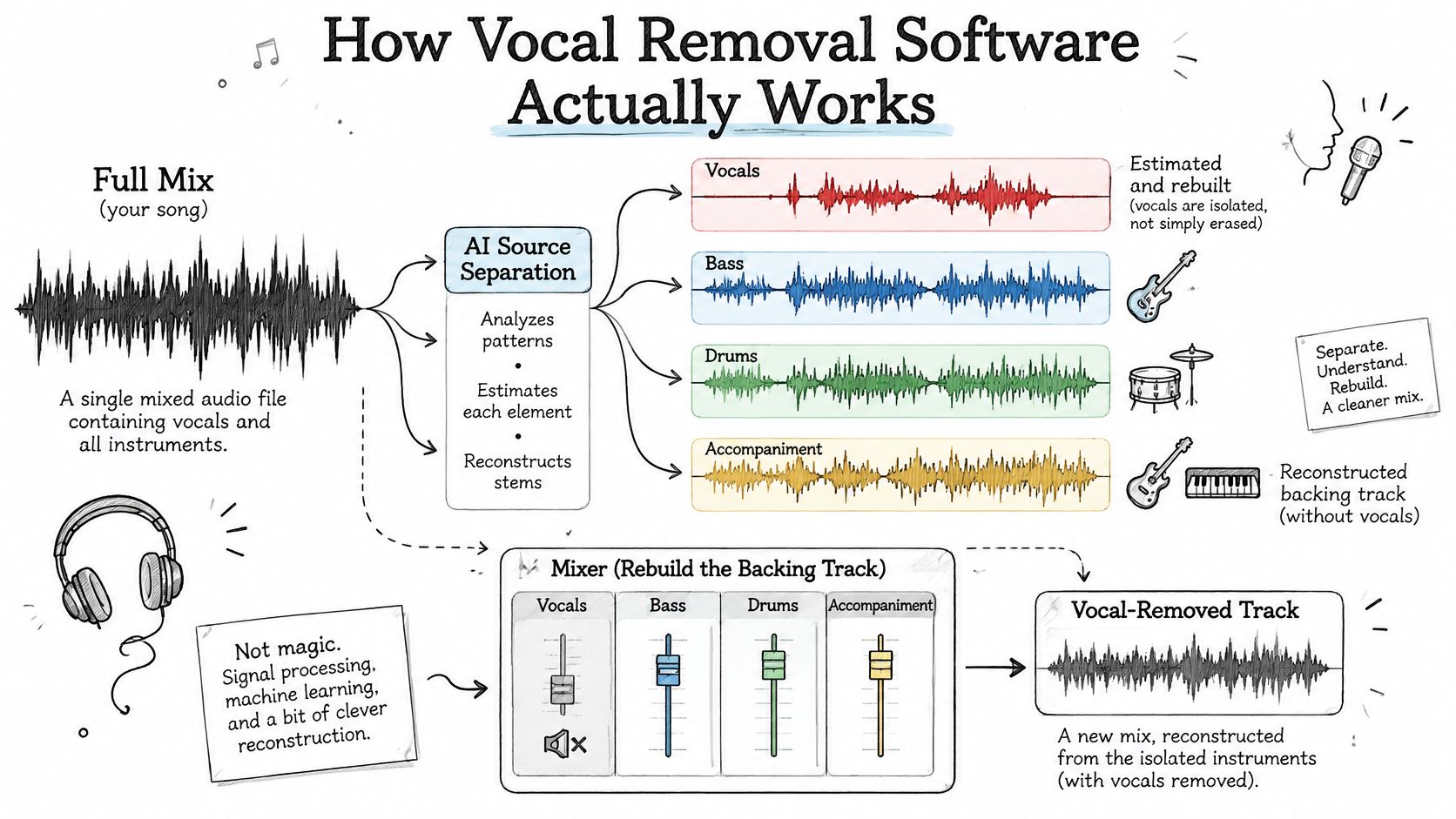
Modern vocal removal estimates a source, then reconstructs the accompanying audio. It works from a finished mix. There are no hidden session tracks to recover, and center-channel deletion alone leaves too much behind.
What the separator estimates
The SiSEC source-separation overview describes the common four-source framework: vocals, bass, drums, and other, with the residual category containing remaining instruments and production elements. A vocal remover uses this broader separation task to estimate what belongs to the singer and what should remain.
Reference multitracks with isolated stems let developers compare an estimated source against the actual recording rather than judging by a flattering demonstration. That comparison is what separates a controlled test from a product demo.
The practical mechanism matters more than the terminology. A sung vowel and a sustained guitar note can occupy similar frequencies at the same moment. Stereo placement does not always distinguish them. Shared reverb or bus compression blurs the boundary further, which is why residue often sounds smeared instead of clearly vocal or non-vocal.
For a broader explanation of how targets are defined, our audio source separation guide connects this process to sounds beyond music.
Why the chorus is harder
A sparse verse gives the separator fewer competing components.
Add doubled lead vocals, harmonies, distorted guitars, and bright cymbal wash, and the model must make more ambiguous decisions. Those decisions produce recognizable trade-offs. Retaining uncertain material can leave a ghost of the singer in the background track. Removing it aggressively can hollow out a synth pad or soften a snare transient.
A useful remainder still sounds like the song, not merely like a song with less voice.
This video provides another way to follow the separation workflow.
Reasonable expectations are fewer distracting vocal traces, stable accompaniment, and damage small enough that it does not interfere with the intended use. Karaoke tolerates a faint ghost vocal. Sampling does not. I recommend judging the remainder on the job it has to do.
Measuring Separation Quality Before You Commit
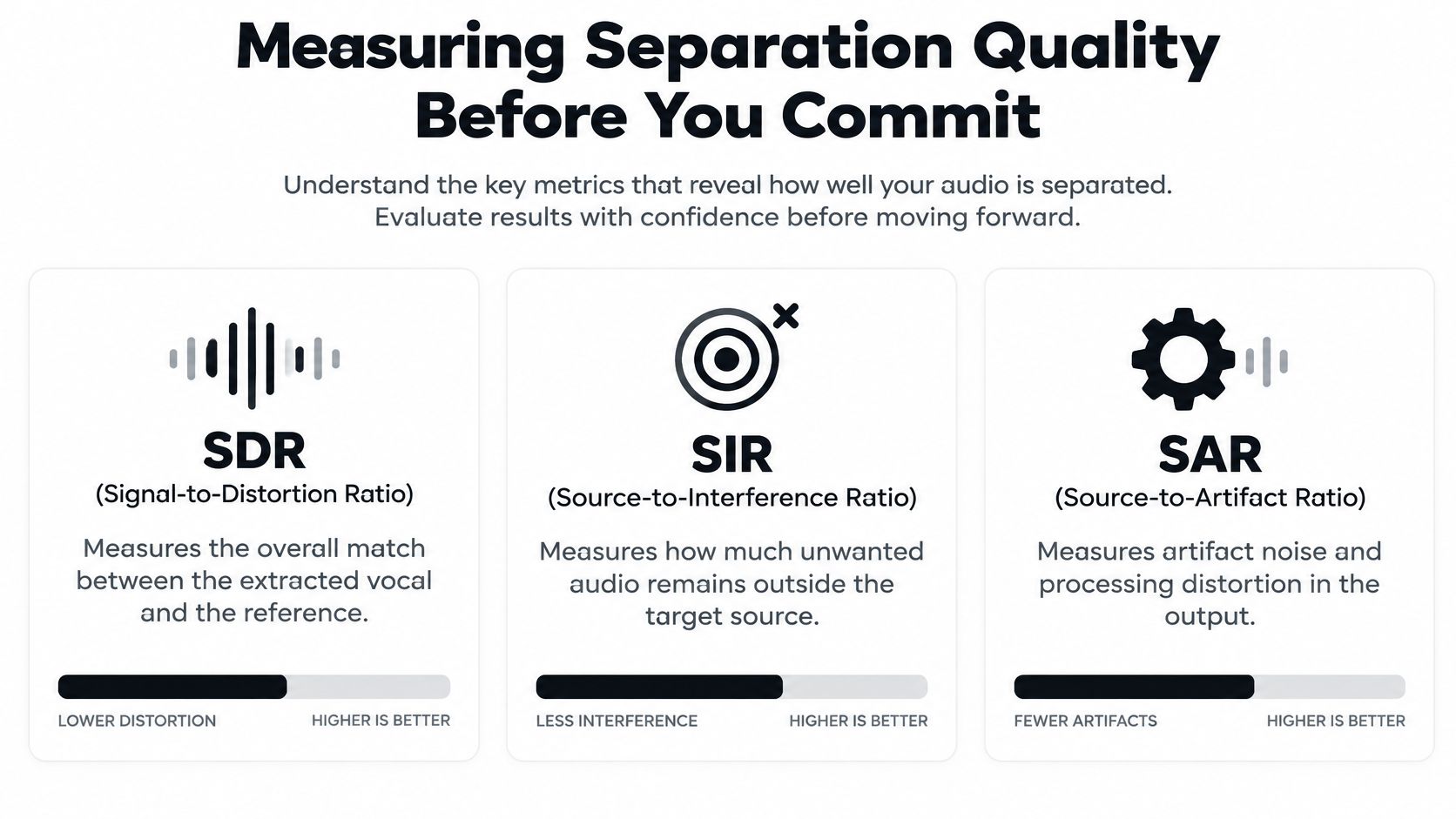
Signal-to-Distortion Ratio, Source-to-Interference Ratio, and Source-to-Artifacts Ratio measure different failures. The MUSDB18 evaluation paper explains their roles and why vocal extraction and accompaniment generation should be evaluated separately.
SDR describes the overall match to the reference source. SIR describes suppression of competing sources, while SAR describes artifacts introduced during processing. Higher scores are preferable within a consistent evaluation, but they don't tell you whether a particular damaged sound matters to your project.
Separation metrics and how to read them
| Metric | What it measures | Higher value means | Common trap |
|---|---|---|---|
| Signal-to-Distortion Ratio (SDR) | Overall match between the extracted vocal and the reference | Closer match to the original vocal | One average can hide failures on dense mixes |
| Source-to-Interference Ratio (SIR) | Suppression of competing sources such as instruments | Less instrument bleed in the vocal | Low SIR shows up as audible instrument residue |
| Source-to-Artifacts Ratio (SAR) | Artifacts introduced by the separation process | Fewer watery or warbling artifacts | Can look fine while vocal bleed remains |
| Scale-invariant signal-to-artifacts ratio | Artifact level, with useful perceptual correspondence for some instruments | Fewer audible artifacts | Doesn't establish intelligibility or source isolation by itself |
Studio-music benchmarks also have a scope limit. They don't establish how well a tool will handle a reverberant interview, a live performance, or an unusual target sound.
Run a short acceptance test
Set aside a brief comparison session rather than uploading your entire library immediately.
- Choose difficult material. Export a short clip from a lossless original you know well. Include the busiest passage, not only an exposed verse.
- Keep the comparison controlled. Feed identical audio to competing tools and select comparable quality settings. Match playback loudness before judging.
- Inspect the isolated voice. Listen for accompaniment under consonants, missing syllables, unstable harmonies, and changing room tone.
- Inspect the remainder. Follow the kick, bass, guitar, and synth parts individually. A quieter singer isn't a win if an essential instrument disappears.
- Use a spectrogram as a check. Look for smeared attacks or missing upper-frequency content, then confirm that the difference is audible.
- Make a project decision. Mark the result usable, repairable, or unsuitable. Don't keep rerunning a clip without identifying what must improve.
Our guide to precision processing benefits can help when the failure is overlapping sources rather than a simple export problem.
Listen in context as well as solo. An artifact that sounds severe in isolation may disappear under a new arrangement, while faint vocal residue can become conspicuous during a karaoke pause.
Accuracy, Formats, Speed and Presets Compared
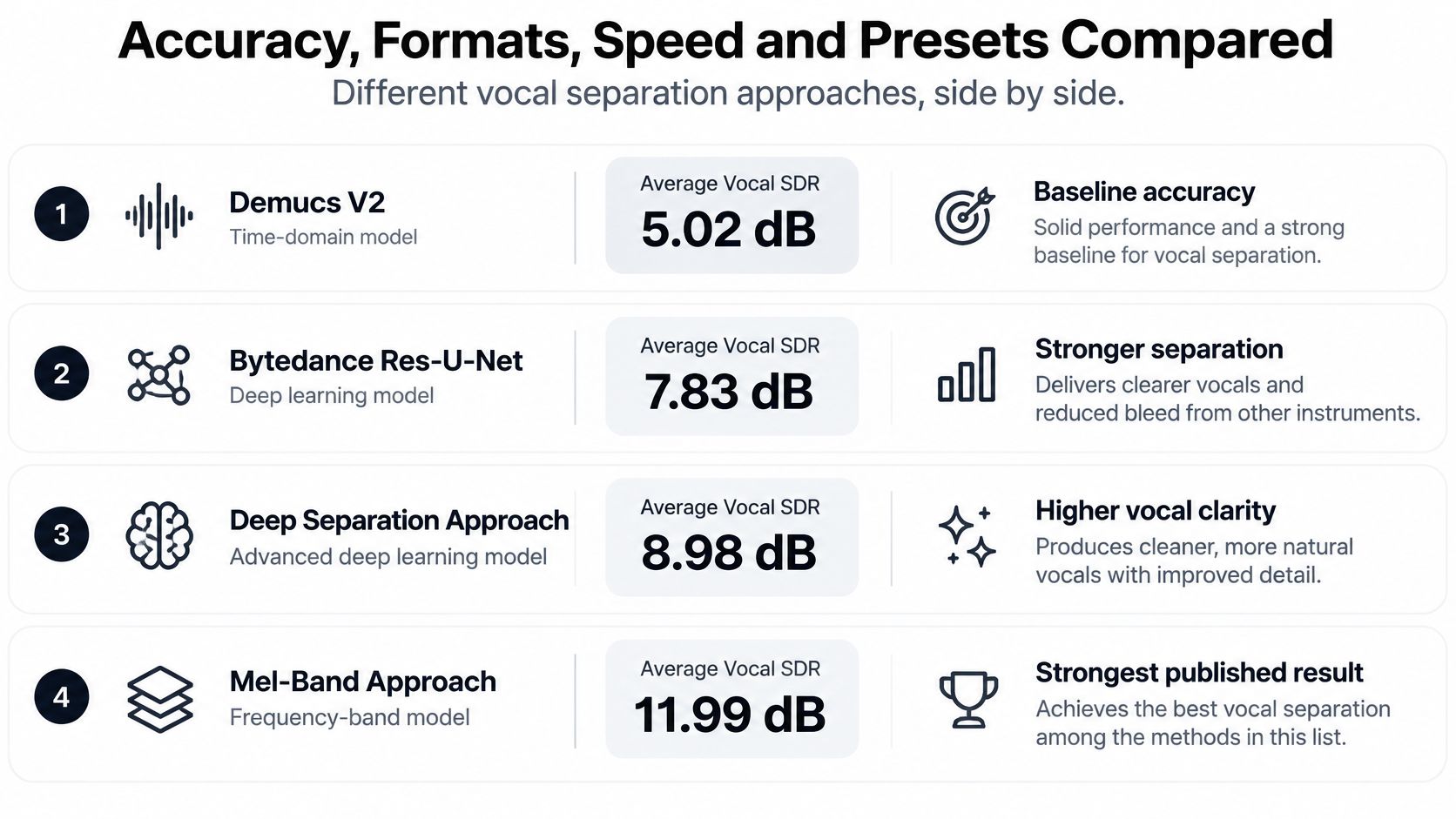
Published benchmark results reveal meaningful differences between models, but they aren't a consumer-product league table. The mel-band RoFormer paper and its comparison of published systems reports the vocal SDR results below, including a model trained on MUSDB18-HQ plus 500 additional songs, and an overlap-related improvement of up to 0.37 dB SDR.
Published vocal SDR results on MUSDB18
| System | Average vocal SDR | Notes |
|---|---|---|
| Mel-band RoFormer, MUSDB18-HQ plus 500 extra songs | 11.99 dB | Highest figure reported here |
| Deep separation approach | 8.98 dB | Published on MUSDB18 |
| Bytedance Res-U-Net | 7.83 dB | Older benchmarked system |
| Demucs V2 | 5.02 dB | Older benchmarked system |
| Isolate Audio | Not published | Test on your own clips |
Don't interpret those rows as a controlled head-to-head test. Dataset version, sampling rate, preprocessing, evaluation implementation, and training material must match before scores become directly comparable. Nor does a model's published result establish the performance of every application that incorporates it.
Accuracy and processing controls
An exposed overlap setting is useful because the separator processes neighboring segments with shared audio rather than treating every boundary independently. It can cost processing time, so use it to solve an audible problem rather than assuming the largest setting is always worthwhile.
Our quality presets are Best for studio quality, Balanced for everyday use, and Fast for quick results. Precision Mode is a separate accuracy option for complex audio with overlapping sounds, not another name for the Fast preset.
Start with Balanced when establishing a baseline. Select Precision when competing sources remain entangled, and consider Best for the final export. Neither label guarantees that a damaged source recording will become clean.
Formats and delivery decisions
Our tool accepts MP3, WAV, FLAC, M4A, OGG, WebM, and video such as MP4, handling conversion during processing. The supported file types guide helps you choose an upload without making an unnecessary intermediate export.
Input acceptance and output quality are separate questions. An application may accept a lossless source but restrict the downloaded result to compressed audio. For remix stems, choose lossless delivery when available; saving a lossy separation as WAV afterward doesn't restore discarded information.
With video, plan the return trip into your editor. Keep the original timeline intact and align the separated audio before replacing or muting the source track. Check dialogue entrances and synchronization rather than judging only the music bed.
Speed is the whole workflow
Cloud processing avoids dependence on your computer's GPU, but upload time, queue position, and downloading still affect turnaround. Local processing avoids those transfers, while model size and available hardware determine how comfortable batch work feels.
For spoken-word editing, removing a background source and shortening pauses are different operations. StreamGen's silence remover comparison is useful when the remaining job is pacing a video rather than separating its audio.
Workflow rule: Compare the time to a usable timeline, not just the time until processing finishes.
Price Tiers and What Each One Buys
Our Free plan costs $0 forever and includes 5 separations per month, standard-quality processing, MP3 output, and files up to 5 minutes. That's a practical way to test a difficult passage before paying for a production workflow.
Price tiers and what each includes
| Tier | Price | Included | Limits |
|---|---|---|---|
| Free | $0 forever | 5 separations per month, standard quality, MP3 output | Files up to 5 minutes, community support |
| Pro | $19 per month | Unlimited separations, best quality, WAV and FLAC output, Precision mode, priority queue | Files up to 30 minutes, email support |
| Enterprise | Custom | Everything in Pro plus API access, bulk processing, and custom integrations | Custom file size limits, dedicated support, SLA |
| Local open-source model | Free to run | Full local control | Your hardware and setup time |
| Desktop stem separator | Application-specific license or subscription | Installed separation and export tools | License terms, hardware requirements, and supported features |
Pay for the deliverable you need
Pro makes sense when the output must survive further editing. Lossless exports matter for processing stems, while longer-file support helps with interviews and extended recordings. Precision access is useful only when it improves the material you're working on.
Enterprise addresses a different purchasing decision. API access, bulk processing, custom integrations, dedicated support, and an SLA matter when separation becomes part of a team's production system rather than an occasional browser task.
Desktop software isn't automatically subscription-free, and local open-source software isn't cost-free in practice. Before choosing local processing, account for installation, troubleshooting, storage, and whether your current machine can complete the workload comfortably.
The cheapest successful export is more useful than the cheapest processing attempt.
Calculate cost per finished track
Divide the monthly subscription cost by the number of finished, usable tracks you expect to deliver, not the number of files you can upload. Then add the time spent checking, repairing, naming, and importing those outputs.
A free result that needs repeated passes and extensive spectral repair can be a poor bargain. Equally, there's no reason to buy a production tier for a backing track that already passes your listening test.
Keep one representative failure clip when comparing paid options. It gives you a more honest purchasing test than repeatedly choosing easier material until a tool sounds impressive.
Fixing Difficult Recordings and Common Failures
Reverb, doubled voices, backing vocals, mastering compression, clipped peaks, codec damage, and abrupt arrangement changes can all make separation less reliable. A stronger processing mode may help with ambiguity, but it can't reconstruct every detail missing from the recording.
The Springer chapter on adaptive audio processing reports a 2 dB vocal SNR improvement from a pipeline that processed more homogeneous regions separately and used crossfades to reduce transition artifacts. That's a reason to inspect where a result fails before replacing the entire workflow.
A rescue sequence that preserves options
Return to the best source. Use the lossless original when you have it. Converting an existing MP3 to FLAC doesn't undo codec damage, and repeated lossy exports give the separator more unwanted material to interpret.
Check level and clipping. Leave headroom if you're preparing the source through a DAW processing chain. Lowering a clipped file doesn't repair flattened peaks, so obtain an unclipped source or try dedicated declipping before expecting separation to fix it.
Establish a baseline. Run Balanced without extra processing. Avoid adding aggressive EQ or denoising first unless you can identify the specific problem those steps solve.
Target the difficult passage. If harmonies remain tangled with the accompaniment, try Precision on the troublesome section. Compare that result against the baseline rather than accepting the new pass because it took longer.
Treat transitions separately. If a processed section warbles or changes character at a boundary, divide the recording at a sensible musical or acoustic transition. Process the regions separately and join them with short crossfades, checking for doubled attacks or level dips.
Audit both outputs. If a guitar vanishes from the accompaniment, listen for it in the extracted vocal. That tells you the separator assigned it to the wrong source, which is different from an export or playback fault.
When the recording isn't music
For dialogue mixed with crowd noise, judge complete words, consonants, and continuity between speakers. A quiet background isn't an improvement if the cleanup removes the ends of sentences.
For machinery or environmental recordings, define the target carefully. Removing human vocalizations may be the task, but preserving the mechanical event matters more than producing a pleasant-sounding remainder.
- For intelligibility, check difficult words against the original.
- For technical analysis, preserve the unprocessed recording and document settings.
- For abrupt acoustic changes, test separate regions before applying one treatment everywhere.
Choose the Right Tool for Your Next Track
Good enough is a use-case decision. A listener study comparing separation metrics with perceived quality found SDR useful for vocal estimates, while scale-invariant signal-to-artifacts ratio better predicted listener ratings for some instruments. A strong overall score therefore doesn't settle whether your particular output is usable.
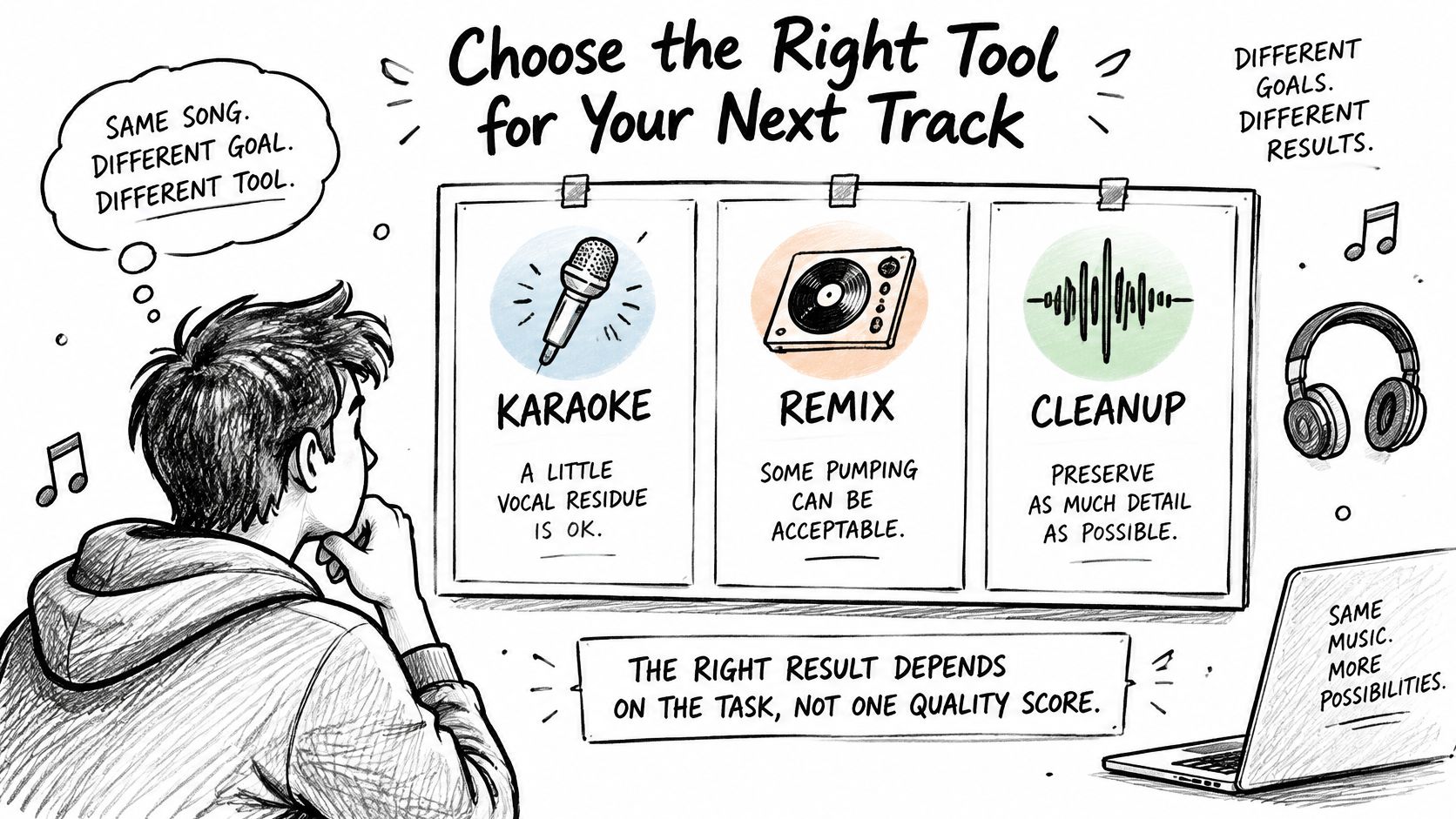
Use cases and the tool category that fits each
| Use case | Residue tolerance | What matters most | Likely fit |
|---|---|---|---|
| Karaoke track | Faint residue acceptable, no pumping | Clean instrumental and fast turnaround | Cloud separator or karaoke maker |
| Remix or sample work | Low residue, transients intact | Lossless WAV or FLAC stems | Pro-tier cloud separator or desktop stem tool |
| Podcast or interview cleanup | Low, speech must stay intelligible | Long files and dialogue clarity | Prompt-based cloud tool on a plan with longer file limits |
| Video soundtrack | Moderate background residue, no distracting dialogue artifacts | Format support such as MP4 and WebM | Cloud separator that accepts video files |
| Research or speech analysis | Measured and repeatable | Fixed settings across files | Local model with fixed settings |
Set an acceptance condition
For karaoke, listen during gaps where the original singer could distract the performer. For a remix, audition the stem with the processing you intend to apply, because compression can expose quiet bleed.
For podcasts and video, test on ordinary playback speakers as well as headphones. For research, retain the model version, settings, source file, and unprocessed reference so another run can be compared meaningfully.
Start with a free account and upload a short excerpt from the hardest passage. Run Balanced, assess both outputs, and upgrade only if the result passes your acceptance test and you need lossless delivery, longer files, or Precision.
Isolate Audio lets you describe the vocal or other sound you want to separate and download both the isolated element and the remainder. Visit Isolate Audio to test your hardest passage for free, then choose your export and processing options based on what your project needs.